• Phantom hard drive - where is it?

    From BertCoules@mail@bertcoules.co.uk to uk.d-i-y on Wed Sep 30 09:33:41 2026
    From Newsgroup: uk.d-i-y

    Apologies if this is a very basic matter, but it's new to me: on my
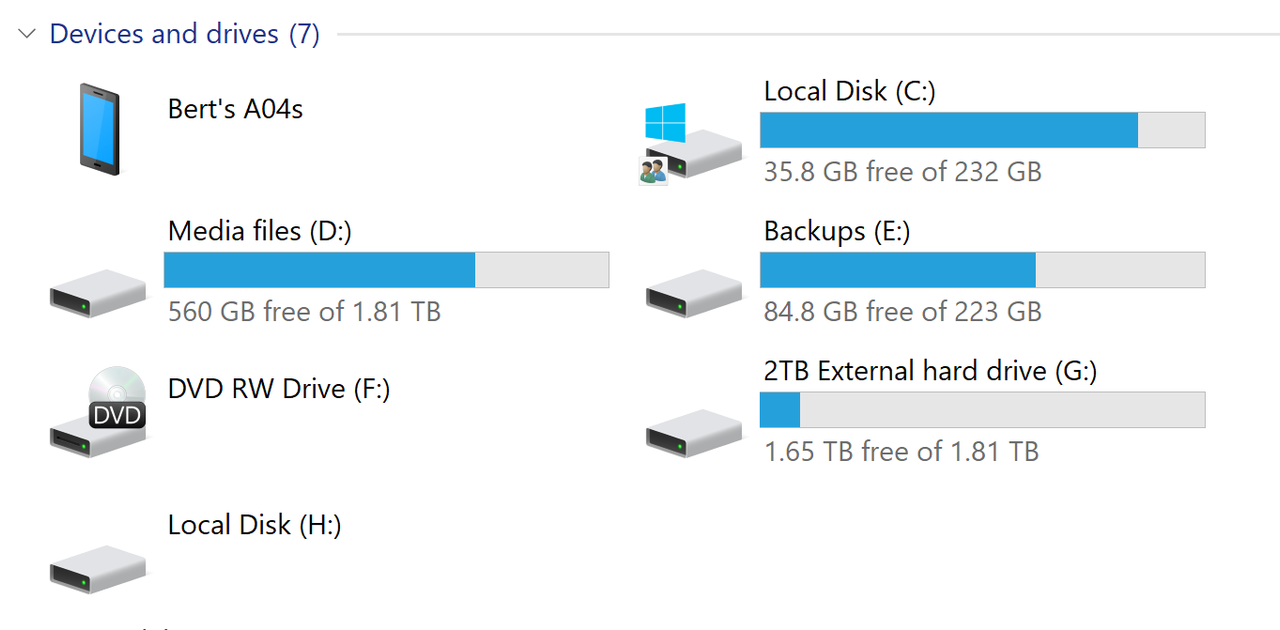
    Windows 10 desktop PC, "This PC" is listing a hard drive (labelled as
    "Local Disk H") which as far as I'm aware doesn't actually exist. Here's
    a screenshot:

    https://postimg.cc/GH6m2NLs

    The other curious thing is that Drive E is listed as 223GB - in fact,
    it's a 2TB drive. Am I right in suspecting that the mysterious (and
    evidently unformatted) Disk H actually the missing section of Disk E?

    If so, how do I get it back where it belongs?

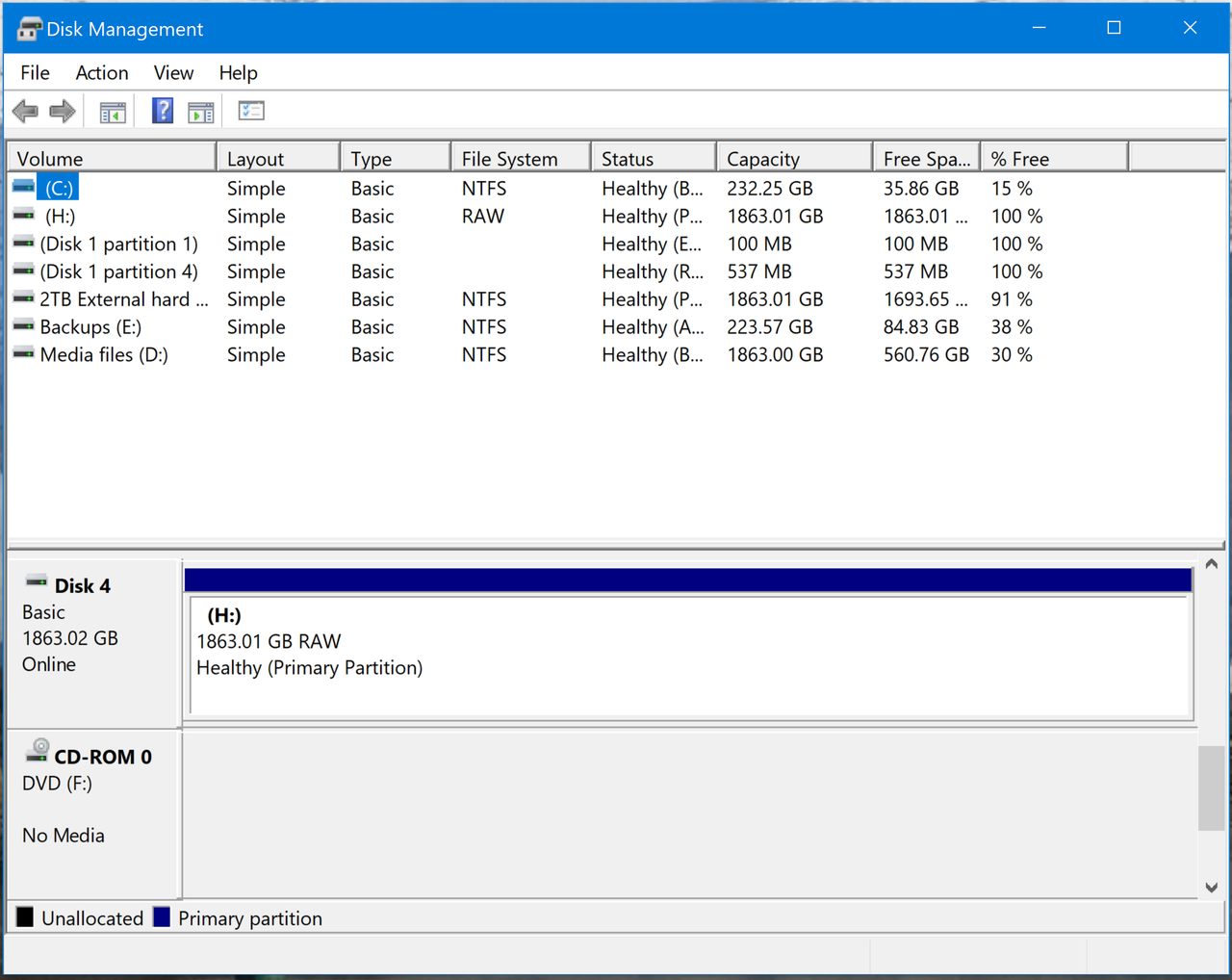
    In case it helps, here's the relevant section of Disk Management:

    https://postimg.cc/DmYD336d

    Many thanks.

    Bert
    --- Synchronet 3.22a-Linux NewsLink 1.2
  • From BertCoules@mail@bertcoules.co.uk to uk.d-i-y on Wed Sep 30 09:42:32 2026
    From Newsgroup: uk.d-i-y

    Sorry, these should be clearer links:

    This PC: https://i.postimg.cc/t44ZrQ8D/Phantom-drive-H-screen-shot.png

    Disk Management: https://i.postimg.cc/4NJTtJhM/Phantom-drive-H-disk-man.png


    --- Synchronet 3.22a-Linux NewsLink 1.2
  • From Jeff Gaines@jgnewsid@outlook.com to uk.d-i-y on Wed Sep 30 09:06:25 2026
    From Newsgroup: uk.d-i-y

    On 30/09/2026 in message <119ihh6$26hp$1@dont-email.me> BertCoules wrote:

    Apologies if this is a very basic matter, but it's new to me: on my
    Windows 10 desktop PC, "This PC" is listing a hard drive (labelled as
    "Local Disk H") which as far as I'm aware doesn't actually exist. Here's a >screenshot:

    https://postimg.cc/GH6m2NLs

    The other curious thing is that Drive E is listed as 223GB - in fact, it's
    a 2TB drive. Am I right in suspecting that the mysterious (and evidently >unformatted) Disk H actually the missing section of Disk E?

    If so, how do I get it back where it belongs?

    In case it helps, here's the relevant section of Disk Management:

    https://postimg.cc/DmYD336d

    Many thanks.

    Bert

    MiniTool Partition Wizard is an excellent tool for this sort of thing,
    it's free and more usable than disk management:

    https://www.partitionwizard.com/

    Drive E: is not in the second picture but you could well be right.
    --
    Jeff Gaines Dorset UK
    Those are my principles rCo and if you donrCOt like them, well, I have
    others.
    (Groucho Marx)
    --- Synchronet 3.22a-Linux NewsLink 1.2
  • From BertCoules@mail@bertcoules.co.uk to uk.d-i-y on Wed Sep 30 11:02:54 2026
    From Newsgroup: uk.d-i-y

    On 30/09/2026 10:06, Jeff Gaines wrote:

    Drive E: is not in the second picture but you could well be right.

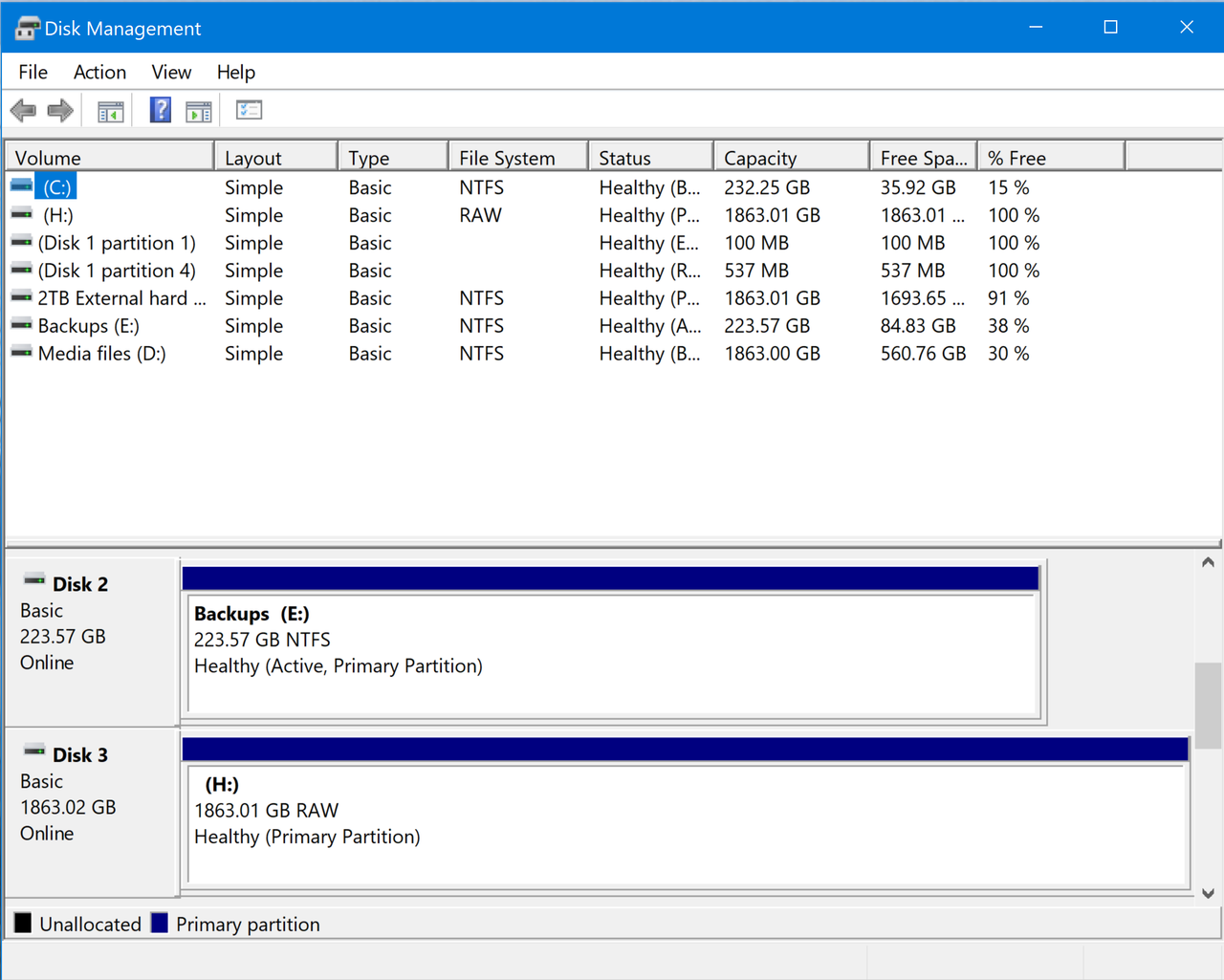
    Yes, I posted the wrong screenshot. Here's the correct one:

    https://i.postimg.cc/gcXRvW8B/Phanton-Drive-H-3.png

    I'll take a look at MiniTool Partition Wizard; thanks.

    Bert
    --- Synchronet 3.22a-Linux NewsLink 1.2
  • From Andy Burns@usenet@andyburns.uk to uk.d-i-y on Wed Sep 30 11:11:12 2026
    From Newsgroup: uk.d-i-y

    BertCoules wrote:

    Yes, I posted the wrong screenshot. Here's the correct one:

    https://i.postimg.cc/gcXRvW8B/Phanton-Drive-H-3.png

    1863.02 GB sounds like a 2TiB drive, doesn't look like a partition of
    another drive, external USB device?


    --- Synchronet 3.22a-Linux NewsLink 1.2
  • From BertCoules@mail@bertcoules.co.uk to uk.d-i-y on Wed Sep 30 11:28:24 2026
    From Newsgroup: uk.d-i-y

    On 30/09/2026 11:11, Andy Burns wrote:

    1863.02 GB sounds like a 2TiB drive, doesn't look like a partition of another drive, external USB device?

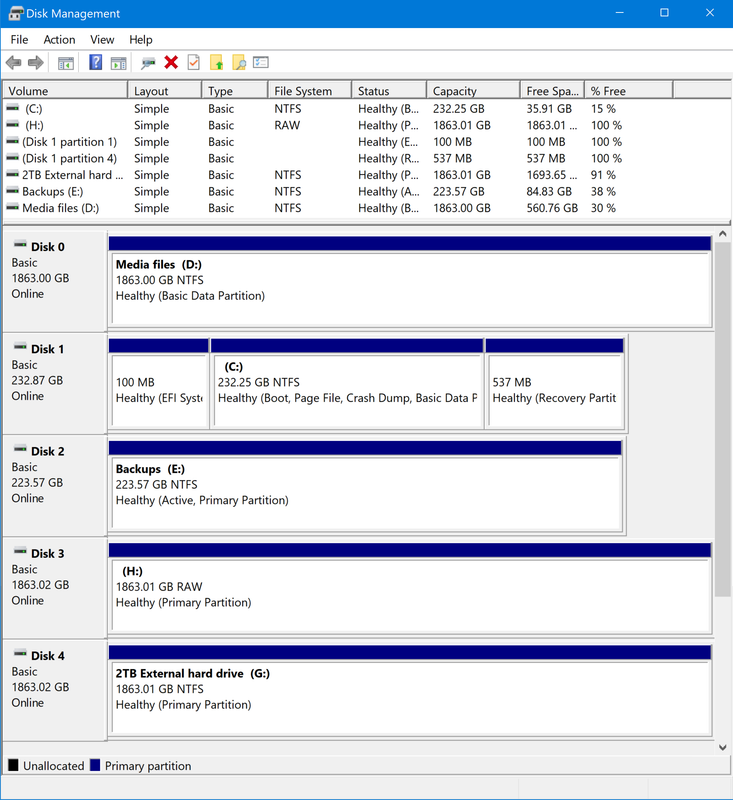
    Here's the whole disk management screen (except for CD-ROM 0 - DVD (F:))
    which is out of sight at the bottom of the list.

    https://i.postimg.cc/zG9Lqddm/Phantom-disk-4.png

    There are four hard drives - two internal (C & D), and two external (E &
    G), plus the internal CD drive (F). So where and what is the mysterious
    Local Disk (H)? And why is the 2TB Disk E reported as being only 223GB?


    --- Synchronet 3.22a-Linux NewsLink 1.2
  • From The Natural Philosopher@tnp@invalid.invalid to uk.d-i-y on Wed Sep 30 11:44:52 2026
    From Newsgroup: uk.d-i-y

    On 30/09/2026 09:33, BertCoules wrote:
    Apologies if this is a very basic matter, but it's new to me: on my
    Windows 10 desktop PC, "This PC" is listing a hard drive (labelled as
    "Local Disk H") which as far as I'm aware doesn't actually exist. Here's
    a screenshot:

    https://postimg.cc/GH6m2NLs

    The other curious thing is that Drive E is listed as 223GB - in fact,
    it's a 2TB drive. Am I right in suspecting that the mysterious (and evidently unformatted) Disk H actually the missing section of Disk E?

    If so, how do I get it back where it belongs?

    In case it helps, here's the relevant section of Disk Management:

    https://postimg.cc/DmYD336d

    Many thanks.

    Ah. yes. the 2TB drive seems to be a 220MB NTFS partition E: and and unformatted partition H:

    If it were linux you can 'grow' the 220MB NTFS partition to use the
    whole disk, but I haven't a clue how to do that with Windows

    Bert
    --
    If I had all the money I've spent on drink...
    ..I'd spend it on drink.

    Sir Henry (at Rawlinson's End)

    --- Synchronet 3.22a-Linux NewsLink 1.2
  • From David Wade@dave@g4ugm.invalid to uk.d-i-y on Wed Sep 30 12:48:12 2026
    From Newsgroup: uk.d-i-y

    On 30/09/2026 12:28, BertCoules wrote:
    On 30/09/2026 11:11, Andy Burns wrote:

    1863.02 GB sounds like a 2TiB drive, doesn't look like a partition of
    another drive, external USB device?

    Here's the whole disk management screen (except for CD-ROM 0 - DVD (F:)) which is out of sight at the bottom of the list.

    https://i.postimg.cc/zG9Lqddm/Phantom-disk-4.png

    There are four hard drives - two internal (C & D), and two external (E &
    G), plus the internal CD drive (F). So where and what is the mysterious Local Disk (H)? And why is the 2TB Disk E reported as being only 223GB?


    If you right click on the little block that says "Disk 3" in the lower
    half of the table and select "properties" it will tell you about
    physical piece of hardware that this line represents

    If you repeat for the line with "Disk 2" that may resolve your problem.

    You should be able to match this up to the disks in the hardware section
    of computer management.

    Dave
    --- Synchronet 3.22a-Linux NewsLink 1.2
  • From David Wade@dave@g4ugm.invalid to uk.d-i-y on Wed Sep 30 12:56:55 2026
    From Newsgroup: uk.d-i-y

    On 30/09/2026 12:44, The Natural Philosopher wrote:
    On 30/09/2026 09:33, BertCoules wrote:
    Apologies if this is a very basic matter, but it's new to me: on my
    Windows 10 desktop PC, "This PC" is listing a hard drive (labelled as
    "Local Disk H") which as far as I'm aware doesn't actually exist.
    Here's a screenshot:

    https://postimg.cc/GH6m2NLs

    The other curious thing is that Drive E is listed as 223GB - in fact,
    it's a 2TB drive. Am I right in suspecting that the mysterious (and
    evidently unformatted) Disk H actually the missing section of Disk E?

    If so, how do I get it back where it belongs?

    In case it helps, here's the relevant section of Disk Management:

    https://postimg.cc/DmYD336d

    Many thanks.

    Ah. yes. the 2TB drive seems to be a 220MB NTFS partition E: and and unformatted partition H:

    The lower half shows physical drives, so Disk 2 and Disk 3 are separate physical drives. Disk Manager has always used 1024 multipliers for mb
    and gb whereas manufacturers use 1000 so a 2tb drive shows as 1,836 gb
    in disk manager.


    If it were linux you can 'grow' the-a-a 220MB NTFS partition to use the whole disk, but I haven't a clue how to do that with Windows


    if they were on the same drive, just right click on the partition and
    you can grow or shrink the partition, but they are not.

    I suspect there is an SD card or similar left in the machine thats
    giving the 220 mb drive.

    Bert


    Dave
    Dave

    Dave
    --- Synchronet 3.22a-Linux NewsLink 1.2
  • From BertCoules@mail@bertcoules.co.uk to uk.d-i-y on Wed Sep 30 13:59:26 2026
    From Newsgroup: uk.d-i-y

    On 30/09/2026 11:56, David Wade wrote:

    I suspect there is an SD card or similar left in the machine thats
    giving the 220 mb drive.

    Brilliant: that was exactly the case.

    By disconnecting everything and starting from there, I discovered a
    solid state drive that I didn't know was installed. Removing it suddenly
    put everything to rights.

    I wonder if perhaps the drive or the connection to it is faulty:
    certainly, until yesterday it hadn't ever shown up. I'll try running it
    as an external drive and see what happens.

    LATER:

    Connected using an external housing and USB cable, both of which I know
    to be working, the drive didn't register at all, either in This Computer
    or Disk Management. So I suspect it's an ex-drive.

    Thanks to everyone for the thoughts and comments. I'm sorry I didn't
    try every possibility first.

    Bert
    --- Synchronet 3.22a-Linux NewsLink 1.2
  • From Abandoned Trolley@that.bloke@microsoft.com to uk.d-i-y on Wed Sep 30 14:30:31 2026
    From Newsgroup: uk.d-i-y


    You should be able to match this up to the disks in the hardware section
    of computer management.

    Dave


    I think its just called "Disk Management"? - which is under Computer Management


    Just type "Computer Management" in the search box at the bottom of the
    screen and it should show up


    There is another route to it from the Control Panel - but I cant
    remember exactly how


    --- Synchronet 3.22a-Linux NewsLink 1.2
  • From BertCoules@mail@bertcoules.co.uk to uk.d-i-y on Wed Sep 30 14:46:55 2026
    From Newsgroup: uk.d-i-y

    On 30/09/2026 14:30, Abandoned Trolley wrote:

    I think its just called "Disk Management"? - which is under Computer Management.

    Just type "Computer Management" in the search box at the bottom of the screen-a and it should show up.

    I went straight to Disk Management by pressing the Windows key + R and entering "diskmgmt.msc" in the Run box.


    --- Synchronet 3.22a-Linux NewsLink 1.2
  • From Abandoned Trolley@that.bloke@microsoft.com to uk.d-i-y on Wed Sep 30 15:29:03 2026
    From Newsgroup: uk.d-i-y

    On 30/09/2026 14:46, BertCoules wrote:
    On 30/09/2026 14:30, Abandoned Trolley wrote:

    I think its just called "Disk Management"? - which is under Computer
    Management.

    Just type "Computer Management" in the search box at the bottom of the
    screen-a and it should show up.

    I went straight to Disk Management by pressing the Windows key + R and entering "diskmgmt.msc" in the Run box.


    does that give you the option of pinning it to the task bar ?
    --- Synchronet 3.22a-Linux NewsLink 1.2
  • From BertCoules@mail@bertcoules.co.uk to uk.d-i-y on Wed Sep 30 15:38:22 2026
    From Newsgroup: uk.d-i-y

    On 30/09/2026 15:29, Abandoned Trolley wrote:

    Does that give you the option of pinning it to the task bar ?

    Not as far as I can see, no.
    --- Synchronet 3.22a-Linux NewsLink 1.2
  • From David Wade@dave@g4ugm.invalid to uk.d-i-y on Wed Sep 30 17:31:09 2026
    From Newsgroup: uk.d-i-y

    On 30/09/2026 15:46, BertCoules wrote:
    On 30/09/2026 14:30, Abandoned Trolley wrote:

    I think its just called "Disk Management"? - which is under Computer
    Management.

    Just type "Computer Management" in the search box at the bottom of the
    screen-a and it should show up.

    I went straight to Disk Management by pressing the Windows key + R and entering "diskmgmt.msc" in the Run box.


    There are two tools. "Disk Management" which just shows disks and the
    way they are partitioned, and lets you manage partitions. I mentioned
    the other "Device Manager" which shows all hardware devices including
    disk drives and allows you to manage drivers etc. As in this tool you
    can change the view to show "devices by connection". I thought this
    might help locate the errant device.

    There are lots of ways to access these Microsoft Management Console
    (MMC) plug-ins. Both are part of the "Computer Management" console, or
    can be accessed directly. I usually right click on the funny start thing
    in windows/10 and 11, to get these but there are many other routes to
    the same tools. None is "the right way" its whatever works for you.

    If you wanted you could even create a custom MMC console with just these
    tools and pin it to the start bar... If you are bored type MMC into the
    run box and see what plug-ins there are.

    .. and for completeness there is also a command-line tool "diskpart"
    which is most arcane, but which may be required to perform one or two
    rarely needed functions...

    Dave
    --- Synchronet 3.22a-Linux NewsLink 1.2
  • From David Wade@dave@g4ugm.invalid to uk.d-i-y on Wed Sep 30 17:35:11 2026
    From Newsgroup: uk.d-i-y

    On 30/09/2026 16:29, Abandoned Trolley wrote:
    On 30/09/2026 14:46, BertCoules wrote:
    On 30/09/2026 14:30, Abandoned Trolley wrote:

    I think its just called "Disk Management"? - which is under Computer
    Management.

    Just type "Computer Management" in the search box at the bottom of
    the screen-a and it should show up.

    I went straight to Disk Management by pressing the Windows key + R and
    entering "diskmgmt.msc" in the Run box.


    does that give you the option of pinning it to the task bar ?

    You don't really need to, just right click on the funny window thing at
    the left hand end on the task bar and its there. If you open it this way
    you can pin it to the task bar..

    Dave
    --- Synchronet 3.22a-Linux NewsLink 1.2
  • From Indy Jess John@bathwatchdog@OMITTHISgooglemail.com to uk.d-i-y on Wed Sep 30 17:52:19 2026
    From Newsgroup: uk.d-i-y

    On 30/09/2026 11:28, BertCoules wrote:
    On 30/09/2026 11:11, Andy Burns wrote:

    1863.02 GB sounds like a 2TiB drive, doesn't look like a partition of
    another drive, external USB device?

    Here's the whole disk management screen (except for CD-ROM 0 - DVD (F:)) which is out of sight at the bottom of the list.

    https://i.postimg.cc/zG9Lqddm/Phantom-disk-4.png

    There are four hard drives - two internal (C & D), and two external (E &
    G), plus the internal CD drive (F). So where and what is the mysterious Local Disk (H)? And why is the 2TB Disk E reported as being only 223GB?


    The last time I played with Disc Management it was on a Windows 7 PC,
    and that was a slightly different presentation where the physical drive
    was the unit and the separate partitions on the disc were arrayed along
    it. Windows 10 makes it more difficult to identify which partitions are together on which physical media. In the information below I have
    assumed that C and H are on one drive and D and E are on the other. It
    could alternatively be C and D on one drive and E and H on the other.
    The exact location of H isn't going to interfere with making H usable.

    This is a Windows oddity. Disc C is a partition on a 2TB hard drive.
    Disc H is the remainder of the space in a named partition on Disc C's
    hard drive though it says "raw" so it has been named but it hasn't been formatted.

    Go into Disc Management and format Disc H and it will then be usable.

    From the look of the sizes, E looks as though it is intended to be a
    backup to C and H is the right size to be a backup of D, though you
    don't have to use it for that if you don't want to.

    --- Synchronet 3.22a-Linux NewsLink 1.2
  • From Andy Burns@usenet@andyburns.uk to uk.d-i-y on Wed Sep 30 18:13:58 2026
    From Newsgroup: uk.d-i-y

    Indy Jess John wrote:

    BertCoules wrote:

    https://i.postimg.cc/zG9Lqddm/Phantom-disk-4.png

    The last time I played with Disc Management it was on a Windows 7 PC,
    and that was a slightly different presentation where the physical drive
    was the unit and the separate partitions on the disc were arrayed along
    it.

    They still are, e.g. Bert's machine shows five physical disks (0 to 4),
    most have only a single partition, except disk 1, which has three
    partitions, only one of which has a drive letter assigned (C).


    --- Synchronet 3.22a-Linux NewsLink 1.2
  • From Andy Burns@usenet@andyburns.uk to uk.d-i-y on Wed Sep 30 18:40:59 2026
    From Newsgroup: uk.d-i-y

    Abandoned Trolley wrote:
    On 30/09/2026 14:46, BertCoules wrote:
    On 30/09/2026 14:30, Abandoned Trolley wrote:

    I think its just called "Disk Management"? - which is under Computer
    Management.

    Just type "Computer Management" in the search box at the bottom of
    the screen-a and it should show up.

    I went straight to Disk Management by pressing the Windows key + R and
    entering "diskmgmt.msc" in the Run box.

    does that give you the option of pinning it to the task bar ?

    Just locate that file in %windir%\system32 and right-drag it to mke a
    shortcut

    --- Synchronet 3.22a-Linux NewsLink 1.2
  • From David Wade@dave@g4ugm.invalid to uk.d-i-y on Wed Sep 30 21:32:57 2026
    From Newsgroup: uk.d-i-y

    On 30/09/2026 19:13, Andy Burns wrote:
    Indy Jess John wrote:

    BertCoules wrote:

    https://i.postimg.cc/zG9Lqddm/Phantom-disk-4.png

    The last time I played with Disc Management it was on a Windows 7 PC,
    and that was a slightly different presentation where the physical
    drive was the unit and the separate partitions on the disc were
    arrayed along it.

    They still are, e.g. Bert's machine shows five physical disks (0 to 4),
    most have only a single partition, except disk 1, which has three partitions, only one of which has a drive letter assigned (C).


    There have been virtually no changes in the Microsoft Management
    Consoles since they were introduced in Windows/2000. Disk Management has always had two panels. A list of "Drive Letters" at the top, which are
    not Drive Letters but partition mappings, and a list of physical drives.

    I also note that virtual drives which are created by the subst command
    are not shown

    Dave
    --- Synchronet 3.22a-Linux NewsLink 1.2
  • From Abandoned Trolley@that.bloke@microsoft.com to uk.d-i-y on Wed Sep 30 21:14:29 2026
    From Newsgroup: uk.d-i-y


    You don't really need to, just right click on the funny window thing at
    the left hand end on the task bar and its there. If you open it this way
    you can pin it to the task bar..

    Dave


    Thanks - I had never noticed that before (I mean the right clicking bit)
    --- Synchronet 3.22a-Linux NewsLink 1.2
  • From alan_m@junk@admac.myzen.co.uk to uk.d-i-y on Thu Oct 1 08:39:11 2026
    From Newsgroup: uk.d-i-y

    On 30/09/2026 09:33, BertCoules wrote:
    Apologies if this is a very basic matter, but it's new to me: on my
    Windows 10 desktop PC, "This PC" is listing a hard drive (labelled as
    "Local Disk H") which as far as I'm aware doesn't actually exist. Here's
    a screenshot:

    https://postimg.cc/GH6m2NLs

    The other curious thing is that Drive E is listed as 223GB - in fact,
    it's a 2TB drive. Am I right in suspecting that the mysterious (and evidently unformatted) Disk H actually the missing section of Disk E?

    If so, how do I get it back where it belongs?

    In case it helps, here's the relevant section of Disk Management:

    https://postimg.cc/DmYD336d

    Many thanks.

    Bert


    Google Win10 disk partition RAW
    It may/will give some clues about how to proceed and what not to do if
    the disk contains information that you may want to keep.
    --
    mailto : news {at} admac {dot} myzen {dot} co {dot} uk
    --- Synchronet 3.22a-Linux NewsLink 1.2
  • From Jeff Gaines@jgnewsid@outlook.com to uk.d-i-y on Thu Oct 1 07:50:47 2026
    From Newsgroup: uk.d-i-y

    On 01/10/2026 in message <ni6h0vFp757U2@mid.individual.net> alan_m wrote:

    On 30/09/2026 09:33, BertCoules wrote:
    Apologies if this is a very basic matter, but it's new to me: on my >>Windows 10 desktop PC, "This PC" is listing a hard drive (labelled as >>"Local Disk H") which as far as I'm aware doesn't actually exist. Here's >>a screenshot:

    https://postimg.cc/GH6m2NLs

    The other curious thing is that Drive E is listed as 223GB - in fact, >>it's a 2TB drive. Am I right in suspecting that the mysterious (and >>evidently unformatted) Disk H actually the missing section of Disk E?

    If so, how do I get it back where it belongs?

    In case it helps, here's the relevant section of Disk Management:

    https://postimg.cc/DmYD336d

    Many thanks.

    Bert


    Google Win10 disk partition RAW
    It may/will give some clues about how to proceed and what not to do if the >disk contains information that you may want to keep.

    MiniTool Partition Wizard will allow you to allocate it a drive letter so
    you can see it in File Explorer. Windows Disk Management may also allow
    this but I don't know.
    --
    Jeff Gaines Dorset UK
    That's an amazing invention but who would ever want to use one of them? (President Hayes speaking to Alexander Graham Bell on the invention of the telephone)
    --- Synchronet 3.22a-Linux NewsLink 1.2
  • From Andy Burns@usenet@andyburns.uk to uk.d-i-y on Thu Oct 1 09:11:30 2026
    From Newsgroup: uk.d-i-y

    alan_m wrote:

    Google Win10 disk partition RAW
    It may/will give some clues about how to proceed and what not to do if
    the disk contains information that you may want to keep.

    Either non formatted, or formatted (e.g by Linux) that Windows doesn't recognise.

    --- Synchronet 3.22a-Linux NewsLink 1.2