• How to zoom on the phone BEFORE you connect adb scrcpy to your desktop PC?

    From Maria Sophia@mariasophia@comprehension.com to comp.mobile.android,alt.os.linux,alt.comp.os.windows-10 on Fri Jun 26 00:41:17 2026
    From Newsgroup: comp.mobile.android

    How to zoom on the phone BEFORE you connect adb scrcpy to your desktop PC?
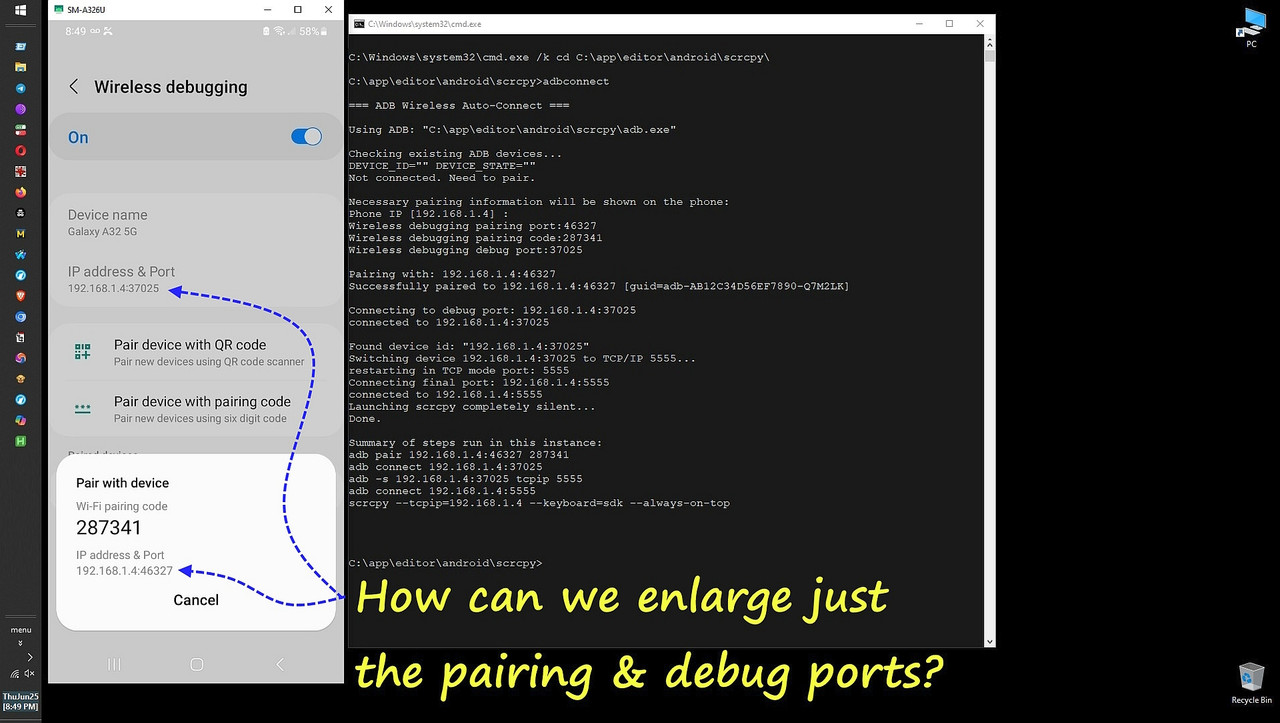
    <https://i.postimg.cc/0yMJrHfM/adbconnect-ports.jpg>
    There's my problem, which is a function of my octogenarian lousy eyesight.

    To display my phone on my monitor I type into Windows: "adbconnect".
    Pretty simple, right? Easy peasy. But where do I get the random ports from?
    a. Long ago I added a tile which I slide down from top to expose tiles
    b. I tap the "Wireless debugging" tile & turn it on (if off after reboot)
    c. I tap the words "Pair device with pairing code"
    That brings up the Android Developer options > Wireless debugging activity.

    That's where I get the 3 random codes that I need to type manually to
    connect wirelessly (sans USB cable) between the phone and the desktop PC.

    Then I have to type three sets of random 5-6 digit numbers, only one set of which is displayed large enough to see, the others are extremely tiny text.

    After that, scrcpy will make my homescreen almost 2 feet tall on my PC.
    <https://i.postimg.cc/0yMJrHfM/adbconnect-ports.jpg>
    Now I can see everything right in front of my very old octogenarian eyes!

    But that's too late.
    I need to more easily see the random ports BEFORE I connect to the desktop.

    Q: How can I display the teeny-tiny sets of numbers bigger on the phone?
    A: ?

    See below for the information ADB wireless debugging will ask for.
    adbconnect
    === ADB Wireless Auto-Connect ===
    Using ADB: "C:\app\editor\android\scrcpy\adb.exe"

    Checking existing ADB devices...
    DEVICE_ID="" DEVICE_STATE=""
    Not connected. Need to pair.

    Necessary pairing information will be shown on the phone:
    Phone IP [192.168.1.4] :
    Wireless debugging pairing port:46327
    Wireless debugging pairing code:287341
    Wireless debugging debug port:37025

    Pairing with: 192.168.1.4:46327
    Successfully paired to 192.168.1.4:46327 [guid=adb-AB12C34D56EF7890-Q7M2LK]

    Connecting to debug port: 192.168.1.4:37025
    connected to 192.168.1.4:37025

    Found device id: "192.168.1.4:37025"
    Switching device 192.168.1.4:37025 to TCP/IP 5555...
    restarting in TCP mode port: 5555
    Connecting final port: 192.168.1.4:5555
    connected to 192.168.1.4:5555
    Launching scrcpy completely silent...
    Done.

    Summary of steps run in this instance:
    adb pair 192.168.1.4:46327 287341
    adb connect 192.168.1.4:37025
    adb -s 192.168.1.4:37025 tcpip 5555
    adb connect 192.168.1.4:5555
    scrcpy --tcpip=192.168.1.4 --keyboard=sdk --always-on-top
    === ADB Wireless Auto-Connect ===

    C:\> adb devices
    List of devices attached
    192.168.1.4:5555 device

    But all that is too little, too late for the actual connection process.
    I need to be able to *see* the teeny-tiny random ports BEFORE I connect.

    Q: How can I display the teeny-tiny sets of numbers bigger on the phone?
    A: ?
    --
    Sometimes on Usenet you can find people who know more than you do.
    --- Synchronet 3.22a-Linux NewsLink 1.2
  • From Herbert Kleebauer@klee@unibwm.de to comp.mobile.android,alt.os.linux,alt.comp.os.windows-10 on Fri Jun 26 18:55:11 2026
    From Newsgroup: comp.mobile.android

    On 6/26/2026 6:41 AM, Maria Sophia wrote:

    But all that is too little, too late for the actual connection process.
    I need to be able to *see* the teeny-tiny random ports BEFORE I connect.

    Q: How can I display the teeny-tiny sets of numbers bigger on the phone?
    A: ?

    So many possible answers:


    1. Don't use

    Pair device with pairing code
    Pair new devices using six digit code

    but

    Pair device with QR code
    Pair new devices using QR code scanner

    and a QR-Code reader for your PC


    2. Use the web cam to display the text on the phone screen on your PC

    3. Use an analog or digital magnifier glass

    4. Use the built-in magnifier of your phone
    https://www.tiktok.com/@mo.bilfunk/video/7186784050210671878

    5. or anything else


    --- Synchronet 3.22a-Linux NewsLink 1.2
  • From Maria Sophia@mariasophia@comprehension.com to comp.mobile.android,alt.os.linux,alt.comp.os.windows-10 on Sat Jun 27 03:24:06 2026
    From Newsgroup: comp.mobile.android

    Herbert Kleebauer wrote:
    So many possible answers:


    1. Don't use

    Pair device with pairing code
    Pair new devices using six digit code

    but

    Pair device with QR code
    Pair new devices using QR code scanner

    and a QR-Code reader for your PC


    2. Use the web cam to display the text on the phone screen on your PC

    3. Use an analog or digital magnifier glass

    4. Use the built-in magnifier of your phone
    https://www.tiktok.com/@mo.bilfunk/video/7186784050210671878

    5. or anything else

    Hi Herbert,

    Thanks for your purposefully helpful kind advice, which I appreciate.

    You've helped me a lot over the years, where one of your most famous contributions was the "certutil -f -decode %~f0 showwin.exe>nul" trick.

    Little did I know at the time, as I used that script for years, is that at
    some point the Genymotion scrcpy folks wrote a vbs script to do the same.

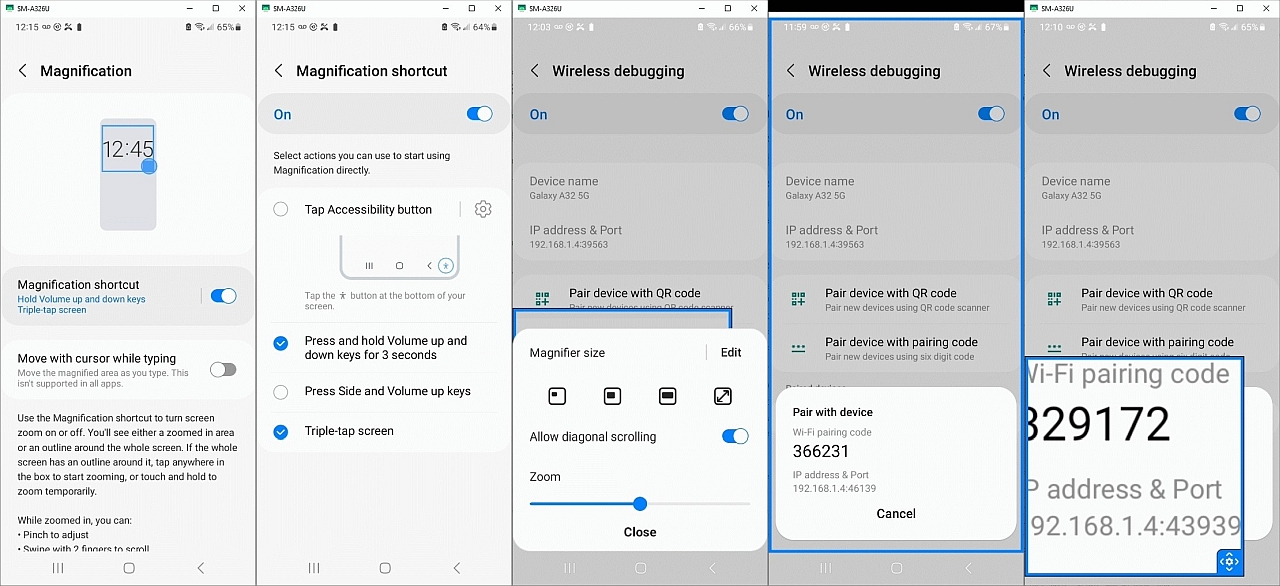
    As for the local zoom in an activity, the problem, for me, is Samsung. Apparently, Samsung won't let me do the simplest of zooms I want to do.

    Even so, I finally figured the whole damn thing out, and it just sucks.
    <https://i.postimg.cc/JzdV4DB4/magnification.jpg>

    The more I deal with my Samsung, the more I realize there are 2 Androids
    1. Pixel Android (clean, consistent, predictable, open, configurable)
    2. Samsung Android (not the above)

    In terms of zooming, Pixel Android uses the accessibility framework.
    a. On Pixels, triple-tap magnification works everywhere
    b. Hence, scrcpy gestures behave predictably
    c. System gestures don't conflict with accessibility

    Yet, in terms zooming, Samsung rewrites Accessibility
    a. Samsung removes triple-tap magnification on my models
    b. Hides magnification options depending on other settings
    c. Blocks gesture-based accessibility during screen mirroring
    d. Replaces Google's gesture recognizers with Samsung's own

    Worse, Samsung uses the same words (shortcut, triple-tap) as Google, in
    terms of accessibility, but they mean completely different things.

    On a Pixel, a shortcut is an icon I tap to start something, while a
    triple-tap anywhere on the screen is one way to do a zoom.

    On Samsung, a magnification shortcut is simply a way to activate the
    magnifier, like a switch, where one way is via a triple tap trigger.

    Samsung lets us choose how to activate the magnifier.
    They do not allow us to zoom the screen by themselves.
    They only turn on the magnifier.

    Samsung:Android13
    Settings > Accessibility > Visibility enhancements > Magnification
    Magnification shortcut = on
    Longpress on that last setting to open another activity to set
    (_)Tap Accessibility button
    (x)Press nd hold Volume up and down keys for 3 seconds
    (_)Press Side and Volume up keys
    (x)Triple-tap scren

    Then I go to the Developer options > Wireless debugging activity.
    The first time I use two hands to press & hold volume up & volume down,
    after I inevitably end up changing the actual media volume controls,
    I get the warning:
    "Use Volume keys for Accessibility?
    Press and hold both Volume keys for three seconds to use Magnification.
    You can select a different function in Settings > Accessibility >
    Advanced settings." [Don't use] [Use]

    And then, the second time I use both hands to activate it, I get a blue
    border around the entire screen, where I can pinch to zoom at a location.

    It's clumsy, but I can tap on a teeeny-tiny port and that zooms to it, but
    then I have to move the screen around because the zoom is imperfect.

    The clumsiness persists in that when you want to zoom into the second port,
    I can't just move the screen. I have to first tap and then move it.

    Exiting takes two hands again, as you exit the blue box how you got in it. Since two hands on a phone is clumsy, I set the triple-tap next.

    Now, when I triple tap, I get a blue box with the suggestion:
    "Drag the handle to move the window.
    Tap the handle to adjust the magnification"

    Again, exiting is a clumsy repeat of the say convoluted entrance method.

    Apparently Samsung removed the elegant Pixel-style "triple-tap to zoom" and replaced it with a magnification mode that behaves like a clumsy separate
    tool we must enter and exit, not a gesture we can freely use.

    Anyway, I got it working (for some forms of the definition of working).
    It just sucks.

    I'm hoping there is a special magnifier tool app that actually works.
    --
    Usenet is an assemblage of kind helpful people assisting each other.
    --- Synchronet 3.22a-Linux NewsLink 1.2
  • From Herbert Kleebauer@klee@unibwm.de to comp.mobile.android,alt.os.linux,alt.comp.os.windows-10 on Sat Jun 27 10:25:16 2026
    From Newsgroup: comp.mobile.android

    On 6/27/2026 9:24 AM, Maria Sophia wrote:


    As for the local zoom in an activity, the problem, for me, is Samsung. Apparently, Samsung won't let me do the simplest of zooms I want to do.

    Samsung an all the other phones support the simplest way of zoom:

    https://www.aliexpress.us/item/3256809573989184.html
    --- Synchronet 3.22a-Linux NewsLink 1.2
  • From Maria Sophia@mariasophia@comprehension.com to comp.mobile.android,alt.os.linux,alt.comp.os.windows-10 on Sat Jun 27 04:39:12 2026
    From Newsgroup: comp.mobile.android

    Maria Sophia wrote:
    I'm hoping there is a special magnifier tool app that actually works.

    There apparently is Google's Magnifier app, where you point your Samsung
    camera to the screen and then use the Google Magnifier app to zoom. 0#a<https://play.google.com/store/apps/details?id=com.google.android.apps.accessibility.magnifier>
    But that's a kluge since it's not designed as a screen-zooming tool.

    When I use the best search engine in the world for apps (Skyica App
    Finder), there are 180 results for free magnifier apps on Android.

    Some examples that the best app finder in the world puts on top are
    <market://details?id=magnifiers.magnifying.loupe>
    <market://details?id=de.stoehr.loviapps.wezoom>
    <market://details?id=com.humanware.hwmagnifier>
    etc.

    But most (all?) seem to be a variant of the camera approach Google uses.

    However, even on Samsung, there is a way to open the Samsung-hidden AOSP magnifier using a free github utility called Activity Launcher.
    <https://play.google.com/store/apps/details?id=de.szalkowski.activitylauncher>

    Open Activity Launcher & scroll to "com.android.settings"
    Search for:
    com.android.settings.accessibility.MagnificationSettingsActivity
    Settings$MagnificationSettingsActivity
    Settings$AccessibilitySettingsActivity
    Settings$AccessibilityDetailsSettingsActivity
    But, unfortunately, my Settings app has only 518 activities, none
    of which have the word "magnification" in their unique names.

    I did find these settings activities when searching for "zoom"
    com.android.settings.Settings$SecScreenZoomActivity
    com.samsung.android.settings.display.SecScreenZoomPreferenceFragment

    Both seem to launch the permanent "Screen zoom" activity, which will set
    the screen zoom size for all screens, which isn't what we want.

    There is a com.samsung.accessibility package that Activity Launcher found.
    It has 18 activities, three of which have "Magnifi" in the names:
    com.samsung.accessibility.Activities$MagnificationActivity
    com.samsung.accessibility.shortcut.MagnifierCameraShortcut
    com.samsung.accessibility.Activities$MagnifierCameraActivity
    All three fail to launch though (each with a different java error).

    So, unless it's a hidden activity that I can resurrect, that was a bust.
    --
    Usenet is a team sport where each person owns a set of professional skills.
    --- Synchronet 3.22a-Linux NewsLink 1.2
  • From Maria Sophia@mariasophia@comprehension.com to comp.mobile.android,alt.os.linux,alt.comp.os.windows-10 on Sat Jun 27 04:55:38 2026
    From Newsgroup: comp.mobile.android

    Herbert Kleebauer wrote:
    As for the local zoom in an activity, the problem, for me, is Samsung.
    Apparently, Samsung won't let me do the simplest of zooms I want to do.

    Samsung an all the other phones support the simplest way of zoom: https://www.aliexpress.us/item/3256809573989184.html

    Even simpler is to screenshot the screen and zoom into that screenshot. :)

    The good news is we learned a *lot* about this problem set, where likely
    this is the simplest long-term solution for most people who use adb.
    a. Authorize your PC once over USB
    b. Then the workflow becomes:
    adb connect PHONE_IP:5555
    scrcpy --tcpip=PHONE_IP
    c. Note this requires:
    No pairing codes.
    No tiny ports.
    No magnification.
    No Samsung nonsense.

    While I'm sure that's what most people do, I'm trying to set up a perfect connection between the phone & desktop *completely* over Wi-Fi (not USB).

    So most people wouldn't even need those teeny-tiny ports if they used USB. Meanwhile, I learned Samsung apparently removed the AOSP magnifier and that every app on the Google Play Store seems to be a camera-based magnifier.

    The screen zoom settings I found were font/UI scaling, not magnification.
    So I could write a program to snap a screenshot and copy it over to the PC.
    <https://f-droid.org/packages/name.lmj001.savetodevice>

    Or, just longpress the screenshot & tap share & email it over to the PC.
    --
    Usenet isn't for amusement; it's for learning from and teaching each other.
    --- Synchronet 3.22a-Linux NewsLink 1.2