• Anyone know what happened to the DS Clock freeware archives?

    From Maria Sophia@mariasophia@comprehension.com to alt.comp.os.windows-10,alt.comp.freeware,alt.comp.microsoft.windows on Wed Nov 11 01:47:30 2026
    From Newsgroup: alt.comp.os.windows-10

    Anyone know what happened to the DS Clock freeware archives?

    Long ago I wrote a tutorial for duplicating the Windows taskbar clock in
    any desired timezone, which works for me 'cuz I randomize the sys clock.

    But even for those who don't randomize their system clock, it's nice to
    be able to get the time and date in any format you can want it to be.

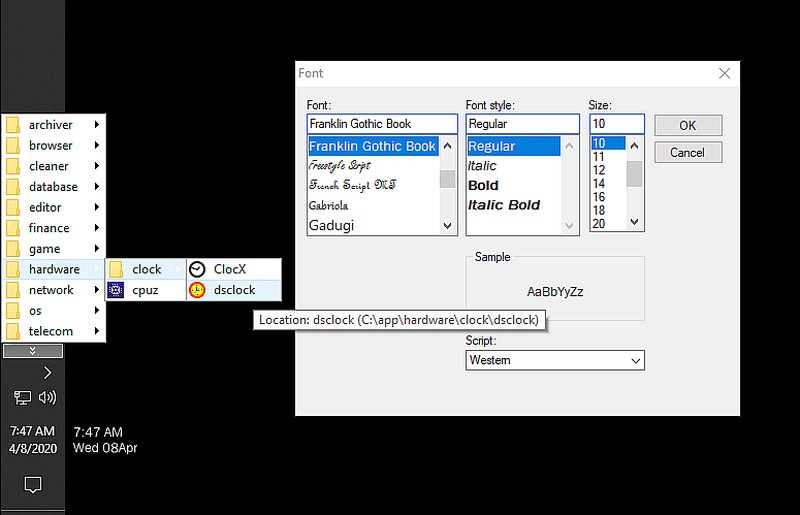
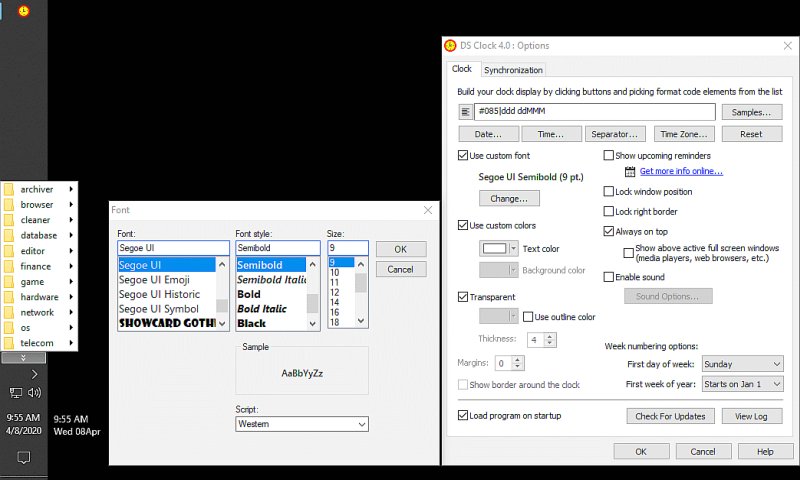
    For example, I use "dddMMMdd|[#085]", which creates an overlay of
    WedNov11
    [9:44 PM]

    As shown in these old screenshots made long ago when I wrote the tutorial.
    <https://i.postimg.cc/Dy2mgsNq/clock01.jpg>
    <https://i.postimg.cc/9f6KJx4f/clock02.jpg>

    Today I pressed "Check for Updates" & got "Couldn't resolve host name". Bummer... (luckily, I save all my software downloads, but still...)

    Duality Software was known for DS Clock and HandyPIM in the past:
    <http://www.dualitysoft.com>
    But the domain appears to be gone.

    Domain registration records seem to show that the domain expired
    in Sept 2026 and entered a deletion/redemption phase shortly after,
    with its DNS nameservers redirected to expired-domain placeholders.

    AFAICT, the official website and its downloads are no longer active .
    The old tutorial is below, but what happened to the software archives?

    Anyone have any insight?

    ===== < cut here for the old DSClock setup tutorial >=====

    1. Obtain 32-bit/64-bit "dsclock" from <http://www.dualitysoft.com>
    <https://www.dualitysoft.com/dsclock/index.html>
    Note that it phonese home via the web after installation.
    2. It wants to install into: "C:\Program Files\DS Clock"
    I put it where it belongs, which is: "C:\app\hardware\clock\dsclock"
    3. Warning: Use a killswitch as the installer, by default, phones home to:
    <https://www.dualitysoft.com/dsclock/thankyou.html?src=dsc-install&version=4.0.0.2>
    4. Note the default display setting = hh:mm:ss tt - MMMM dd, yyyy
    Which shows up in blue & yellow as 07:17:07 AM - April 08, 2020
    5. What I prefer is a minimalistic display (note the lack of space delimiters):
    o 7:17AM
    o Wed08Apr
    6. Click the suggested buttons to visualize the necessary syntax, e.g.,
    Date... {Day=dd}{Month=MMM}
    Time... {Hour=hh}{Min=mm}
    Separator...{LineBreak=|}
    TimeZone...{(UTC-08:00) Pacific Time (US & Canada)=[#085]}
    7. Set the desired time and date format, if not the default, which is:
    Date & Time Format (note, other than 24-hour time, you must have a space)
    (o)7:17 PM
    (_)Wed 7:17 PM
    (_)4/8 7:17 PM
    (_)Wed 4/8 7:17 PM
    [_]Military time format
    8. Set the display to be whatever you desire, e.g., #085|ddd ddMMM
    o #085 = pacific time zone
    o | = newline
    o ddd = weekday in 3 letters, first capitalized
    o <space> = space character
    o MMM = month in 3 letters, first capitalized
    Which shows up as two lines:
    7:17 AM
    Wed 08Apr
    Note: I haven't figured out how to remove the space before the meridiem
    indicator yet; so, for balance & consistency, I added the space
    after the weekday indicator.
    9. Change the font to match the Windows default system font (if desired):
    [x]Use custom font
    Segoe UI, semibold, 9, Western
    10. Change the font & text color & background color
    [x]Use custom colors
    [white]Text color
    [any color because it will be transparent]Background color
    [x]Transparent [_]Use outline color
    Set the paragraph icon to:
    [_]Left
    [_]Right
    [x]Centered
    Margins = 0
    11. Uncheck
    [_]Enable sound (otherwise it can signal events you don't care about)
    [_]Show upcoming reminders (I think this requires a plugin to work)
    12. Leave at the default these key settings if desired:
    [x]Load program on startup
    [x]Always on top
    [x]Lock window position (after you manually position it, of course)
    First day of week: Sunday
    First week of year: Starts on Jan 1
    etc.

    Note these each do something different that I find useful in my use model:
    1. clocx adds a simple but large round desktop clock of a chosen timezone.
    <http://www.clocx.net>
    2. dsclock adds a configurable desktop digital clock of a chosen timezone.
    <http://www.dualitysoft.com>
    3. T-clock simply replaces the taskbar clock (same system timezone choice).
    <https://github.com/White-Tiger/T-Clock/releases>

    For example, we can modify the taskbar system clock display using T-clock
    which also has "line spacing" options that dsclock freeware doesn't offer:
    <https://windows-cdn.softpedia.com/screenshots/T-Clock-Redux_11.png>
    and which has a checkbox option to display the meridiem indicator or not:
    <https://windows-cdn.softpedia.com/screenshots/T-Clock-Redux_10.png>
    but, as far as I'm aware, T-Clock freeware is bound to the system time zone, whereas ClocX and DSclock are not tied to the system time zone (AFAIK).

    As always, please improve these dozen-step tutorials so all benefit.
    --- Synchronet 3.22a-Linux NewsLink 1.2
  • From Paul@nospam@needed.invalid to alt.comp.os.windows-10,alt.comp.freeware,alt.comp.microsoft.windows on Wed Nov 11 01:07:06 2026
    From Newsgroup: alt.comp.os.windows-10

    On Wed, 11/11/2026 12:47 AM, Maria Sophia wrote:
    Anyone know what happened to the DS Clock freeware archives?

    Duality Software was known for DS Clock and HandyPIM in the past: <http://www.dualitysoft.com>

    You would check archive.org for it.

    https://web.archive.org/web/20240119014847/https://www.dualitysoft.com/download.html

    Wikipedia routinely has to convert existing cite links into archive.org links, due to websites disappearing, so this sort of activity is "normal" for the Internet.

    In some cases, a webpage that has been over-edited and is broken, using archive.org
    will find you a version that still works (because... it isn't as greedy).

    Paul

    --- Synchronet 3.22a-Linux NewsLink 1.2
  • From Maria Sophia@mariasophia@comprehension.com to alt.comp.os.windows-10,alt.comp.freeware,alt.comp.microsoft.windows on Wed Nov 11 02:34:17 2026
    From Newsgroup: alt.comp.os.windows-10

    Paul wrote:
    Anyone know what happened to the DS Clock freeware archives?

    Duality Software was known for DS Clock and HandyPIM in the past:
    <http://www.dualitysoft.com>

    You would check archive.org for it.

    https://web.archive.org/web/20240119014847/https://www.dualitysoft.com/download.html

    Wikipedia routinely has to convert existing cite links into archive.org links,
    due to websites disappearing, so this sort of activity is "normal" for the Internet.

    In some cases, a webpage that has been over-edited and is broken, using archive.org
    will find you a version that still works (because... it isn't as greedy).

    Thanks for finding the archive, Paul.
    This will help everyone who wants to save it for now, and for the future.

    I downloaded the 64-bit installer using your links:
    <https://web.archive.org/web/20240119014847/https://www.dualitysoft.com/download.html>
    <https://web.archive.org/web/20240624110003/https://www.dualitysoft.com/index.html>
    <https://web.archive.org/web/20241108090447/https://www.dualitysoft.com/dsclock/index.html?src=home>
    <https://web.archive.org/web/20240119014847/https://www.dualitysoft.com/download/dsc-setup-x64.exe>
    Name: dsclock-setup-5.1.2-x64.exe
    Size: 2892496 bytes (2824 KiB)
    SHA256: 4A463B800A9921AA8E01876CBEF83E8EB16A37CA325F746F470025BB958DE55B

    And I downloaded the 32-bit installer (just because we won't find it in the future).
    <https://web.archive.org/web/20241108090447/https://www.dualitysoft.com/dsclock/index.html?src=home>
    <https://web.archive.org/web/20241108090447/https://www.dualitysoft.com/download.html
    <https://web.archive.org/web/20240119014853/https://www.dualitysoft.com/download/dsc-setup-x86.exe>
    Name: dsclock-setup-5.1.2-x86.exe
    Size: 2630816 bytes (2569 KiB)
    SHA256: CA8F2FDF012AED75C8BB76605EFEC85F90A7929D55A510E2A4CA91B797D64ACE

    It's a bummer that it's gone. Get it while you can.
    It's really nice software to overlay on the crappy Windows taskbar clock.

    I was just setting up my taskbar/windows background colors, so
    what I was doing was matching the DSClock overlay to those colors.

    I found two good ways to obtain the RGB colors of any Windows pixel.
    a. Microsoft PowerTools has a "color picker"
    b. Paint.NET will tell you the colors of any pixel in a screenshot
    c. Probably Irfanview would tell you the color of a screenshot pixel too

    Since PowerTools' colorpicker gets the pixel directly off the screen,
    I just now installed it, and this is what I put in the syslog file.

    https://learn.microsoft.com/en-us/windows/powertoys/install
    Name: PowerToysUserSetup-0.102.3101.0-x64.exe
    Size: 323951160 bytes (308 MiB)
    SHA256: 4B4C49A31E8B7E6A36647CCD3033ACB0AD56C306595A9409E59865C3C27D1CF2

    The goal was to make the DSClock overlay exactly the same colors as the taskbar and the same fonts so that it's seamless in the Windows taskbar.
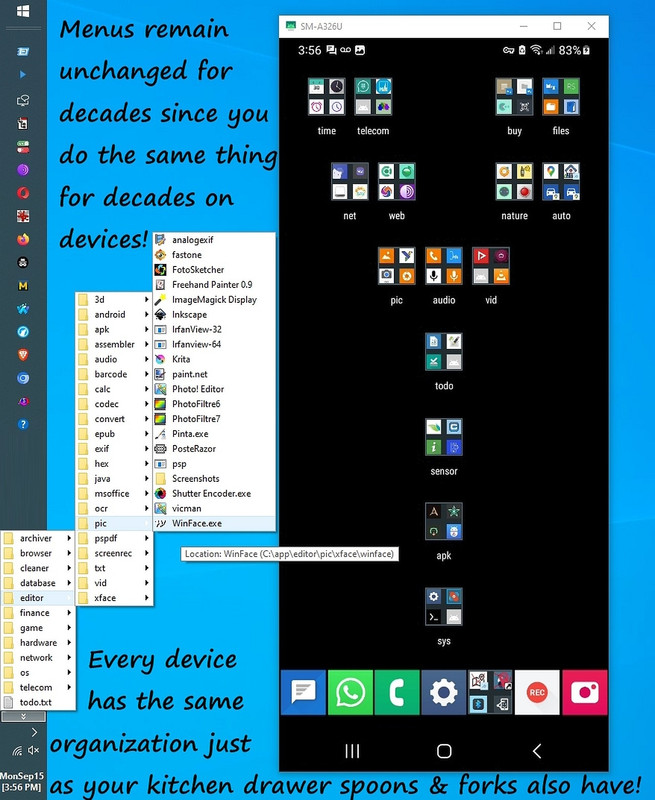
    <https://i.postimg.cc/fW38dhsX/android-windows-menus.jpg>
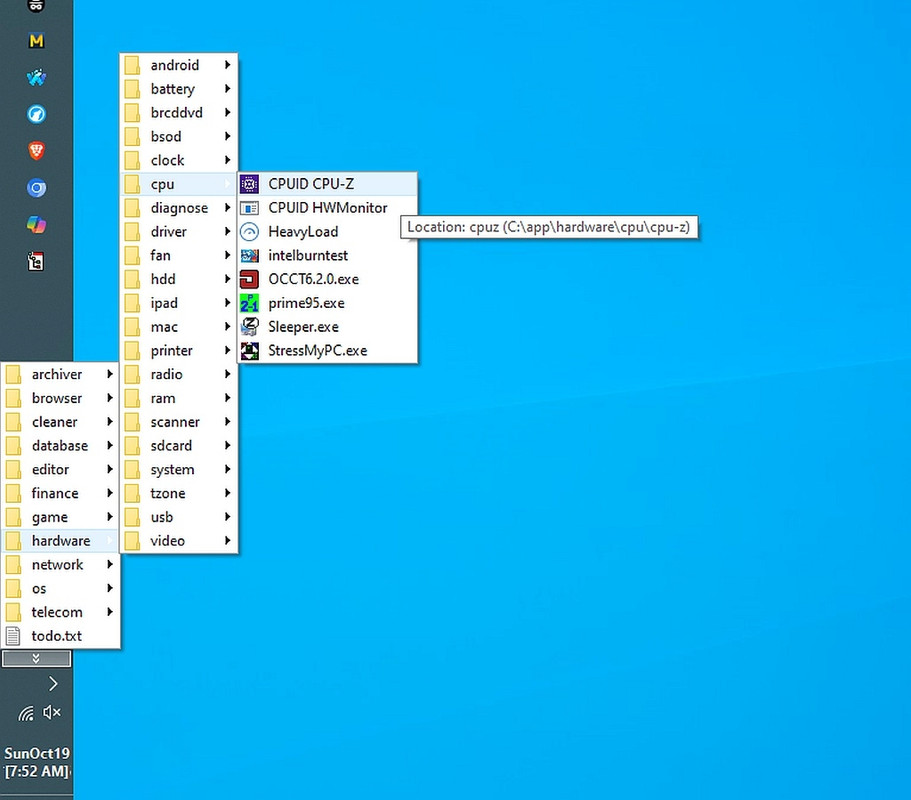
    <https://i.postimg.cc/TPDd40Br/app-cleaner-uninstaller.jpg> https://i.postimg.cc/V5QfgrQr/cpu-menu.jpg

    Note that I change the taskbar colors over time, so I have to change
    DSClock colors if I want it to look seamless. Here it's not seamless.
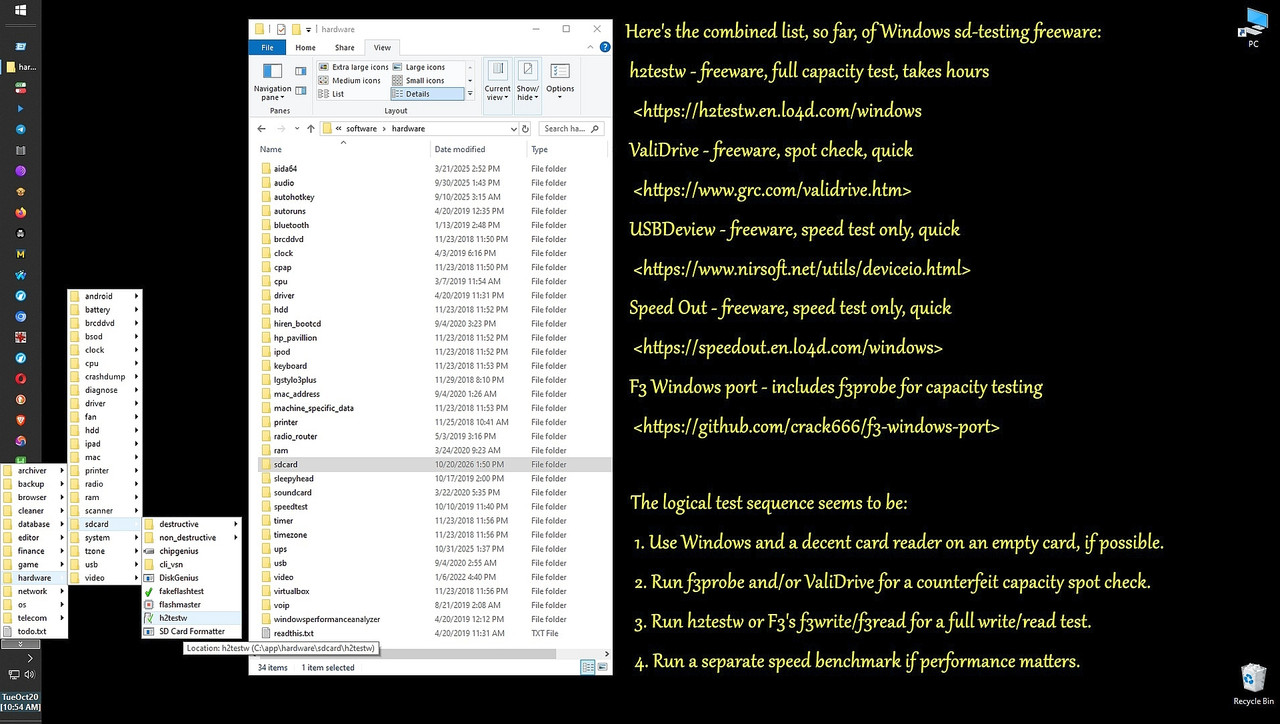
    <https://i.postimg.cc/0Qk4sBDp/hardware-sdcard.jpg>

    So I only accidentally found out that the domain is kaput.
    Thanks for confirming that it's not just my network.

    Get DSClock while you can, as it's a keeper for me.
    --- Synchronet 3.22a-Linux NewsLink 1.2
  • From knuttle@keith_nuttle@yahoo.com to alt.comp.os.windows-10,alt.comp.freeware,alt.comp.microsoft.windows on Wed Nov 11 07:29:20 2026
    From Newsgroup: alt.comp.os.windows-10

    On 11/11/2026 12:47 AM, Maria Sophia wrote:
    Anyone know what happened to the DS Clock freeware archives?

    Long ago I wrote a tutorial for duplicating the Windows taskbar clock in
    any desired timezone, which works for me 'cuz I randomize the sys clock.

    But even for those who don't randomize their system clock, it's nice to
    be able to get the time and date in any format you can want it to be.

    For example, I use "dddMMMdd|[#085]", which creates an overlay of
    WedNov11
    [9:44 PM]

    As shown in these old screenshots made long ago when I wrote the tutorial.
    <https://i.postimg.cc/Dy2mgsNq/clock01.jpg>
    <https://i.postimg.cc/9f6KJx4f/clock02.jpg>

    Today I pressed "Check for Updates" & got "Couldn't resolve host name". Bummer... (luckily, I save all my software downloads, but still...)

    Duality Software was known for DS Clock and HandyPIM in the past:
    <http://www.dualitysoft.com>
    But the domain appears to be gone.

    Domain registration records seem to show that the domain expired
    in Sept 2026 and entered a deletion/redemption phase shortly after,
    with its DNS nameservers redirected to expired-domain placeholders.

    AFAICT, the official website and its downloads are no longer active .
    The old tutorial is below, but what happened to the software archives?

    Anyone have any insight?

    ===== < cut here for the old DSClock setup tutorial >=====

    1. Obtain 32-bit/64-bit "dsclock" from <http://www.dualitysoft.com>
    <https://www.dualitysoft.com/dsclock/index.html>
    Note that it phonese home via the web after installation.
    2. It wants to install into: "C:\Program Files\DS Clock"
    I put it where it belongs, which is: "C:\app\hardware\clock\dsclock"
    3. Warning: Use a killswitch as the installer, by default, phones home to:
    <https://www.dualitysoft.com/dsclock/thankyou.html?src=dsc-install&version=4.0.0.2>
    4. Note the default display setting = hh:mm:ss tt - MMMM dd, yyyy
    Which shows up in blue & yellow as 07:17:07 AM - April 08, 2020
    5. What I prefer is a minimalistic display (note the lack of space delimiters):
    o 7:17AM
    o Wed08Apr
    6. Click the suggested buttons to visualize the necessary syntax, e.g.,
    Date... {Day=dd}{Month=MMM}
    Time... {Hour=hh}{Min=mm}
    Separator...{LineBreak=|}
    TimeZone...{(UTC-08:00) Pacific Time (US & Canada)=[#085]}
    7. Set the desired time and date format, if not the default, which is:
    Date & Time Format (note, other than 24-hour time, you must have a space)
    (o)7:17 PM
    (_)Wed 7:17 PM
    (_)4/8 7:17 PM
    (_)Wed 4/8 7:17 PM
    [_]Military time format
    8. Set the display to be whatever you desire, e.g., #085|ddd ddMMM
    o #085 = pacific time zone
    o | = newline
    o ddd = weekday in 3 letters, first capitalized
    o <space> = space character
    o MMM = month in 3 letters, first capitalized
    Which shows up as two lines:
    7:17 AM
    Wed 08Apr
    Note: I haven't figured out how to remove the space before the meridiem
    indicator yet; so, for balance & consistency, I added the space
    after the weekday indicator.
    9. Change the font to match the Windows default system font (if desired):
    [x]Use custom font
    Segoe UI, semibold, 9, Western
    10. Change the font & text color & background color
    [x]Use custom colors
    [white]Text color
    [any color because it will be transparent]Background color
    [x]Transparent [_]Use outline color
    Set the paragraph icon to:
    [_]Left
    [_]Right
    [x]Centered
    Margins = 0
    11. Uncheck
    [_]Enable sound (otherwise it can signal events you don't care about)
    [_]Show upcoming reminders (I think this requires a plugin to work)
    12. Leave at the default these key settings if desired:
    [x]Load program on startup
    [x]Always on top
    [x]Lock window position (after you manually position it, of course)
    First day of week: Sunday
    First week of year: Starts on Jan 1
    etc.

    Note these each do something different that I find useful in my use model:
    1. clocx adds a simple but large round desktop clock of a chosen timezone.
    <http://www.clocx.net>
    2. dsclock adds a configurable desktop digital clock of a chosen timezone.
    <http://www.dualitysoft.com>
    3. T-clock simply replaces the taskbar clock (same system timezone choice).
    <https://github.com/White-Tiger/T-Clock/releases>

    For example, we can modify the taskbar system clock display using T-clock which also has "line spacing" options that dsclock freeware doesn't offer:
    <https://windows-cdn.softpedia.com/screenshots/T-Clock-Redux_11.png>
    and which has a checkbox option to display the meridiem indicator or not:
    <https://windows-cdn.softpedia.com/screenshots/T-Clock-Redux_10.png>
    but, as far as I'm aware, T-Clock freeware is bound to the system time zone, whereas ClocX and DSclock are not tied to the system time zone (AFAIK).

    As always, please improve these dozen-step tutorials so all benefit.
    It may not be worth looking for the archive. T-clock for Windows was
    great and gave multiple time zones, allowed you to copy the time with
    mouse clicks, etc. With one revision of Windows, it no longer worked.

    I miss that program
    --- Synchronet 3.22a-Linux NewsLink 1.2
  • From Johann 'Myrkraverk' Oskarsson@johann@myrkraverk.invalid to alt.comp.os.windows-10,alt.comp.freeware,alt.comp.microsoft.windows,comp.os.ms-windows.programmer.win32 on Thu Nov 12 02:27:04 2026
    From Newsgroup: alt.comp.os.windows-10

    On 11/11/2026 8:29 PM, knuttle wrote:
    On 11/11/2026 12:47 AM, Maria Sophia wrote:
    Anyone know what happened to the DS Clock freeware archives?

    Long ago I wrote a tutorial for duplicating the Windows taskbar clock in
    any desired timezone, which works for me 'cuz I randomize the sys clock.

    But even for those who don't randomize their system clock, it's nice to
    be able to get the time and date in any format you can want it to be.

    For example, I use "dddMMMdd|[#085]", which creates an overlay of
    -a-a WedNov11
    -a-a [9:44 PM]

    As shown in these old screenshots made long ago when I wrote the
    tutorial.
    -a <https://i.postimg.cc/Dy2mgsNq/clock01.jpg>
    -a <https://i.postimg.cc/9f6KJx4f/clock02.jpg>

    Today I pressed "Check for Updates" & got "Couldn't resolve host name".
    Bummer... (luckily, I save all my software downloads, but still...)

    Duality Software was known for DS Clock and HandyPIM in the past:
    -a <http://www.dualitysoft.com>
    But the domain appears to be gone.

    Domain registration records seem to show that the domain expired
    in Sept 2026 and entered a deletion/redemption phase shortly after,
    with its DNS nameservers redirected to expired-domain placeholders.

    AFAICT, the official website and its downloads are no longer active-a-a-a . >> The old tutorial is below, but what happened to the software archives?

    Anyone have any insight?

    -a-a ===== < cut here for the old DSClock setup tutorial >=====

    1. Obtain 32-bit/64-bit "dsclock" from <http://www.dualitysoft.com>
    -a-a-a <https://www.dualitysoft.com/dsclock/index.html>
    -a-a-a Note that it phonese home via the web after installation.
    2. It wants to install into: "C:\Program Files\DS Clock"
    -a-a-a I put it where it belongs, which is: "C:\app\hardware\clock\dsclock" >> 3. Warning: Use a killswitch as the installer, by default, phones home
    to:
    -a-a-a <https://www.dualitysoft.com/dsclock/thankyou.html?src=dsc-
    install&version=4.0.0.2>
    4. Note the default display setting = hh:mm:ss tt - MMMM dd, yyyy
    -a-a-a Which shows up in blue & yellow as 07:17:07 AM - April 08, 2020
    5. What I prefer is a minimalistic display (note the lack of space
    delimiters):
    -a-a-a o 7:17AM
    -a-a-a o Wed08Apr
    6. Click the suggested buttons to visualize the necessary syntax, e.g.,
    -a-a-a Date... {Day=dd}{Month=MMM}
    -a-a-a Time... {Hour=hh}{Min=mm}
    -a-a-a Separator...{LineBreak=|}
    -a-a-a TimeZone...{(UTC-08:00) Pacific Time (US & Canada)=[#085]}
    7. Set the desired time and date format, if not the default, which is:
    -a-a-a Date & Time Format (note, other than 24-hour time, you must have a >> space)
    -a-a-a (o)7:17 PM
    -a-a-a (_)Wed 7:17 PM
    -a-a-a (_)4/8 7:17 PM
    -a-a-a (_)Wed 4/8 7:17 PM
    -a-a-a [_]Military time format
    8. Set the display to be whatever you desire, e.g., #085|ddd ddMMM
    -a-a-a o #085 = pacific time zone
    -a-a-a o | = newline
    -a-a-a o ddd = weekday in 3 letters, first capitalized
    -a-a-a o <space> = space character
    -a-a-a o MMM = month in 3 letters, first capitalized
    -a-a-a Which shows up as two lines:
    -a-a-a-a 7:17 AM
    -a-a-a-a Wed 08Apr
    -a-a-a Note: I haven't figured out how to remove the space before the
    meridiem
    -a-a-a-a-a-a-a-a-a indicator yet; so, for balance & consistency, I added the space
    -a-a-a-a-a-a-a-a-a after the weekday indicator.
    9. Change the font to match the Windows default system font (if desired):
    -a-a-a-a [x]Use custom font
    -a-a-a-a-a-a-a Segoe UI, semibold, 9, Western
    10. Change the font & text color & background color
    -a-a-a-a [x]Use custom colors
    -a-a-a-a-a-a-a [white]Text color
    -a-a-a-a-a-a-a [any color because it will be transparent]Background color
    -a-a-a-a-a-a-a [x]Transparent [_]Use outline color
    -a-a-a-a Set the paragraph icon to:
    -a-a-a-a-a-a-a [_]Left
    -a-a-a-a-a-a-a [_]Right
    -a-a-a-a-a-a-a [x]Centered
    -a-a-a-a Margins = 0
    11. Uncheck
    -a-a-a-a [_]Enable sound (otherwise it can signal events you don't care
    about)
    -a-a-a-a [_]Show upcoming reminders (I think this requires a plugin to work) >> 12. Leave at the default these key settings if desired:
    -a-a-a-a [x]Load program on startup
    -a-a-a-a [x]Always on top
    -a-a-a-a [x]Lock window position (after you manually position it, of course) >> -a-a-a-a First day of week: Sunday
    -a-a-a-a First week of year: Starts on Jan 1
    -a-a-a-a etc.

    Note these each do something different that I find useful in my use
    model:
    1. clocx adds a simple but large round desktop clock of a chosen
    timezone.
    -a-a-a <http://www.clocx.net>
    2. dsclock adds a configurable desktop digital clock of a chosen
    timezone.
    -a-a-a <http://www.dualitysoft.com>
    3. T-clock simply replaces the taskbar clock (same system timezone
    choice).
    -a-a-a <https://github.com/White-Tiger/T-Clock/releases>

    For example, we can modify the taskbar system clock display using T-clock
    which also has "line spacing" options that dsclock freeware doesn't
    offer:
    -a-a <https://windows-cdn.softpedia.com/screenshots/T-Clock-Redux_11.png>
    and which has a checkbox option to display the meridiem indicator or not:
    -a-a <https://windows-cdn.softpedia.com/screenshots/T-Clock-Redux_10.png>
    but, as far as I'm aware, T-Clock freeware is bound to the system time
    zone,
    whereas ClocX and DSclock are not tied to the system time zone (AFAIK).

    As always, please improve these dozen-step tutorials so all benefit.
    It may not be worth looking for the archive. T-clock for Windows was
    great and gave multiple time zones, allowed you to copy the time with
    mouse clicks, etc.-a With one revision of Windows, it no longer worked.

    I miss that program

    To take this discussion on a slight tangent, is there some documentation
    or other about how to create gadgets for the Windows task bar? I know
    other operating systems have had this feature at various times [1] but
    not specifically about Windows.

    I have sometimes wondered about creating some taskbar gadget for myself,
    and I believe I even asked or looked a few years ago, but don't recall
    finding anything. Is there something?

    I added comp.os.ms-windows.programmer.win32 in case anyone there has a
    clue.


    Best wishes, and happy Windows!

    [1] I no longer keep up with Linux desktops, but I'm fairly certain it
    used to be a feature in some of them. They're always rewriting the
    basics, so I no longer care.
    --
    Johann | email: invalid -> com | http://www.myrkraverk.com/blog/
    I'm not from the Internet, I just work there. | via Easynews.com https://bsky.app/profile/myrkraverk.bsky.social | for ( ;; ) _:;
    Federated at https://fed.brid.gy/bsky/myrkraverk.bsky.social
    --- Synchronet 3.22a-Linux NewsLink 1.2
  • From Zaidy036@Zaidy036@air.isp.spam to alt.comp.os.windows-10,alt.comp.freeware,alt.comp.microsoft.windows on Wed Nov 11 13:36:52 2026
    From Newsgroup: alt.comp.os.windows-10

    On 11/11/2026 12:47 AM, Maria Sophia wrote:
    Anyone know what happened to the DS Clock freeware archives?

    Long ago I wrote a tutorial for duplicating the Windows taskbar clock in
    any desired timezone, which works for me 'cuz I randomize the sys clock.

    But even for those who don't randomize their system clock, it's nice to
    be able to get the time and date in any format you can want it to be.

    For example, I use "dddMMMdd|[#085]", which creates an overlay of
    WedNov11
    [9:44 PM]

    As shown in these old screenshots made long ago when I wrote the tutorial.
    <https://i.postimg.cc/Dy2mgsNq/clock01.jpg>
    <https://i.postimg.cc/9f6KJx4f/clock02.jpg>

    Today I pressed "Check for Updates" & got "Couldn't resolve host name". Bummer... (luckily, I save all my software downloads, but still...)

    Duality Software was known for DS Clock and HandyPIM in the past:
    <http://www.dualitysoft.com>
    But the domain appears to be gone.

    Domain registration records seem to show that the domain expired
    in Sept 2026 and entered a deletion/redemption phase shortly after,
    with its DNS nameservers redirected to expired-domain placeholders.

    AFAICT, the official website and its downloads are no longer active .
    The old tutorial is below, but what happened to the software archives?

    Anyone have any insight?

    ===== < cut here for the old DSClock setup tutorial >=====

    1. Obtain 32-bit/64-bit "dsclock" from <http://www.dualitysoft.com>
    <https://www.dualitysoft.com/dsclock/index.html>
    Note that it phonese home via the web after installation.
    2. It wants to install into: "C:\Program Files\DS Clock"
    I put it where it belongs, which is: "C:\app\hardware\clock\dsclock"
    3. Warning: Use a killswitch as the installer, by default, phones home to:
    <https://www.dualitysoft.com/dsclock/thankyou.html?src=dsc-install&version=4.0.0.2>
    4. Note the default display setting = hh:mm:ss tt - MMMM dd, yyyy
    Which shows up in blue & yellow as 07:17:07 AM - April 08, 2020
    5. What I prefer is a minimalistic display (note the lack of space delimiters):
    o 7:17AM
    o Wed08Apr
    6. Click the suggested buttons to visualize the necessary syntax, e.g.,
    Date... {Day=dd}{Month=MMM}
    Time... {Hour=hh}{Min=mm}
    Separator...{LineBreak=|}
    TimeZone...{(UTC-08:00) Pacific Time (US & Canada)=[#085]}
    7. Set the desired time and date format, if not the default, which is:
    Date & Time Format (note, other than 24-hour time, you must have a space)
    (o)7:17 PM
    (_)Wed 7:17 PM
    (_)4/8 7:17 PM
    (_)Wed 4/8 7:17 PM
    [_]Military time format
    8. Set the display to be whatever you desire, e.g., #085|ddd ddMMM
    o #085 = pacific time zone
    o | = newline
    o ddd = weekday in 3 letters, first capitalized
    o <space> = space character
    o MMM = month in 3 letters, first capitalized
    Which shows up as two lines:
    7:17 AM
    Wed 08Apr
    Note: I haven't figured out how to remove the space before the meridiem
    indicator yet; so, for balance & consistency, I added the space
    after the weekday indicator.
    9. Change the font to match the Windows default system font (if desired):
    [x]Use custom font
    Segoe UI, semibold, 9, Western
    10. Change the font & text color & background color
    [x]Use custom colors
    [white]Text color
    [any color because it will be transparent]Background color
    [x]Transparent [_]Use outline color
    Set the paragraph icon to:
    [_]Left
    [_]Right
    [x]Centered
    Margins = 0
    11. Uncheck
    [_]Enable sound (otherwise it can signal events you don't care about)
    [_]Show upcoming reminders (I think this requires a plugin to work)
    12. Leave at the default these key settings if desired:
    [x]Load program on startup
    [x]Always on top
    [x]Lock window position (after you manually position it, of course)
    First day of week: Sunday
    First week of year: Starts on Jan 1
    etc.

    Note these each do something different that I find useful in my use model:
    1. clocx adds a simple but large round desktop clock of a chosen timezone.
    <http://www.clocx.net>
    2. dsclock adds a configurable desktop digital clock of a chosen timezone.
    <http://www.dualitysoft.com>
    3. T-clock simply replaces the taskbar clock (same system timezone choice).
    <https://github.com/White-Tiger/T-Clock/releases>

    For example, we can modify the taskbar system clock display using T-clock which also has "line spacing" options that dsclock freeware doesn't offer:
    <https://windows-cdn.softpedia.com/screenshots/T-Clock-Redux_11.png>
    and which has a checkbox option to display the meridiem indicator or not:
    <https://windows-cdn.softpedia.com/screenshots/T-Clock-Redux_10.png>
    but, as far as I'm aware, T-Clock freeware is bound to the system time zone, whereas ClocX and DSclock are not tied to the system time zone (AFAIK).

    As always, please improve these dozen-step tutorials so all benefit.

    Many free clock programs have come and gone.
    Look in MS's store. I like ElevenClock
    --- Synchronet 3.22a-Linux NewsLink 1.2
  • From Kerr-Mudd, John@admin@127.0.0.1 to alt.comp.os.windows-10,alt.comp.freeware,alt.comp.microsoft.windows on Wed Nov 11 19:01:23 2026
    From Newsgroup: alt.comp.os.windows-10

    On Wed, 11 Nov 2026 07:29:20 -0500
    knuttle <keith_nuttle@yahoo.com> wrote:

    []
    It may not be worth looking for the archive. T-clock for Windows was
    great and gave multiple time zones, allowed you to copy the time with
    mouse clicks, etc. With one revision of Windows, it no longer worked.

    I miss that program

    T-Clock redux?
    --
    Bah, and indeed Humbug.
    --- Synchronet 3.22a-Linux NewsLink 1.2
  • From Maria Sophia@mariasophia@comprehension.com to alt.comp.os.windows-10,alt.comp.freeware,alt.comp.microsoft.windows on Wed Nov 11 15:02:17 2026
    From Newsgroup: alt.comp.os.windows-10

    Zaidy036 wrote:
    As always, please improve these dozen-step tutorials so all benefit.

    Many free clock programs have come and gone.
    Look in MS's store. I like ElevenClock

    Hi Zaidy,
    Thanks for that advice, particularly for the a.c.f users for free clocks
    which are fully supported on both Windows 10 and on Windows 11 boxes.

    You've helped a lot over the years (I still use your network toggle switch
    from 2022, thanks!) where I think three things "happened" in this thread.

    1. I was playing with DSClock (setting the background to match that
    of the taskbar so it completely covers the Windows clock) and while
    doing so, I hit the "Update" button inside of DSClock & it failed.

    2. Surprised the "Update" failed, I went directly to the domain, which,
    again, surprised, I found to my dismay it retired back in September.

    3. To warn people, as I am wont to do, I notified the Usenet community.

    4. Paul, to his kind-hearted credit, found the archives & let us know.

    5. Using Paul's links, I archived the last-known-versions into
    C:\software\hardware\clock\dsclock\dsclock-setup-5.1.2-x{64,86}.exe
    Note: Normally I wouldn't save the 32-bit version but I did JICINI.

    6. Keith kindly pointed out T-clock for Windows died with a Windows update
    opining that it might not be worth keeping up with DSClock as a result.

    7. Johann asked a tangential question about creating taskbar widgets

    8. Zaidy036 remarked that ElevenClock is a decent supported taskbar clock

    All this is good information, and everyone can benefit from it.
    But bear in mind there are fundamentally TWO kinds of clocks.

    1. Those that simply report (and perhaps re-format) the system clock.
    2. Those that report any timezone current time (despite the system clock).

    Most people are thinking about the former. I need only the latter.

    I have no idea what timezone my system clock is set to at any given time.
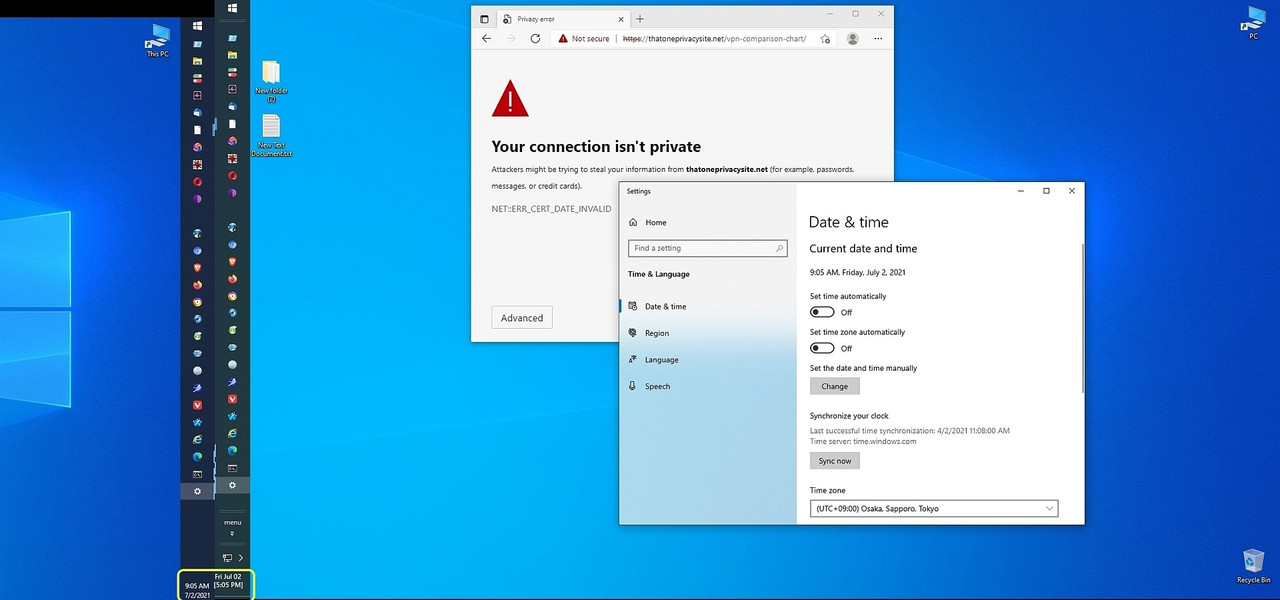
    <https://i.postimg.cc/2yst1P6j/vpnclockfail.jpg>

    But I always know the current time in the taskbar because of DSClock.
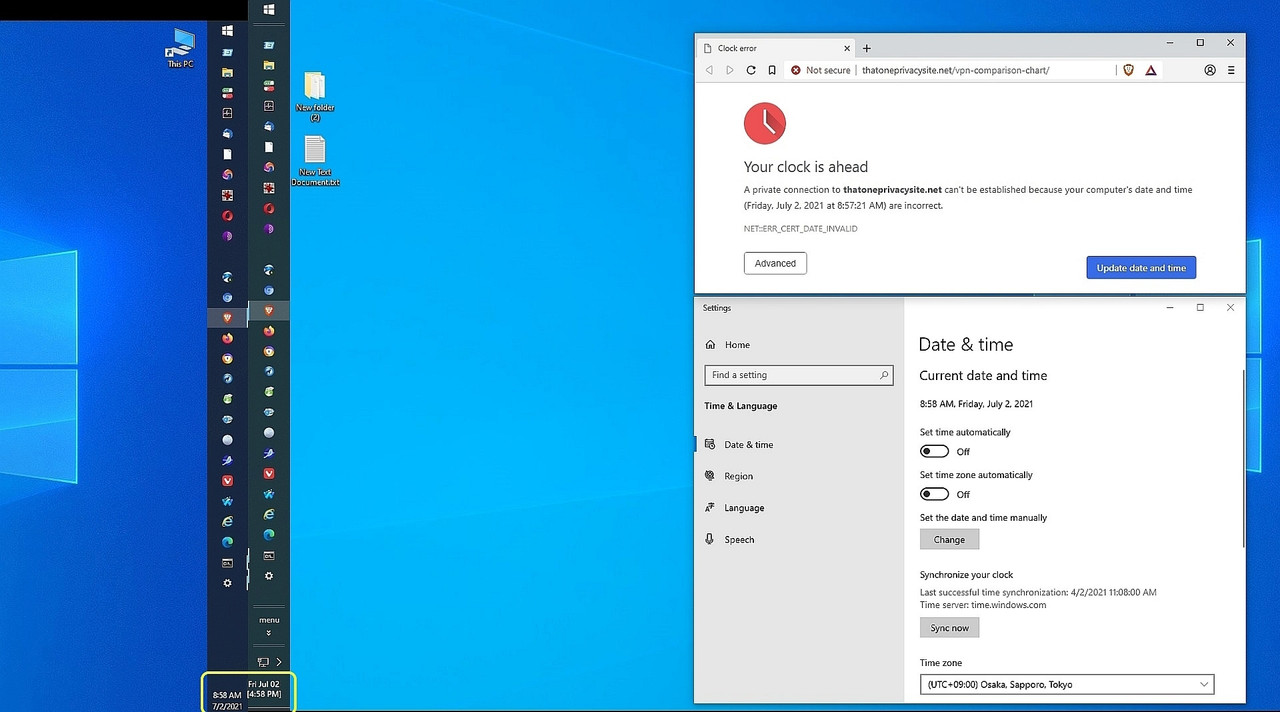
    <https://i.postimg.cc/DfRfQ04M/vpnclockoffset.jpg>

    If there's another app we haven't discussed (see the list in the OP,
    and the list of suggestions after the OP in this thread), then that's
    useful as it's always good to have a clock that WE fully control.
    --
    Sometimes, together, with help from others, we accomplish the impossible.
    --- Synchronet 3.22a-Linux NewsLink 1.2
  • From JJ@jj4public@gmail.com to alt.comp.os.windows-10,alt.comp.freeware,alt.comp.microsoft.windows,comp.os.ms-windows.programmer.win32 on Thu Nov 12 11:28:12 2026
    From Newsgroup: alt.comp.os.windows-10

    On Thu, 12 Nov 2026 02:27:04 +0800, Johann 'Myrkraverk' Oskarsson wrote:

    I have sometimes wondered about creating some taskbar gadget for myself,
    and I believe I even asked or looked a few years ago, but don't recall finding anything. Is there something?

    IIRC, Windows Media Player can provide a tiny popout video above the WMP's taskbutton on the taskbar; on Windows Vista/7. Maybe it can be used to
    display non media content. But I can't remember whether the extensibility
    was provided by Taskbar API, WMP API, or was WMP's hack of the taskbar. Or whether it's still applicable in newer Windows versions.
    --- Synchronet 3.22a-Linux NewsLink 1.2
  • From Johann 'Myrkraverk' Oskarsson@johann@myrkraverk.invalid to alt.comp.os.windows-10,alt.comp.freeware,alt.comp.microsoft.windows,comp.os.ms-windows.programmer.win32 on Thu Nov 12 20:36:46 2026
    From Newsgroup: alt.comp.os.windows-10

    On 11/12/2026 12:28 PM, JJ wrote:
    On Thu, 12 Nov 2026 02:27:04 +0800, Johann 'Myrkraverk' Oskarsson wrote:

    I have sometimes wondered about creating some taskbar gadget for myself,
    and I believe I even asked or looked a few years ago, but don't recall
    finding anything. Is there something?

    IIRC, Windows Media Player can provide a tiny popout video above the WMP's taskbutton on the taskbar; on Windows Vista/7. Maybe it can be used to display non media content. But I can't remember whether the extensibility
    was provided by Taskbar API, WMP API, or was WMP's hack of the taskbar. Or whether it's still applicable in newer Windows versions.

    Thank you. Turns out there's a list of something similar here, with
    some Taskbar API links. I still don't know if there's a specific API
    to make my own clock -- how this thread got started -- or if Microsoft
    is a /non player character/ and decided to keep that aspect of it to themselves.

    https://learn.microsoft.com/en-us/windows/win32/shell/taskbar-extensions

    Nor is there anything about replacing the /weather widget/ to the left
    of my Windows 11 taskbar. That widget alone suggests there should be
    some 3rd party support to create more. For instance it /should/ be
    possible to create a widget that shows an interesting post on Usenet.

    But Microsoft is not exactly known to be a /team player/ in this depart-
    ment, so I'm not holding my breath while looking for more APIs to create
    my own widget.


    Best wishes, and happy win32!
    --
    Johann | email: invalid -> com | http://www.myrkraverk.com/blog/
    I'm not from the Internet, I just work there. | via Easynews.com https://bsky.app/profile/myrkraverk.bsky.social | for ( ;; ) _:;
    Federated at https://fed.brid.gy/bsky/myrkraverk.bsky.social
    --- Synchronet 3.22a-Linux NewsLink 1.2
  • From MikeS@MikeS@fred.com to alt.comp.os.windows-10,alt.comp.freeware,alt.comp.microsoft.windows on Fri Nov 13 11:19:38 2026
    From Newsgroup: alt.comp.os.windows-10

    On 11/11/2026 05:47, Maria Sophia wrote:
    Anyone know what happened to the DS Clock freeware archives?

    Long ago I wrote a tutorial for duplicating the Windows taskbar clock in
    any desired timezone, which works for me 'cuz I randomize the sys clock.

    But even for those who don't randomize their system clock, it's nice to
    be able to get the time and date in any format you can want it to be.

    For example, I use "dddMMMdd|[#085]", which creates an overlay of
    WedNov11
    [9:44 PM]

    As shown in these old screenshots made long ago when I wrote the tutorial.
    <https://i.postimg.cc/Dy2mgsNq/clock01.jpg>
    <https://i.postimg.cc/9f6KJx4f/clock02.jpg>

    Today I pressed "Check for Updates" & got "Couldn't resolve host name". Bummer... (luckily, I save all my software downloads, but still...)

    Duality Software was known for DS Clock and HandyPIM in the past:
    <http://www.dualitysoft.com>
    But the domain appears to be gone.

    Domain registration records seem to show that the domain expired
    in Sept 2026 and entered a deletion/redemption phase shortly after,
    with its DNS nameservers redirected to expired-domain placeholders.

    AFAICT, the official website and its downloads are no longer active .
    The old tutorial is below, but what happened to the software archives?

    Anyone have any insight?

    Is this the same program? https://download.cnet.com/ds-clock-64-bit/3000-18487_4-75416132.html

    --- Synchronet 3.22a-Linux NewsLink 1.2
  • From Maria Sophia@mariasophia@comprehension.com to alt.comp.os.windows-10,alt.comp.freeware,alt.comp.microsoft.windows on Fri Nov 13 15:22:37 2026
    From Newsgroup: alt.comp.os.windows-10

    MikeS wrote:
    Duality Software was known for DS Clock and HandyPIM in the past:
    <http://www.dualitysoft.com>
    But the domain appears to be gone.

    Is this the same program? https://download.cnet.com/ds-clock-64-bit/3000-18487_4-75416132.html

    Nice catch! That looks like it! Thanks. For the team!
    It lives on, apparently, just not in the canonical domain anymore.

    It's perhaps the best replacement clock I've ever seen on Windows
    (although that depends, of course, on the users' specific needs).

    That CNET page appears to be the same program, just the 64-bit build of DS Clock by Duality Software. CNET's developer listing carries both the 32-bit
    and 64-bit entries under the same publisher, and the description matches.

    It's a clock built from a format string, with custom fonts, colors, transparency, and atomic-time sync, and which can be placed anywhere,
    where I put it exactly on top of the system clock so it looks natural.
    <https://i.postimg.cc/fT2J40RD/windows-cascade-menu.jpg>

    The only reason I was messing with it was I was messing with desktop
    colors, and that changed the taskbar color, so I had to match it again.
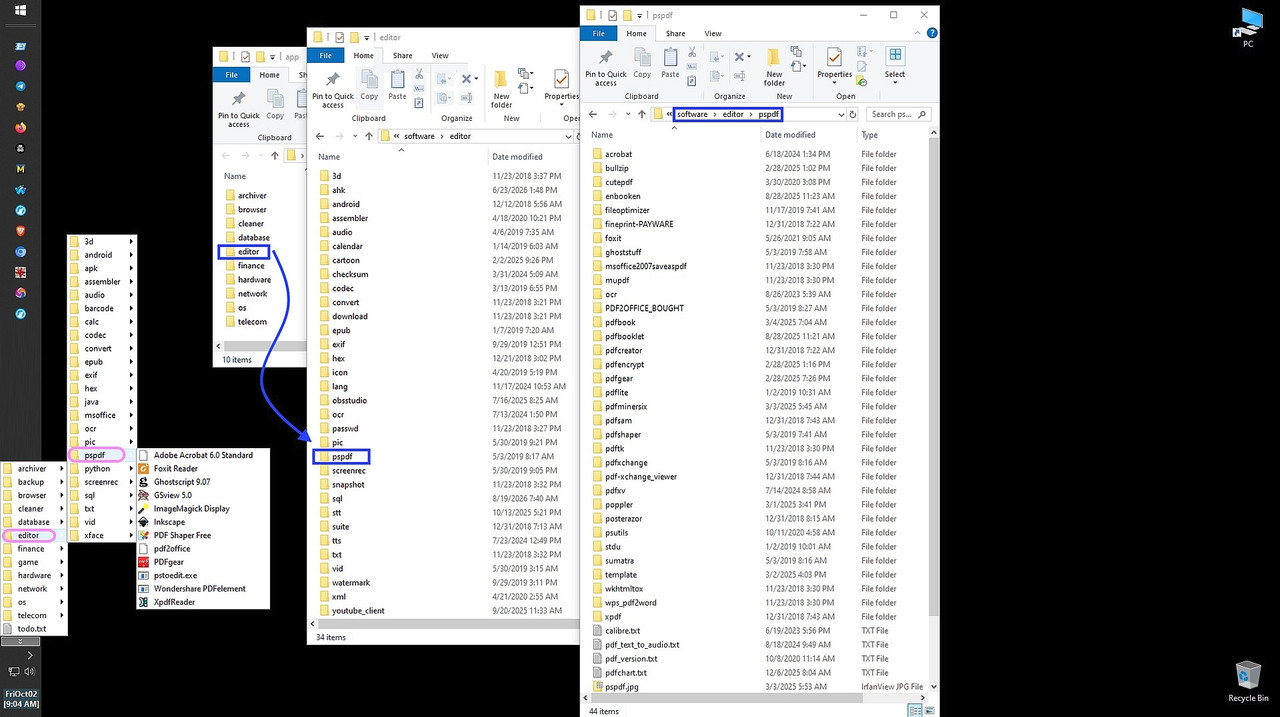
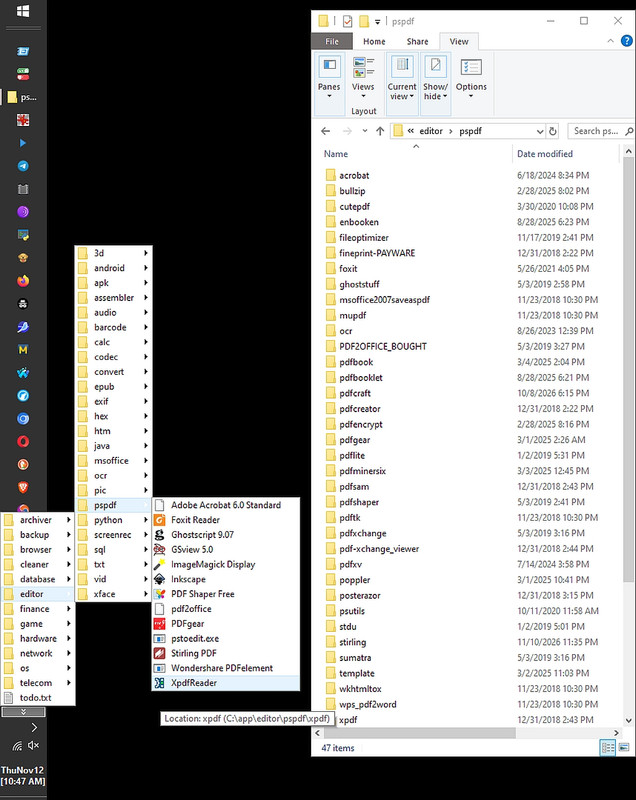
    BEFORE: <https://i.postimg.cc/bYRt3pLY/pspdf-2026.jpg>
    AFTER: <https://i.postimg.cc/wBycKzyF/pspdf-editors.jpg>

    I never update anything unless I have to, where I was hoping there might be
    a color picker inside of a newer version given the older version had
    excellent color choices to match Windows fonts, sizes and backgrounds.

    Alas, when I hit the "Update" button, it failed due to the domain being
    gone in September 2026 (apparently), so I wanted to warn this newsgroup
    that it may have gone away, given it is one of the best clocks around.

    On the archives question, I couldn't find any announcement or statement
    about Duality Software shutting down, with no notice from the author, no
    forum thread, nothing beyond the dead domain I already found. So what's
    left is inference as the last build anyone has indexed is 5.1.2, dated June 2023, and the site was still being linked as the home page well after that.

    A freeware shop that stops shipping builds and then lets its domain lapse
    into redemption is the ordinary signature of an abandoned project rather
    than a planned closure, but that's a guess, not a fact.

    Where the archives survive, if people want to get it for the future is

    CNET, as you noted above.

    1. MajorGeeks
    DS Clock 32-bit 5.1.2, dated 05/10/23, 3 MB, freeware, Windows 7-11, with their own mirrors rather than a redirect to dualitysoft.com.

    2. Software Informer
    5.1.2 (x86), file dsclock-setup-5.1.2-x86i-fdc.exe, 2.5 MB, plus 5.0.1.5
    and 2.4; their copy was scanned on Oct 24, 2026 and reported clean.

    3. Uptodown
    Older versions only, topping out at 5.0.0.2 from Dec 2021, back through
    2.4 from 2009.

    4. SnapFiles
    Still has a Duality Software publisher page listing DS Clock.

    Given that we can't get the canonical version unless we use the archive
    that Paul kindly supplied, it's prolly worth checking the hash of a mirror download against the original hashes that I got from Paul's links.

    If they match, we know the mirror is serving the real build and not a
    repack.
    --
    Usenet is where kind-hearted well-educated people gather to exchange ideas.
    --- Synchronet 3.22a-Linux NewsLink 1.2