• Surface notebook

    From Handsome Jack@jack@handsome.com to alt.os.linux.mint on Mon Dec 22 06:37:18 2025
    From Newsgroup: alt.os.linux.mint

    I was recently given a Surface Pro notebook, on which I have installed
    Linux Mint with XFCE. The touch screen didn't work at first (it had worked
    on Windows 10 and Zorin) and I had to install some extra stuff to get it working, as described at https://github.com/linux-surface/linux-surface/wiki/Installation-and- Setup#Debian--Ubuntu

    However I still can't get the soft keypad to pop up on the screen. Anyone
    know how?

    --- Synchronet 3.21a-Linux NewsLink 1.2
  • From Paul@nospam@needed.invalid to alt.os.linux.mint on Mon Dec 22 02:56:16 2025
    From Newsgroup: alt.os.linux.mint

    On Mon, 12/22/2025 1:37 AM, Handsome Jack wrote:
    I was recently given a Surface Pro notebook, on which I have installed
    Linux Mint with XFCE. The touch screen didn't work at first (it had worked on Windows 10 and Zorin) and I had to install some extra stuff to get it working, as described at https://github.com/linux-surface/linux-surface/wiki/Installation-and- Setup#Debian--Ubuntu

    However I still can't get the soft keypad to pop up on the screen. Anyone know how?


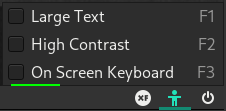
    You can see in this tiny graphic, that access hides in a menu, which means selecting it with a knuckle. You can't press "F3" without having an OSK to do it :-)

    https://forum.manjaro.org/uploads/default/original/3X/c/4/c4f3a3178f30571c6228214071708e1727af3ea0.png

    They mention "Onboard" and "qt6-virtualkeyboard" here

    https://forum.manjaro.org/t/onboard-keyboard-still-doesnt-work-on-the-login-screen/163526

    [General]
    InputMethod=qtvirtualkeyboard

    in /etc/sddm.conf

    but these things seem to have a lot of gotchas, so the odds of getting something like that working elsewhere are pretty low. The Onboard one
    seems to crash at login time, as an example.

    To make ideas like this more commonplace, requires a fleet of users
    doing OSK on their tablet touch screens. That generates the momentum
    to get it done. For example, I can't recommend anything for you by
    testing it, as I have no touchscreens at all in the house.

    *******

    One place to look to for features on a computer, is "Assistive Technologies". There are some legal requirements for things we buy, to have various features so vision impaired people can use them. This is how some of our DE get "magnifying glasses" in the interface. This is not happening because
    "a magnifying glass is cool lets make one", it is a legal requirement
    to help the visually impaired. This is also how we get things like
    "giant cursor support".

    Touch then, might be for people who lack the ability to work a keyboard
    (either from a neurological point of view, or because they've lost
    some digits). It suggests there should be packages, to put together
    an Assistive Technologies capability. It should be more than just
    a trivial hardware project.

    This comes up occasionally, where you will see a lot of threads about
    "yeah, that hardware doesn't support X". When the factor of the matter,
    is every last blasted one of the hardware items in question, have the
    feature in hardware. It was a legal requirement. They all have it.
    Well, what happened then ? Nobody to put support in the driver. This
    is why people would buy an item, and a thread would start "I can't
    make my X work". The person to blame is the software dev at the
    hardware company, who decided not to do it (when there was a
    legal requirement to finish the work). On the other hand, the
    hardware people recognized the compliance issue and did it.

    *******

    Now that the background is out of the way, we can use the AI to hunt for nuggets.

    CoPilot Question

    XFCE support for virtual keyboard on a ten point touch screen (Surface Pro notebook) in Linux.
    What kinds of packages exist so at least an on-screen keyboard would work ?
    OS is Linux Mint. Support works in Zorin (which might be Gnome), but
    XFCE seems to have thinner support for things like this.

    ********************** Begin CoPilot Answer *****************************

    HererCOs the short version: **XFCE *can* use onrCascreen keyboards**,
    but unlike GNOME (used by Zorin), it doesnrCOt have builtrCain touchrCafirst support.
    You must install an external OSK package and configure XFCE to launch it automatically when needed.

    Below is a complete, practical guide to what works on Linux Mint XFCE, what doesnrCOt, and what to install.

    ---

    # **OnrCaScreen Keyboard Options for XFCE (Linux Mint)**

    XFCE doesnrCOt ship with its own virtual keyboard, but several mature OSKs work well:

    ## **1. Onboard (most common and best supported)**
    **Package:** `onboard`
    **Pros:**
    - Actively maintained
    - Works well with touchscreens
    - Supports autorCashow on text fields (with tweaks)
    - Configurable layouts, themes, docking
    - Works in XFCE, Cinnamon, GNOME, MATE

    **Install:**
    ```bash
    sudo apt install onboard
    ```

    **Notes:**
    - XFCE wonrCOt autorCashow it by default; you may need to add it to *Session and Startup -> Application Autostart*.
    - For lock screen support, XFCE Screensaver can launch it using the `-e` flag (as referenced in search results).

    https://askubuntu.com/questions/1353835/showing-on-screen-keyboard-in-lock-screen

    [And remember that "onboard" can crash, in the login screen, as a field report...]

    ---

    ## **2. Florence**
    **Package:** `florence`
    **Pros:**
    - Lightweight
    - Good for touch
    - AutorCashow support via AT-SPI [AT would be shorthand for Assistive Technologies]
    **Cons:**
    - Less polished than Onboard

    **Install:**
    ```bash
    sudo apt install florence
    ```
    ---

    ## **3. Matchbox-keyboard**
    **Package:** `matchbox-keyboard`
    **Pros:**
    - Very lightweight
    - Good for embedded/tiny systems
    **Cons:**
    - Not ideal for 10rCapoint touch
    - No autorCashow

    **Install:**
    ```bash
    sudo apt install matchbox-keyboard
    ```
    ---

    ## **4. Gnome OnrCaScreen Keyboard (Caribou)**
    **Package:** `caribou`
    **Pros:**
    - Works well in GNOME (why Zorin works for you)
    **Cons:**
    - **Does not integrate well with XFCE**
    - No autorCashow
    - Often buggy outside GNOME

    **Install (not recommended for XFCE):**
    ```bash
    sudo apt install caribou
    ```
    ---

    # **Touchscreen Support in XFCE**

    XFCE itself supports touch input (via Xorg or Wayland), but it lacks:

    - AutorCashow OSK when tapping text fields
    - TouchrCafriendly window decorations
    - GNOMErCastyle gesture support

    This is why Zorin (GNOME) rCLjust worksrCY and XFCE requires manual setup.

    ---

    # **Recommended Setup for Surface Pro + XFCE**

    ### Install Onboard
    ```bash
    sudo apt install onboard
    ```
    ### Enable AT-SPI accessibility (needed for autorCashow)
    In Mint XFCE:
    **Settings -> Accessibility -> Enable assistive technologies**

    ### Add Onboard to autostart
    **Settings -> Session and Startup -> Application Autostart -> Add -> `onboard`**

    ### Optional: AutorCashow on text fields
    Run:
    ```bash
    onboard-settings
    ```
    Enable:
    - *rCLShow when editing textrCY*
    - *rCLAuto-hide when not neededrCY*

    ### For lock screen
    XFCE Screensaver can launch Onboard using:
    ```
    onboard -e
    ```
    (as referenced in search results).

    https://askubuntu.com/questions/1353835/showing-on-screen-keyboard-in-lock-screen

    ---

    # **Summary Table**

    | OSK | Touch Support | Auto-Show | XFCE Compatibility | Notes |
    |-----------------------|---------------|-------------------|--------------------|-------------------------|
    | **Onboard** | Excellent | Yes (with AT-SPI) | Best | Recommended |
    | **Florence** | Good | Yes | Good | Lightweight alternative |
    | **Matchbox-keyboard** | Basic | No | OK | Minimalist |
    | **Caribou** | Excellent | Yes | Poor | GNOME-only |

    ---

    If you want, I can walk you through **configuring Onboard to autorCashow**, or help you tune
    XFCE for better touchscreen usability (gestures, window buttons, scaling).

    ********************** End of CoPilot Answer *****************************

    Paul
    --- Synchronet 3.21a-Linux NewsLink 1.2
  • From Handsome Jack@jack@handsome.com to alt.os.linux.mint on Mon Dec 22 15:43:43 2025
    From Newsgroup: alt.os.linux.mint

    On Mon, 22 Dec 2025 02:56:16 -0500, Paul wrote:

    On Mon, 12/22/2025 1:37 AM, Handsome Jack wrote:
    I was recently given a Surface Pro notebook, on which I have installed
    Linux Mint with XFCE. The touch screen didn't work at first (it had
    worked on Windows 10 and Zorin) and I had to install some extra stuff
    to get it working, as described at
    https://github.com/linux-surface/linux-surface/wiki/Installation-and-
    Setup#Debian--Ubuntu

    However I still can't get the soft keypad to pop up on the screen.
    Anyone know how?


    [snip]

    If you want, I can walk you through **configuring Onboard to
    autorCashow**, or help you tune XFCE for better touchscreen usability (gestures, window buttons, scaling).


    This is enormously helpful, Paul. I'll give it a go. Thanks.
    --- Synchronet 3.21a-Linux NewsLink 1.2
  • From Handsome Jack@jack@handsome.com to alt.os.linux.mint on Mon Dec 22 17:17:06 2025
    From Newsgroup: alt.os.linux.mint

    On Mon, 22 Dec 2025 02:56:16 -0500, Paul wrote:

    On Mon, 12/22/2025 1:37 AM, Handsome Jack wrote:
    I was recently given a Surface Pro notebook, on which I have installed
    Linux Mint with XFCE. The touch screen didn't work at first (it had
    worked on Windows 10 and Zorin) and I had to install some extra stuff
    to get it working, as described at
    https://github.com/linux-surface/linux-surface/wiki/Installation-and-
    Setup#Debian--Ubuntu

    However I still can't get the soft keypad to pop up on the screen.
    Anyone know how?


    # **Recommended Setup for Surface Pro + XFCE**

    ### Install Onboard ```bash sudo apt install onboard ```
    ### Enable AT-SPI accessibility (needed for autorCashow)
    In Mint XFCE:
    **Settings -> Accessibility -> Enable assistive technologies**

    ### Add Onboard to autostart **Settings -> Session and Startup ->
    Application Autostart -> Add -> `onboard`**

    ### Optional: AutorCashow on text fields Run:
    ```bash onboard-settings ```
    Enable:
    - *rCLShow when editing textrCY*
    - *rCLAuto-hide when not neededrCY*


    Excellent. It worked. Simple, too; I was just missing the 'onboard' app,
    but of course I couldn't know that without knowing it.

    The OSK behaviour is a bit erratic but it works well enough. Also it's
    awkward if you are booting the machine without the physicial keyboard; the
    OSK doesn't appear until after Linux has started, so you can't start if
    Linux insists on asking for the login password. I haven't worked out how
    to get round that; the "Don't ask for a password on login" in "users and groups" doesn't work.

    Thanks again.
    --- Synchronet 3.21a-Linux NewsLink 1.2
  • From Mike Easter@MikeE@ster.invalid to alt.os.linux.mint on Mon Dec 22 11:59:40 2025
    From Newsgroup: alt.os.linux.mint

    Handsome Jack wrote:

    The OSK behaviour is a bit erratic but it works well enough. Also
    it's awkward if you are booting the machine without the physicial
    keyboard; the OSK doesn't appear until after Linux has started, so
    you can't start if Linux insists on asking for the login password. I
    haven't worked out how to get round that; the "Don't ask for a
    password on login" in "users and groups" doesn't work.

    'Tho' gglAIov isn't as good until the quality of query improves w/ the
    insight of the human asking, I got this info w/ a weak query, 'boot
    manager to enable onscreen keyboard during boot'

    You can't directly enable Windows' built-in On-Screen Keyboard (OSK)
    before Windows loads from a boot manager like GRUB or BIOS, but you
    can enable BIOS/UEFI USB Keyboard Support, use specialized
    bootloader keyboard settings (like in Linux), or create an
    AutoUnattend.xml file to launch OSK during Windows Setup. For
    general startup issues where physical keyboards fail, enabling
    Legacy USB Support in BIOS, using different USB ports, and ensuring
    Fast Boot is off are key steps.

    What are 'bootloader keyboard settings'?

    It seems to me that the BIOS/UEFI of the Surface should have a function
    to show the OSK during boot in the 'advanced settings'.
    --
    Mike Easter
    --- Synchronet 3.21a-Linux NewsLink 1.2
  • From Mike Easter@MikeE@ster.invalid to alt.os.linux.mint on Mon Dec 22 12:37:05 2025
    From Newsgroup: alt.os.linux.mint

    Mike Easter wrote:
    Handsome Jack wrote:

    keyboard; the OSK doesn't appear until after Linux has started, so
    you can't start if Linux insists on asking for the login password.
    I haven't worked out how to get round that; the "Don't ask for a
    password on login" in "users and groups" doesn't work.

    gglAIov:

    To make Linux XFCE skip the password at login, you need to enable
    autologin in your display manager settings (usually LightDM),
    typically by editing /etc/lightdm/lightdm.conf to set autologin- user=YourUsernam

    What are 'bootloader keyboard settings'?

    I know of some kb boot parameters but not OSK.

    It seems to me that the BIOS/UEFI of the Surface should have a
    function to show the OSK during boot in the 'advanced settings'.

    That's crazy/impossible (idea above) -- to do *during* boot for changing bios/uefi settings, that needs a kb because of the nature of the interface.

    My LM Cinnamon install doesn't need a user/pass at login, but that
    condition works 'erratically' because some other parts of the system
    think they still need a login.
    --
    Mike Easter
    --- Synchronet 3.21a-Linux NewsLink 1.2
  • From Paul@nospam@needed.invalid to alt.os.linux.mint on Mon Dec 22 16:47:23 2025
    From Newsgroup: alt.os.linux.mint

    On Mon, 12/22/2025 12:17 PM, Handsome Jack wrote:
    On Mon, 22 Dec 2025 02:56:16 -0500, Paul wrote:

    On Mon, 12/22/2025 1:37 AM, Handsome Jack wrote:
    I was recently given a Surface Pro notebook, on which I have installed
    Linux Mint with XFCE. The touch screen didn't work at first (it had
    worked on Windows 10 and Zorin) and I had to install some extra stuff
    to get it working, as described at
    https://github.com/linux-surface/linux-surface/wiki/Installation-and-
    Setup#Debian--Ubuntu

    However I still can't get the soft keypad to pop up on the screen.
    Anyone know how?


    # **Recommended Setup for Surface Pro + XFCE**

    ### Install Onboard ```bash sudo apt install onboard ```
    ### Enable AT-SPI accessibility (needed for autorCashow)
    In Mint XFCE:
    **Settings -> Accessibility -> Enable assistive technologies**

    ### Add Onboard to autostart **Settings -> Session and Startup ->
    Application Autostart -> Add -> `onboard`**

    ### Optional: AutorCashow on text fields Run:
    ```bash onboard-settings ```
    Enable:
    - *rCLShow when editing textrCY*
    - *rCLAuto-hide when not neededrCY*


    Excellent. It worked. Simple, too; I was just missing the 'onboard' app,
    but of course I couldn't know that without knowing it.

    The OSK behaviour is a bit erratic but it works well enough. Also it's awkward if you are booting the machine without the physicial keyboard; the OSK doesn't appear until after Linux has started, so you can't start if Linux insists on asking for the login password. I haven't worked out how
    to get round that; the "Don't ask for a password on login" in "users and groups" doesn't work.

    Thanks again.


    https://forum.manjaro.org/t/i-am-a-new-user-and-i-dont-know-to-open-on-screen-keyboard/84247/2

    Apparently LightDM has a setting for On Screen Keyboard and you can
    set it to Onboard. But it crashed when you hover the mouse over it
    (the pointer). Maybe more than one copy is trying to run ?

    This is a list of recommended subsystems for various DE. Gnome
    is not on the list, because it's not working smoothly (yet).

    - XFCE: slim + consolekit
    - Cinnamon: lightdm + elogind
    - KDE: lightdm + elogind
    - LXQT: lightdm + elogind
    - MATE: slim + consolekit mate-desktop-environment

    Paul
    --- Synchronet 3.21a-Linux NewsLink 1.2
  • From Handsome Jack@jack@handsome.com to alt.os.linux.mint on Tue Dec 23 06:11:54 2025
    From Newsgroup: alt.os.linux.mint

    On Mon, 22 Dec 2025 12:37:05 -0800, Mike Easter wrote:

    Mike Easter wrote:
    Handsome Jack wrote:

    keyboard; the OSK doesn't appear until after Linux has started, so you
    can't start if Linux insists on asking for the login password.
    I haven't worked out how to get round that; the "Don't ask for a
    password on login" in "users and groups" doesn't work.

    gglAIov:

    To make Linux XFCE skip the password at login, you need to enable
    autologin in your display manager settings (usually LightDM), typically
    by editing /etc/lightdm/lightdm.conf to set autologin- user=YourUsernam

    What are 'bootloader keyboard settings'?

    I know of some kb boot parameters but not OSK.

    It seems to me that the BIOS/UEFI of the Surface should have a function
    to show the OSK during boot in the 'advanced settings'.

    That's crazy/impossible (idea above) -- to do *during* boot for changing bios/uefi settings, that needs a kb because of the nature of the
    interface.

    My LM Cinnamon install doesn't need a user/pass at login, but that
    condition works 'erratically' because some other parts of the system
    think they still need a login.

    It would solve my problem if I could just configure LM to start without requiring a login, but I'm damned if I can see how to make it happen. Odd, because I have always had that arrangement on my desktop.
    --- Synchronet 3.21a-Linux NewsLink 1.2
  • From Lawrence =?iso-8859-13?q?D=FFOliveiro?=@ldo@nz.invalid to alt.os.linux.mint on Tue Dec 23 06:56:03 2025
    From Newsgroup: alt.os.linux.mint

    On Tue, 23 Dec 2025 06:11:54 -0000 (UTC), Handsome Jack wrote:

    It would solve my problem if I could just configure LM to start
    without requiring a login, but I'm damned if I can see how to make
    it happen.

    I did this for a friend some years ago. The setup needed to be
    specific to the display manager (lightdm, in this case). I created a
    user called rCLguestrCY with no password, and added it to the rCLnopasswdloginrCY and rCLautologinrCY groups. The file /etc/lightdm/users.conf controls which users are available for GUI
    login based on their shell, UID range etc.

    I edited /etc/lightdm/lightdm.conf.d/70-linuxmint.conf and added the
    line

    autologin-user=guest

    Can also add line

    display-stopped-script=shutdown -h now

    so there is only one login session, when that ends, then machine shuts
    down.

    Handy info about configuring lightdm: <https://wiki.ubuntu.com/LightDM>, <https://wiki.archlinux.org/title/LightDM>, <https://www.freedesktop.org/wiki/Software/LightDM/CommonConfiguration/>.
    --- Synchronet 3.21a-Linux NewsLink 1.2
  • From Handsome Jack@jack@handsome.com to alt.os.linux.mint on Tue Dec 23 12:27:29 2025
    From Newsgroup: alt.os.linux.mint

    On Tue, 23 Dec 2025 06:56:03 -0000 (UTC), Lawrence DrCOOliveiro wrote:

    On Tue, 23 Dec 2025 06:11:54 -0000 (UTC), Handsome Jack wrote:

    It would solve my problem if I could just configure LM to start without
    requiring a login, but I'm damned if I can see how to make it happen.

    I did this for a friend some years ago. The setup needed to be specific
    to the display manager (lightdm, in this case). I created a user called rCLguestrCY with no password, and added it to the rCLnopasswdloginrCY and rCLautologinrCY groups. The file /etc/lightdm/users.conf controls which
    users are available for GUI login based on their shell, UID range etc.

    I edited /etc/lightdm/lightdm.conf.d/70-linuxmint.conf and added the
    line

    autologin-user=guest

    Can also add line

    display-stopped-script=shutdown -h now

    so there is only one login session, when that ends, then machine shuts
    down.

    Handy info about configuring lightdm: <https://wiki.ubuntu.com/LightDM>, <https://wiki.archlinux.org/title/LightDM>, <https://www.freedesktop.org/wiki/Software/LightDM/CommonConfiguration/
    .

    I already have
    autologin-user=jack
    in the lightdm.conf file; you can do that via
    the graphical settings manager -> login window -> users
    and ticking Automatic login and entering 'jack'.
    But it doesn't work on the Surface machine. I still get asked for username
    and pw. Moreover this login screen doesn't look anything like the 'normal'
    LM login screen I get on my desktop machine.
    --- Synchronet 3.21a-Linux NewsLink 1.2
  • From Paul@nospam@needed.invalid to alt.os.linux.mint on Tue Dec 23 11:04:14 2025
    From Newsgroup: alt.os.linux.mint

    On Tue, 12/23/2025 7:27 AM, Handsome Jack wrote:
    On Tue, 23 Dec 2025 06:56:03 -0000 (UTC), Lawrence DrCOOliveiro wrote:

    On Tue, 23 Dec 2025 06:11:54 -0000 (UTC), Handsome Jack wrote:

    It would solve my problem if I could just configure LM to start without
    requiring a login, but I'm damned if I can see how to make it happen.

    I did this for a friend some years ago. The setup needed to be specific
    to the display manager (lightdm, in this case). I created a user called
    rCLguestrCY with no password, and added it to the rCLnopasswdloginrCY and
    rCLautologinrCY groups. The file /etc/lightdm/users.conf controls which
    users are available for GUI login based on their shell, UID range etc.

    I edited /etc/lightdm/lightdm.conf.d/70-linuxmint.conf and added the
    line

    autologin-user=guest

    Can also add line

    display-stopped-script=shutdown -h now

    so there is only one login session, when that ends, then machine shuts
    down.

    Handy info about configuring lightdm: <https://wiki.ubuntu.com/LightDM>,
    <https://wiki.archlinux.org/title/LightDM>,
    <https://www.freedesktop.org/wiki/Software/LightDM/CommonConfiguration/
    .

    I already have
    autologin-user=jack
    in the lightdm.conf file; you can do that via
    the graphical settings manager -> login window -> users
    and ticking Automatic login and entering 'jack'.
    But it doesn't work on the Surface machine. I still get asked for username and pw. Moreover this login screen doesn't look anything like the 'normal' LM login screen I get on my desktop machine.


    Maybe, verify if you can, what bits run your Surface.
    While "inxi -F" makes this somewhat easy, it might not have
    absolutely all the info needed.

    - XFCE: slim + consolekit
    - Cinnamon: lightdm + elogind
    - KDE: lightdm + elogind
    - LXQT: lightdm + elogind
    - MATE: slim + consolekit mate-desktop-environment

    Paul

    --- Synchronet 3.21a-Linux NewsLink 1.2
  • From Lawrence =?iso-8859-13?q?D=FFOliveiro?=@ldo@nz.invalid to alt.os.linux.mint on Tue Dec 23 20:25:23 2025
    From Newsgroup: alt.os.linux.mint

    On Tue, 23 Dec 2025 12:27:29 -0000 (UTC), Handsome Jack wrote:

    I already have
    autologin-user=jack
    in the lightdm.conf file; you can do that via
    the graphical settings manager -> login window -> users
    and ticking Automatic login and entering 'jack'.
    But it doesn't work on the Surface machine. I still get asked for username and pw. Moreover this login screen doesn't look anything like the 'normal' LM login screen I get on my desktop machine.

    Maybe yourCOre not running lightdm as your display manager.
    --- Synchronet 3.21a-Linux NewsLink 1.2
  • From Mike Easter@MikeE@ster.invalid to alt.os.linux.mint on Tue Dec 23 13:08:39 2025
    From Newsgroup: alt.os.linux.mint

    Lawrence DrCOOliveiro wrote:
    Maybe yourCOre not running lightdm as your display manager.

    inxi -Sxx will show the display manager as dm:

    or systemctl status display-manager
    --
    Mike Easter
    --- Synchronet 3.21a-Linux NewsLink 1.2
  • From Mike Easter@MikeE@ster.invalid to alt.os.linux.mint on Tue Dec 23 13:24:38 2025
    From Newsgroup: alt.os.linux.mint

    Mike Easter wrote:
    or systemctl status display-manager

    less output from systemctl:

    systemctl |grep "Display Manager"
    --
    Mike Easter
    --- Synchronet 3.21a-Linux NewsLink 1.2
  • From Lawrence =?iso-8859-13?q?D=FFOliveiro?=@ldo@nz.invalid to alt.os.linux.mint on Tue Dec 23 21:34:52 2025
    From Newsgroup: alt.os.linux.mint

    On Tue, 23 Dec 2025 13:08:39 -0800, Mike Easter wrote:

    systemctl status display-manager

    I still havenrCOt found any documentation saying this should work. Nevertheless, for me, it does, because:

    root@theon:~ # ls -l /etc/systemd/system/display-manager.service
    lrwxrwxrwx 1 root root 32 Dec 23 13:40 /etc/systemd/system/display-manager.service -> /lib/systemd/system/sddm.service
    --- Synchronet 3.21a-Linux NewsLink 1.2
  • From Handsome Jack@jack@handsome.com to alt.os.linux.mint on Fri Dec 26 16:23:40 2025
    From Newsgroup: alt.os.linux.mint

    On Tue, 23 Dec 2025 20:25:23 -0000 (UTC), Lawrence DrCOOliveiro wrote:

    On Tue, 23 Dec 2025 12:27:29 -0000 (UTC), Handsome Jack wrote:

    I already have autologin-user=jack in the lightdm.conf file; you can do
    that via the graphical settings manager -> login window -> users and
    ticking Automatic login and entering 'jack'.
    But it doesn't work on the Surface machine. I still get asked for
    username and pw. Moreover this login screen doesn't look anything like
    the 'normal'
    LM login screen I get on my desktop machine.

    Maybe yourCOre not running lightdm as your display manager.

    Maybe not. inxi -F returns
    {
    Host: jack-Surface-Pro Kernel: 6.17.1-surface-2 arch: x86_64 bits: 64
    Desktop: Xfce v: 239.871.768 Distro: Linux Mint 22.2 Zara
    [snip]
    Display: x11 server: X.Org v: 21.1.1 with:Xwayland v:23.26 driver: X-
    loaded: modesetting unloaded: fbdev, vesa dri: iris gpu: i915 resolution: 2736x1824~60Hz
    [snip a load more seemingly irrelevant stuff about audio etc].
    }

    Also, systemctl status display-manager returns
    {
    * sddm.service - Simple Desktop Display Manager
    Loaded: loaded (usr/lib/systemd/system/sddm.service; enabled;
    preset: enabled)
    Active: active (running) since Wed 2025-12-24 10:46:14 GMT; X min
    ago
    then reams of stuff about docs, process, PID, tasks, memory ... ending in
    jack-Surface-pro sddm[950]: Session started true
    }

    I don't know how to parse these let alone construe them.
    --- Synchronet 3.21a-Linux NewsLink 1.2
  • From Lawrence =?iso-8859-13?q?D=FFOliveiro?=@ldo@nz.invalid to alt.os.linux.mint on Fri Dec 26 21:01:19 2025
    From Newsgroup: alt.os.linux.mint

    On Fri, 26 Dec 2025 16:23:40 -0000 (UTC), Handsome Jack wrote:

    Also, systemctl status display-manager returns
    {
    * sddm.service - Simple Desktop Display Manager
    Loaded: loaded (usr/lib/systemd/system/sddm.service; enabled; preset: enabled)
    Active: active (running) since Wed 2025-12-24 10:46:14 GMT; X min ago

    Bingo. ThatrCOs sddm, not lightdm.
    --- Synchronet 3.21a-Linux NewsLink 1.2
  • From Paul@nospam@needed.invalid to alt.os.linux.mint on Fri Dec 26 17:49:33 2025
    From Newsgroup: alt.os.linux.mint

    On Tue, 12/23/2025 4:34 PM, Lawrence DrCOOliveiro wrote:
    On Tue, 23 Dec 2025 13:08:39 -0800, Mike Easter wrote:

    systemctl status display-manager

    I still havenrCOt found any documentation saying this should work. Nevertheless, for me, it does, because:

    root@theon:~ # ls -l /etc/systemd/system/display-manager.service
    lrwxrwxrwx 1 root root 32 Dec 23 13:40 /etc/systemd/system/display-manager.service -> /lib/systemd/system/sddm.service


    "LightDM starts the X servers, user sessions and greeter (login screen). "

    https://www.omgubuntu.co.uk/2017/04/linux-mint-adopts-lightdm-slick-greeter

    I have a lightdm-settings, and under Users tab it shows

    Automatic Login

    Username Bullwinkle

    And I seem to be logging in without a password.

    Lightdm seems to want to take all the credit at GUI level,
    making it hard to see what other components are being used.

    This yields a response:

    man slick-greeter

    $ cat /etc/lightdm/lightdm.conf
    [Seat:*]
    autologin-guest=false
    autologin-user=bullwinkle <=== what lightdm-settings is showing autologin-user-timeout=0

    *******

    Also, I'm running this in a VM, and the keyboard input seems... laggy.
    Which is not normal for the things I test in VMs now. Just means I
    have to test it on real hardware without the VM-ness.

    Configuration:

    $ inxi -F
    System:
    Host: ARROW Kernel: 6.14.0-29-generic arch: x86_64 bits: 64
    Desktop: Xfce v: 4.18.1 Distro: Linux Mint 22.2 Zara
    Machine:
    Type: Virtualbox System: innotek GmbH product: VirtualBox v: 1.2
    serial: <superuser required>
    Mobo: Oracle model: VirtualBox v: 1.2 serial: <superuser required>
    BIOS: innotek GmbH v: VirtualBox date: 12/01/2006
    CPU:
    Info: quad core model: AMD Ryzen 7 5700G with Radeon Graphics bits: 64
    type: MCP cache: L2: 2 MiB
    Speed (MHz): avg: 3793 min/max: N/A cores: 1: 3793 2: 3793 3: 3793 4: 3793 Graphics:
    Device-1: VMware SVGA II Adapter driver: vmwgfx v: 2.20.0.0
    Display: x11 server: X.Org v: 21.1.11 with: Xwayland v: 23.2.6 driver: X:
    loaded: vmware unloaded: fbdev,modesetting,vesa dri: swrast gpu: vmwgfx
    resolution: 1600x900~60Hz
    API: EGL v: 1.5 drivers: kms_swrast,swrast
    platforms: gbm,x11,surfaceless,device
    API: OpenGL v: 4.5 vendor: mesa v: 25.0.7-0ubuntu0.24.04.1
    renderer: llvmpipe (LLVM 19.1.1 128 bits)
    Audio:
    Device-1: Intel 82801FB/FBM/FR/FW/FRW High Definition Audio
    driver: snd_hda_intel
    API: ALSA v: k6.14.0-29-generic status: kernel-api
    Server-1: PipeWire v: 1.0.5 status: active
    Network:
    Device-1: Intel 82540EM Gigabit Ethernet driver: e1000
    IF: enp0s3 state: up speed: 1000 Mbps duplex: full mac:
    Device-2: Intel 82371AB/EB/MB PIIX4 ACPI type: network bridge
    driver: piix4_smbus
    Drives:
    Local Storage: total: 64 GiB used: 8.95 GiB (14.0%)
    ID-1: /dev/sda vendor: VirtualBox model: VBOX HARDDISK size: 64 GiB Partition:
    ID-1: / size: 62.69 GiB used: 8.95 GiB (14.3%) fs: ext4 dev: /dev/sda1
    Swap:
    ID-1: swap-1 type: file size: 2 GiB used: 0 KiB (0.0%) file: /swapfile Sensors:
    Src: lm-sensors+/sys Message: No sensor data found using /sys/class/hwmon
    or lm-sensors.
    Info:
    Memory: total: 4 GiB available: 3.82 GiB used: 944.8 MiB (24.1%)
    Processes: 191 Uptime: 11m Shell: Bash inxi: 3.3.34

    Paul
    --- Synchronet 3.21a-Linux NewsLink 1.2
  • From Mike Easter@MikeE@ster.invalid to alt.os.linux.mint on Fri Dec 26 15:44:58 2025
    From Newsgroup: alt.os.linux.mint

    Handsome Jack wrote:
    Maybe not. inxi -F returns

    Display: x11 server: X.Org v: 21.1.1 with:Xwayland v:23.26 driver:
    X- loaded: modesetting unloaded: fbdev, vesa dri: iris gpu: i915
    resolution: 2736x1824~60Hz

    inxi -F won't tell you enough about the display unless you use xx to
    boost the 'verbosity' of System such as my earlier suggested inxi -Sxx

    Also, systemctl status display-manager returns { * sddm.service -
    Simple Desktop Display Manager Loaded: loaded (usr/lib/systemd/ system/sddm.service; enabled; preset: enabled) Active: active
    (running) since Wed 2025-12-24 10:46:14 GMT; X min

    I don't know how to parse these let alone construe them.

    Your display manager is sddm -- it comes 'from' qt 'stuff'.

    gglAIov tells me that to get an OSK w/ sddm one should:

    To get an on-screen keyboard (OSK) working with SDDM on a Linux
    Surface, you need to install qt5-virtualkeyboard and configure SDDM
    by creating or editing /etc/sddm.conf.d/virtualkbd.conf (or kde_settings.conf) with InputMethod=qtvirtualkeyboard under the
    [General] section, then restart; this enables the keyboard icon in
    SDDM for touch input, making login on your Surface tablet easier

    ... but I'm not sure that the AI isn't 'confabulating' a little. If I
    look at synaptic package manager, I have to come at the qt-based virtual keyboard somewhat differently than the above advice.

    I would research that above AI result a little better; but it sounds
    like it is 'do-able'.
    --
    Mike Easter
    --- Synchronet 3.21a-Linux NewsLink 1.2
  • From Paul@nospam@needed.invalid to alt.os.linux.mint on Sat Dec 27 00:00:39 2025
    From Newsgroup: alt.os.linux.mint

    On Fri, 12/26/2025 11:23 AM, Handsome Jack wrote:
    On Tue, 23 Dec 2025 20:25:23 -0000 (UTC), Lawrence DrCOOliveiro wrote:

    On Tue, 23 Dec 2025 12:27:29 -0000 (UTC), Handsome Jack wrote:

    I already have autologin-user=jack in the lightdm.conf file; you can do
    that via the graphical settings manager -> login window -> users and
    ticking Automatic login and entering 'jack'.
    But it doesn't work on the Surface machine. I still get asked for
    username and pw. Moreover this login screen doesn't look anything like
    the 'normal'
    LM login screen I get on my desktop machine.

    Maybe yourCOre not running lightdm as your display manager.

    Maybe not. inxi -F returns
    {
    Host: jack-Surface-Pro Kernel: 6.17.1-surface-2 arch: x86_64 bits: 64 Desktop: Xfce v: 239.871.768 Distro: Linux Mint 22.2 Zara
    [snip]
    Display: x11 server: X.Org v: 21.1.1 with:Xwayland v:23.26 driver: X-
    loaded: modesetting unloaded: fbdev, vesa dri: iris gpu: i915 resolution: 2736x1824~60Hz
    [snip a load more seemingly irrelevant stuff about audio etc].
    }

    Also, systemctl status display-manager returns
    {
    * sddm.service - Simple Desktop Display Manager
    Loaded: loaded (usr/lib/systemd/system/sddm.service; enabled;
    preset: enabled)
    Active: active (running) since Wed 2025-12-24 10:46:14 GMT; X min
    ago
    then reams of stuff about docs, process, PID, tasks, memory ... ending in
    jack-Surface-pro sddm[950]: Session started true
    }

    I don't know how to parse these let alone construe them.


    OK, I got autologin working here, via instructions from Arch.

    This article didn't match on a lot of detail, but it had the critical bit.

    https://wiki.archlinux.org/title/SDDM

    First when I did this and set it up:

    sudo dpkg-reconfigure sddm

    I was "greeted" on next boot, by a rather stiff-looking
    blank "username" and blank "password" field. So by default, there
    was no autologin set up at all. Makes sense (unless sddm was
    the default manager when the distro was constructed and the
    distro team did all the work for this via the installer details).

    The Arch instructions are simple

    cd /etc
    sudo mkdir sddm.conf.d # Directory is missing.
    cd sddm.conf.d # Need to create a file.
    sudo touch autologin.conf # grease rails, so the File:Save actually works for you
    sudo xed autologin.conf # Add three lines as follows. Likely to be User=jack

    **************** autologin.conf contents ********************
    [Autologin]
    User=jacksaccountname
    Session=xfce
    **************** end autologin.conf contents ********************

    When I did that, saved, did this to double-check

    cat autologin.conf

    then shutdown and did another boot attempt...

    I was greeted by being right in the xfce desktop session,
    with no stiff-greeter asking for my account and password
    like originally happened.

    Paul

    --- Synchronet 3.21a-Linux NewsLink 1.2
  • From Handsome Jack@jack@handsome.com to alt.os.linux.mint on Sat Dec 27 11:18:26 2025
    From Newsgroup: alt.os.linux.mint

    On Sat, 27 Dec 2025 00:00:39 -0500, Paul wrote:

    OK, I got autologin working here, via instructions from Arch.

    This article didn't match on a lot of detail, but it had the critical
    bit.

    https://wiki.archlinux.org/title/SDDM

    First when I did this and set it up:

    sudo dpkg-reconfigure sddm

    I was "greeted" on next boot, by a rather stiff-looking blank "username"
    and blank "password" field. So by default, there was no autologin set up
    at all. Makes sense (unless sddm was the default manager when the distro
    was constructed and the distro team did all the work for this via the installer details).

    The Arch instructions are simple

    cd /etc sudo mkdir sddm.conf.d # Directory is missing.
    cd sddm.conf.d # Need to create a file.
    sudo touch autologin.conf # grease rails, so the File:Save
    actually works for you sudo xed autologin.conf # Add three
    lines as follows. Likely to be User=jack

    **************** autologin.conf contents ********************
    [Autologin]
    User=jacksaccountname Session=xfce **************** end autologin.conf contents ********************

    When I did that, saved, did this to double-check

    cat autologin.conf

    then shutdown and did another boot attempt...

    I was greeted by being right in the xfce desktop session,
    with no stiff-greeter asking for my account and password like originally happened.


    Do you think it might be easier for me to reinstall lightdm instead, as it
    is more easily configurable using the xcfe settings "Login Window"
    utility? If so, how would I do that?

    --- Synchronet 3.21a-Linux NewsLink 1.2
  • From Paul@nospam@needed.invalid to alt.os.linux.mint on Sat Dec 27 06:47:59 2025
    From Newsgroup: alt.os.linux.mint

    On Sat, 12/27/2025 6:18 AM, Handsome Jack wrote:
    On Sat, 27 Dec 2025 00:00:39 -0500, Paul wrote:

    OK, I got autologin working here, via instructions from Arch.

    This article didn't match on a lot of detail, but it had the critical
    bit.

    https://wiki.archlinux.org/title/SDDM

    First when I did this and set it up:

    sudo dpkg-reconfigure sddm

    I was "greeted" on next boot, by a rather stiff-looking blank "username"
    and blank "password" field. So by default, there was no autologin set up
    at all. Makes sense (unless sddm was the default manager when the distro
    was constructed and the distro team did all the work for this via the
    installer details).

    The Arch instructions are simple

    cd /etc sudo mkdir sddm.conf.d # Directory is missing.
    cd sddm.conf.d # Need to create a file.
    sudo touch autologin.conf # grease rails, so the File:Save
    actually works for you sudo xed autologin.conf # Add three
    lines as follows. Likely to be User=jack

    **************** autologin.conf contents ********************
    [Autologin]
    User=jacksaccountname Session=xfce **************** end autologin.conf
    contents ********************

    When I did that, saved, did this to double-check

    cat autologin.conf

    then shutdown and did another boot attempt...

    I was greeted by being right in the xfce desktop session,
    with no stiff-greeter asking for my account and password like originally
    happened.


    Do you think it might be easier for me to reinstall lightdm instead, as it is more easily configurable using the xcfe settings "Login Window"
    utility? If so, how would I do that?


    By symmetry, that might be something like

    sudo dpkg-reconfigure lightdm

    and that would re-wire the original stuff. I didn't
    remove or purge anything and both solutions are sitting
    on disk, waiting to be swapped in.

    My SDDM looks like this right now. VMWare graphics driver. And SDDM.

    System:
    Host: ARROW Kernel: 6.14.0-37-generic arch: x86_64 bits: 64 compiler: gcc
    v: 13.3.0
    Desktop: Xfce v: 4.18.1 tk: Gtk v: 3.24.41 wm: xfwm4 dm: SDDM
    Distro: Linux Mint 22.2 Zara base: Ubuntu 24.04 noble
    Graphics:
    Device-1: VMware SVGA II Adapter driver: vmwgfx v: 2.20.0.0 ports:
    active: Virtual-1 empty: Virtual-2, Virtual-3, Virtual-4, Virtual-5,
    Virtual-6, Virtual-7, Virtual-8 bus-ID: 00:02.0 chip-ID: 15ad:0405
    Display: x11 server: X.Org v: 21.1.11 with: Xwayland v: 23.2.6
    compositor: xfwm4 v: 4.18.0 driver: X: loaded: vmware
    unloaded: fbdev,modesetting,vesa dri: swrast gpu: vmwgfx display-ID: :0.0
    screens: 1
    Screen-1: 0 s-res: 1600x900 s-dpi: 96
    Monitor-1: Virtual-1 mapped: Virtual1 res: 1600x900 size: N/A
    API: EGL v: 1.5 platforms: device: 1 drv: swrast gbm: drv: kms_swrast
    surfaceless: drv: swrast x11: drv: swrast inactive: wayland,device-0
    API: OpenGL v: 4.5 vendor: mesa v: 25.0.7-0ubuntu0.24.04.2 glx-v: 1.4
    direct-render: yes renderer: llvmpipe (LLVM 20.1.2 128 bits)
    device-ID: ffffffff:ffffffff

    Now I'll try to reconfigure it.

    # You'll need uparrow/downarrow to select the item
    # and the tab key to position for the red OK indicator, then hit Enter.
    # It's a kind of ncurses interface (text).

    sudo dpkg-reconfigure lightdm

    Time for a reboot. The reboot is for luck.

    OK, it did autologin, now to do some Inxi and check it.

    System:
    Host: ARROW Kernel: 6.14.0-37-generic arch: x86_64 bits: 64 compiler: gcc
    v: 13.3.0
    Desktop: Xfce v: 4.18.1 tk: Gtk v: 3.24.41 wm: xfwm4 dm: 1: LightDM
    2: SDDM note: stopped Distro: Linux Mint 22.2 Zara base: Ubuntu 24.04 noble Graphics:
    Device-1: VMware SVGA II Adapter driver: vmwgfx v: 2.20.0.0 ports:
    active: Virtual-1 empty: Virtual-2, Virtual-3, Virtual-4, Virtual-5,
    Virtual-6, Virtual-7, Virtual-8 bus-ID: 00:02.0 chip-ID: 15ad:0405
    Display: x11 server: X.Org v: 21.1.11 with: Xwayland v: 23.2.6
    compositor: xfwm4 v: 4.18.0 driver: X: loaded: vmware
    unloaded: fbdev,modesetting,vesa dri: swrast gpu: vmwgfx display-ID: :0.0
    screens: 1
    Screen-1: 0 s-res: 1600x900 s-dpi: 96
    Monitor-1: Virtual-1 mapped: Virtual1 res: 1600x900 size: N/A
    API: EGL v: 1.5 platforms: device: 1 drv: swrast gbm: drv: kms_swrast
    surfaceless: drv: swrast x11: drv: swrast inactive: wayland,device-0
    API: OpenGL v: 4.5 vendor: mesa v: 25.0.7-0ubuntu0.24.04.2 glx-v: 1.4
    direct-render: yes renderer: llvmpipe (LLVM 20.1.2 128 bits)
    device-ID: ffffffff:ffffffff

    Looks good so far.

    Notice how Inxi says the other solution is merely "stopped". Weird.

    Paul


    --- Synchronet 3.21a-Linux NewsLink 1.2
  • From Paul@nospam@needed.invalid to alt.os.linux.mint on Sat Dec 27 07:00:54 2025
    From Newsgroup: alt.os.linux.mint

    On Sat, 12/27/2025 6:47 AM, Paul wrote:
    On Sat, 12/27/2025 6:18 AM, Handsome Jack wrote:
    On Sat, 27 Dec 2025 00:00:39 -0500, Paul wrote:

    OK, I got autologin working here, via instructions from Arch.

    This article didn't match on a lot of detail, but it had the critical
    bit.

    https://wiki.archlinux.org/title/SDDM

    First when I did this and set it up:

    sudo dpkg-reconfigure sddm

    I was "greeted" on next boot, by a rather stiff-looking blank "username" >>> and blank "password" field. So by default, there was no autologin set up >>> at all. Makes sense (unless sddm was the default manager when the distro >>> was constructed and the distro team did all the work for this via the
    installer details).

    The Arch instructions are simple

    cd /etc sudo mkdir sddm.conf.d # Directory is missing.
    cd sddm.conf.d # Need to create a file.
    sudo touch autologin.conf # grease rails, so the File:Save
    actually works for you sudo xed autologin.conf # Add three
    lines as follows. Likely to be User=jack

    **************** autologin.conf contents ********************
    [Autologin]
    User=jacksaccountname Session=xfce **************** end autologin.conf
    contents ********************

    When I did that, saved, did this to double-check

    cat autologin.conf

    then shutdown and did another boot attempt...

    I was greeted by being right in the xfce desktop session,
    with no stiff-greeter asking for my account and password like originally >>> happened.


    Do you think it might be easier for me to reinstall lightdm instead, as it >> is more easily configurable using the xcfe settings "Login Window"
    utility? If so, how would I do that?


    By symmetry, that might be something like

    sudo dpkg-reconfigure lightdm

    and that would re-wire the original stuff. I didn't
    remove or purge anything and both solutions are sitting
    on disk, waiting to be swapped in.

    My SDDM looks like this right now. VMWare graphics driver. And SDDM.

    System:
    Host: ARROW Kernel: 6.14.0-37-generic arch: x86_64 bits: 64 compiler: gcc
    v: 13.3.0
    Desktop: Xfce v: 4.18.1 tk: Gtk v: 3.24.41 wm: xfwm4 dm: SDDM
    Distro: Linux Mint 22.2 Zara base: Ubuntu 24.04 noble
    Graphics:
    Device-1: VMware SVGA II Adapter driver: vmwgfx v: 2.20.0.0 ports:
    active: Virtual-1 empty: Virtual-2, Virtual-3, Virtual-4, Virtual-5,
    Virtual-6, Virtual-7, Virtual-8 bus-ID: 00:02.0 chip-ID: 15ad:0405
    Display: x11 server: X.Org v: 21.1.11 with: Xwayland v: 23.2.6
    compositor: xfwm4 v: 4.18.0 driver: X: loaded: vmware
    unloaded: fbdev,modesetting,vesa dri: swrast gpu: vmwgfx display-ID: :0.0
    screens: 1
    Screen-1: 0 s-res: 1600x900 s-dpi: 96
    Monitor-1: Virtual-1 mapped: Virtual1 res: 1600x900 size: N/A
    API: EGL v: 1.5 platforms: device: 1 drv: swrast gbm: drv: kms_swrast
    surfaceless: drv: swrast x11: drv: swrast inactive: wayland,device-0
    API: OpenGL v: 4.5 vendor: mesa v: 25.0.7-0ubuntu0.24.04.2 glx-v: 1.4
    direct-render: yes renderer: llvmpipe (LLVM 20.1.2 128 bits)
    device-ID: ffffffff:ffffffff

    Now I'll try to reconfigure it.

    # You'll need uparrow/downarrow to select the item
    # and the tab key to position for the red OK indicator, then hit Enter.
    # It's a kind of ncurses interface (text).

    sudo dpkg-reconfigure lightdm

    Time for a reboot. The reboot is for luck.

    OK, it did autologin, now to do some Inxi and check it.

    System:
    Host: ARROW Kernel: 6.14.0-37-generic arch: x86_64 bits: 64 compiler: gcc
    v: 13.3.0
    Desktop: Xfce v: 4.18.1 tk: Gtk v: 3.24.41 wm: xfwm4 dm: 1: LightDM
    2: SDDM note: stopped Distro: Linux Mint 22.2 Zara base: Ubuntu 24.04 noble
    Graphics:
    Device-1: VMware SVGA II Adapter driver: vmwgfx v: 2.20.0.0 ports:
    active: Virtual-1 empty: Virtual-2, Virtual-3, Virtual-4, Virtual-5,
    Virtual-6, Virtual-7, Virtual-8 bus-ID: 00:02.0 chip-ID: 15ad:0405
    Display: x11 server: X.Org v: 21.1.11 with: Xwayland v: 23.2.6
    compositor: xfwm4 v: 4.18.0 driver: X: loaded: vmware
    unloaded: fbdev,modesetting,vesa dri: swrast gpu: vmwgfx display-ID: :0.0
    screens: 1
    Screen-1: 0 s-res: 1600x900 s-dpi: 96
    Monitor-1: Virtual-1 mapped: Virtual1 res: 1600x900 size: N/A
    API: EGL v: 1.5 platforms: device: 1 drv: swrast gbm: drv: kms_swrast
    surfaceless: drv: swrast x11: drv: swrast inactive: wayland,device-0
    API: OpenGL v: 4.5 vendor: mesa v: 25.0.7-0ubuntu0.24.04.2 glx-v: 1.4
    direct-render: yes renderer: llvmpipe (LLVM 20.1.2 128 bits)
    device-ID: ffffffff:ffffffff

    Looks good so far.

    Notice how Inxi says the other solution is merely "stopped". Weird.


    And now that I'm back in lightdm, the XFCE Login settings is available
    as it was before, with the control at the bottom of Users and so on.
    The settings on it were not changed, and as soon as lightdm picked up
    again, it used the settings as they were before.

    Paul


    --- Synchronet 3.21a-Linux NewsLink 1.2
  • From Handsome Jack@jack@handsome.com to alt.os.linux.mint on Mon Dec 29 11:20:24 2025
    From Newsgroup: alt.os.linux.mint

    On Sat, 27 Dec 2025 07:00:54 -0500, Paul wrote:


    And now that I'm back in lightdm, the XFCE Login settings is available
    as it was before, with the control at the bottom of Users and so on. The settings on it were not changed, and as soon as lightdm picked up again,
    it used the settings as they were before.


    OK I've done all that and it seems to work for the moment. I note your comments about LightDM maybe not working reliably with Onboard, so I'll
    keep an eye on that and maybe switch back to SDDM if it crashes. The
    people who wrote the modified kernel (or whatever) for getting OSK working
    on LM must have had a reason for changing the display manager, and maybe that's it.

    I had no idea that LightDM was what managed the login process (why call it
    a 'display manager' when it's actually a login manager?). Nor that there
    were alternatives, so it's all new to me even though I've been using LM
    for 2.5 years.

    Stuff like that, though fascinating for computer nerds, is very confusing
    for people who just want the things to work and don't have the patience to fiddle - like my wife, for whom this machine is really intended, to
    replace her Windows 7 laptop.

    Many thanks to you and others for helping.
    --- Synchronet 3.21a-Linux NewsLink 1.2
  • From Paul@nospam@needed.invalid to alt.os.linux.mint on Mon Dec 29 07:13:15 2025
    From Newsgroup: alt.os.linux.mint

    On Mon, 12/29/2025 6:20 AM, Handsome Jack wrote:
    On Sat, 27 Dec 2025 07:00:54 -0500, Paul wrote:


    And now that I'm back in lightdm, the XFCE Login settings is available
    as it was before, with the control at the bottom of Users and so on. The
    settings on it were not changed, and as soon as lightdm picked up again,
    it used the settings as they were before.


    OK I've done all that and it seems to work for the moment. I note your comments about LightDM maybe not working reliably with Onboard, so I'll
    keep an eye on that and maybe switch back to SDDM if it crashes. The
    people who wrote the modified kernel (or whatever) for getting OSK working on LM must have had a reason for changing the display manager, and maybe that's it.

    I had no idea that LightDM was what managed the login process (why call it
    a 'display manager' when it's actually a login manager?). Nor that there were alternatives, so it's all new to me even though I've been using LM
    for 2.5 years.

    Stuff like that, though fascinating for computer nerds, is very confusing for people who just want the things to work and don't have the patience to fiddle - like my wife, for whom this machine is really intended, to
    replace her Windows 7 laptop.

    Many thanks to you and others for helping.


    There's still parts of it I don't understand.
    The design isn't exactly transparent.

    There's something called elogin for example, but nothing
    similar to that was evident while I was working. You would
    probably have to download source for lightdm, or look at the
    dependencies of the package, to spot how it is constructed.

    Paul
    --- Synchronet 3.21a-Linux NewsLink 1.2
  • From Lawrence =?iso-8859-13?q?D=FFOliveiro?=@ldo@nz.invalid to alt.os.linux.mint on Mon Dec 29 22:02:13 2025
    From Newsgroup: alt.os.linux.mint

    On Mon, 29 Dec 2025 11:20:24 -0000 (UTC), Handsome Jack wrote:

    I had no idea that LightDM was what managed the login process (why
    call it a 'display manager' when it's actually a login manager?).

    Because it only handle GUI logins, to systems running display servers (originally X11, nowadays Wayland). There is even a protocol (XDMCP)
    for allowing users to login to remote X11 display servers. Though I
    donrCOt think that carries over to Wayland.
    --- Synchronet 3.21a-Linux NewsLink 1.2