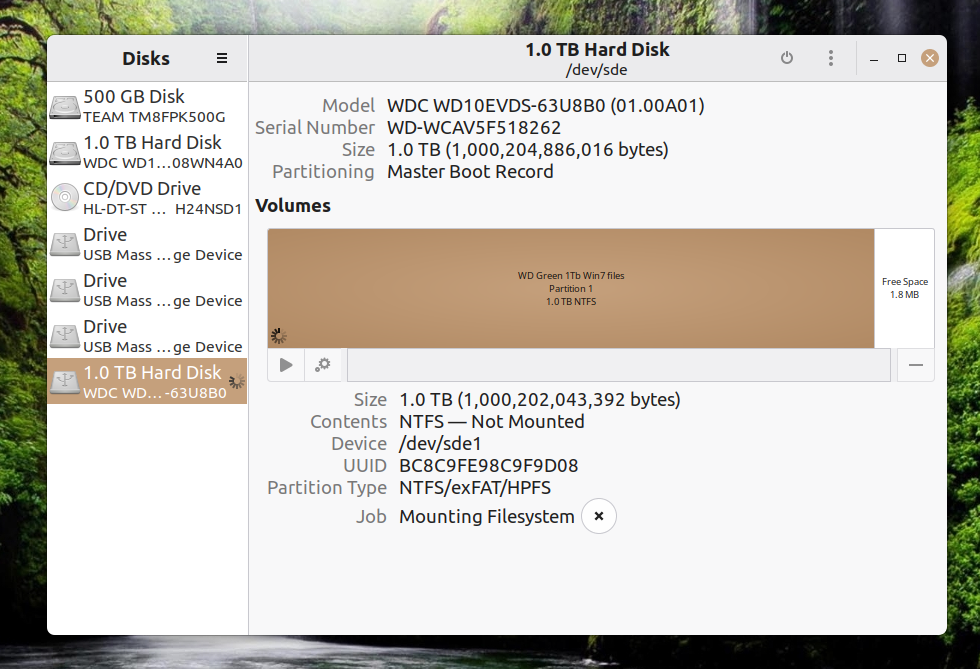
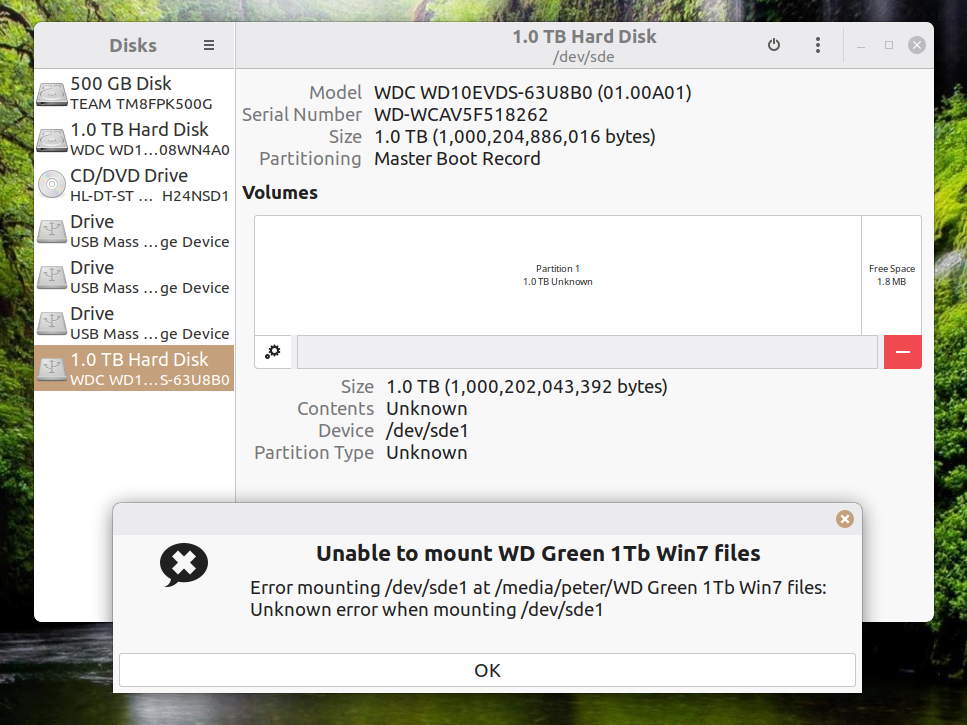
I noticed a second drive in a Win7 PC was not in File Exploiter, and didn't appear in file management, so I tried it in a couple of other PC's, same thing. When I put it in my Linux 22 box it appears unmounted but LM tries to mount it viz:
https://auslink.info/files/disk1.png
https://auslink.info/files/disk2.png
The motor is running since I can feel the vibrations from the platters spinning. What could be the problem? What can I do/use to diagnose/remedy it? thanks
p.s. just another reason Linux is better than Windoze. Win boxes couldn't even see the drive!
I noticed a second drive in a Win7 PC was not in File Exploiter, and
didn't appear in file management, so I tried it in a couple of other
PC's, same thing. When I put it in my Linux 22 box it appears unmounted
but LM tries to mount it viz:
https://auslink.info/files/disk1.png
https://auslink.info/files/disk2.png
The motor is running since I can feel the vibrations from the platters spinning. What could be the problem?
What can I do/use to diagnose/remedy it? thanks
On Mon, 11/24/2025 5:37 PM, Felix wrote:
The motor is running since I can feel the vibrations from the
platters spinning. What could be the problem? What can I do/use
to diagnose/remedy it? thanks
p.s. just another reason Linux is better than Windoze. Win boxes
couldn't even see the drive!
sudo apt install smartmontools # Most likely, already installed
sudo smartctl -a /dev/sde # Check drive-reported health
Lawrence DrCOOliveiro wrote:
On Tue, 25 Nov 2025 09:37:11 +1100, Felix wrote:
When I put it in my Linux 22 box it appears unmountedAs root:
but LM tries to mount it viz:
https://auslink.info/files/disk2.png
-a-a-a-a file -s /dev/sde1
peter@ASUS:~$ file -s /dev/sde1
/dev/sde1: no read permission
should report any recognizable filesystem on that partition. If it just
says rCLdatarCY, then yourCOre in trouble ...
-a-a-a-a fdisk -l /dev/sde
peter@ASUS:~$ fdisk -l /dev/sde
fdisk: cannot open /dev/sde: Permission denied
should report some information about the partition setup on the entire
disk.
If the file command reports a valid-looking filesystem, you can also try
manually mounting the disk into a temporary mount point, e.g.
-a-a-a-a mount -o ro /dev/sde1 /mnt
peter@ASUS:~$-a mount -o ro /dev/sde1 /mnt
mount: /mnt: must be superuser to use mount.
-a-a-a-a-a-a dmesg(1) may have more information after failed mount system call.
(note the option to do it reaonly, just in case) and hopefully get a
better message than rCLunknown errorrCY.
does any of that help?
Lawrence DrCOOliveiro wrote:--- Synchronet 3.21a-Linux NewsLink 1.2
As root:
file -s /dev/sde1
peter@ASUS:~$ file -s /dev/sde1
/dev/sde1: no read permission
On Mon, 11/24/2025 5:37 PM, Felix wrote:
I noticed a second drive in a Win7 PC was not in File Exploiter, and didn't appear in file management, so I tried it in a couple of other PC's, same thing. When I put it in my Linux 22 box it appears unmounted but LM tries to mount it viz:sudo apt install smartmontools # Most likely, already installed
https://auslink.info/files/disk1.png
https://auslink.info/files/disk2.png
The motor is running since I can feel the vibrations from the platters spinning. What could be the problem? What can I do/use to diagnose/remedy it? thanks
p.s. just another reason Linux is better than Windoze. Win boxes couldn't even see the drive!
sudo smartctl -a /dev/sde # Check drive-reported health
sudo apt install gddrescue # Need a place to put the data (use a spare disk) ... ddrescue
sudo ddrescue -f -n /dev/sde /def/sdf /root/rescue.log # Drive to drive rescue (same sized drive)
sudo xed /root/rescue.log # Examine transfer record, for extent of damage
sudo ddrescue -d -f -r3 /dev/sde /def/sdf /root/rescue.log # Try to recover the remaining damaged sectors
sudo apt install disktype
sudo disktype /dev/sdf # See if the good-quality backup drive, is recognizable.
# Should report the partition setup.
Sometimes, a disk partition, the "envelope" the file system is in
and the file system, are not the same size. It's even possible for
a file system to hang over the end of the drive (which is not good).
Should an OS mount a mis-shaped partition ? IDK. Bad karma.
There is more to disk drives than pretty pictures,
and lots of cool ways it can fail.
I can show you a drive, that has a firmware problem where
the UEFI BIOS issues some sort of command... that causes UEFI
to freeze, with a Seagate 4TB drive. There is some sort of
erroneous response from the drive, that UEFI does not like.
However, if you remove the OS on the 4TB drive, such that
the UEFI "analyze" code is not triggered, the computer starts
fine. This means the drive can only be used as a data drive,
not as an OS drive.
You can use "gnome-disks", to do a read-benchmark of a drive.
There is a menu somewhere in the upper right of gnome-disks,
with the benchmark option. Remember to UNTICK the write-test
option as you do not want gnome-disks to attempt writing while
it benches. The read benchmark is an attempt to see how
sick the drive is (whether it has any "slow-spots" on it).
Paul--
Felix <none@not.here> wrote
I noticed a second drive in a Win7 PC was not in File Exploiter, and
didn't appear in file management, so I tried it in a couple of other
PC's, same thing. When I put it in my Linux 22 box it appears
unmounted but LM tries to mount it viz:
https://auslink.info/files/disk1.png
https://auslink.info/files/disk2.png
The motor is running since I can feel the vibrations from the
platters spinning. What could be the problem?
Something has likely died in the electronics card
or the connector isnt connecting properly
What can I do/use toa diagnose/remedy it? thanks
Try a new cable.
If that doesnt fix it, there is no remedy
Paul wrote:
On Mon, 11/24/2025 5:37 PM, Felix wrote:
I noticed a second drive in a Win7 PC was not in File Exploiter, and didn't appear in file management, so I tried it in a couple of other PC's, same thing. When I put it in my Linux 22 box it appears unmounted but LM tries to mount it viz:sudo apt install smartmontools-a-a-a # Most likely, already installed
https://auslink.info/files/disk1.png
https://auslink.info/files/disk2.png
The motor is running since I can feel the vibrations from the platters spinning. What could be the problem? What can I do/use to diagnose/remedy it? thanks
p.s. just another reason Linux is better than Windoze. Win boxes couldn't even see the drive!
-a-a sudo smartctl -a /dev/sde-a-a-a-a-a-a-a-a # Check drive-reported health >>
sudo apt install gddrescue-a-a-a-a-a-a-a # Need a place to put the data (use a spare disk) ... ddrescue
-a-a sudo ddrescue -f -n-a-a-a-a /dev/sde /def/sdf /root/rescue.log-a-a-a # Drive to drive rescue (same sized drive)
-a-a sudo xed /root/rescue.log-a # Examine transfer record, for extent of damage
-a-a sudo ddrescue -d -f -r3 /dev/sde /def/sdf /root/rescue.log-a-a-a # Try to recover the remaining damaged sectors
sudo apt install disktype
-a-a sudo disktype /dev/sdf-a-a-a-a-a-a-a-a-a-a # See if the good-quality backup drive, is recognizable.
-a-a-a-a-a-a-a-a-a-a-a-a-a-a-a-a-a-a-a-a-a-a-a-a-a-a-a-a-a-a-a-a-a-a-a # Should report the partition setup.
Sometimes, a disk partition, the "envelope" the file system is in
and the file system, are not the same size. It's even possible for
a file system to hang over the end of the drive (which is not good).
Should an OS mount a mis-shaped partition ? IDK. Bad karma.
There is more to disk drives than pretty pictures,
and lots of cool ways it can fail.
I can show you a drive, that has a firmware problem where
the UEFI BIOS issues some sort of command... that causes UEFI
to freeze, with a Seagate 4TB drive. There is some sort of
erroneous response from the drive, that UEFI does not like.
However, if you remove the OS on the 4TB drive, such that
the UEFI "analyze" code is not triggered, the computer starts
fine. This means the drive can only be used as a data drive,
not as an OS drive.
You can use "gnome-disks", to do a read-benchmark of a drive.
There is a menu somewhere in the upper right of gnome-disks,
with the benchmark option. Remember to UNTICK the write-test
option as you do not want gnome-disks to attempt writing while
it benches. The read benchmark is an attempt to see how
sick the drive is (whether it has any "slow-spots" on it).
This is doing my head in. Here's the relative test results. I have no idea what to make of them (but you do)
https://auslink.info/HD/
Rod Speed wrote:
Felix <none@not.here> wrote
I noticed a second drive in a Win7 PC was not in File Exploiter, and didn't appear in file management, so I tried it in a couple of other PC's, same thing. When I put it in my Linux 22 box it appears unmounted but LM tries to mount it viz:
https://auslink.info/files/disk1.png
https://auslink.info/files/disk2.png
The motor is running since I can feel the vibrations from the platters spinning. What could be the problem?
Something has likely died in the electronics card
That was my thought
or the connector isnt connecting properly
What can I do/use toa diagnose/remedy it? thanks
Try a new cable.
The cable is fine
you "report no clicks of Death",
If you want the data off it, do something now.
On Tue, 11/25/2025 12:54 AM, Felix wrote:
This is doing my head in. Here's the relative test results.
I have no idea what to make of them (but you do)
https://auslink.info/HD/
The results don't seem credible.
They're weird looking.
I don't see a power-on hours field, or maybe
I do, and it is lifetime *2 hours* ? Bullshit.
You have a count of "1" in Current Pending Sector count.
Which is suspicious, and those start to show up
near end of life. These seem to happen when the
spares are getting low, and the drive is about
to start reporting CRC errors because there are
no spares to fix that.
It is your call, on whether this is merely a novelty
observation experiment, or, you are serious about
getting the data off. If I was coming to your house
right now to help, I would be bringing two hard
drives, a known-working 1TB and a known-working larger
one (in case file-at-a-time recovery is attempted).
But the project isn't going to get very far, if the
thing is a mass of errors. Just the time it would take
to reach the other end of the drive, may exceed the number
of hours left before it dies.
In aus.computers Paul <nospam@needed.invalid> wrote:
On Tue, 11/25/2025 12:54 AM, Felix wrote:They look fine to me for a healthy drive.
This is doing my head in. Here's the relative test results.The results don't seem credible.
I have no idea what to make of them (but you do)
https://auslink.info/HD/
They're weird looking.
I don't see a power-on hours field, or maybeThe power-on hours field on some drives wraps around to zero after
I do, and it is lifetime *2 hours* ? Bullshit.
so many hours, so that's not always abnormal.
You have a count of "1" in Current Pending Sector count.You can see how many reallocated sectors it reports already having
Which is suspicious, and those start to show up
near end of life. These seem to happen when the
spares are getting low, and the drive is about
to start reporting CRC errors because there are
no spares to fix that.
and that's zero! No problem.
[snip]
It is your call, on whether this is merely a noveltyWell he hasn't shown more than typical file system corruption that
observation experiment, or, you are serious about
getting the data off. If I was coming to your house
right now to help, I would be bringing two hard
drives, a known-working 1TB and a known-working larger
one (in case file-at-a-time recovery is attempted).
But the project isn't going to get very far, if the
thing is a mass of errors. Just the time it would take
to reach the other end of the drive, may exceed the number
of hours left before it dies.
can result from a sudden power-off or software crash. But then he
hasn't expressed whether he's interested in the data or wants to
re-use the drive.
In the former case, he should stop messing around
looking at SMART data
and make a disk image.
In the latter case run
a self-test as I suggested
before and if that passes then reformat
and get on with using it because the SMART data looks as good as
you'd expect from any used drive.
On Tue, 11/25/2025 12:55 AM, Felix wrote:
Rod Speed wrote:The drive has IDed itself, and it has populated a SMART display.
Felix <none@not.here> wroteThat was my thought
I noticed a second drive in a Win7 PC was not in File Exploiter, and didn't appear in file management, so I tried it in a couple of other PC's, same thing. When I put it in my Linux 22 box it appears unmounted but LM tries to mount it viz:Something has likely died in the electronics card
https://auslink.info/files/disk1.png
https://auslink.info/files/disk2.png
The motor is running since I can feel the vibrations from the platters spinning. What could be the problem?
or the connector isnt connecting properlyThe cable is fine
What can I do/use toa diagnose/remedy it? thanksTry a new cable.
The error counter for the cable, is not incrementing. Some
of this drive is working. It takes a very large percentage
of functionality, to get this far! Electronics wise, spinning
motor and all, it's functional.
A drive won't respond in any way, unless the heads load
and the ATA command set firmware is loaded off the platter
and into the controller card. This drive has done all those
things. *Some* info *is* coming off the platter. But as
to what the hell is going on in terms of logical state,
I can't tell from this distance. You can hear it spinning,
you "report no clicks of Death", so it's not signaling
"I'm not feeling well" in the usual way. It's a pretty
weird mix of symptoms if you ask me.
A lot of drives appearing to be this mixed up, they would
stop telling you they were a WD10EVDS. They would stop
responding entirely. Why is this disk responding ???
If you want the data off it, do something now.
Paul
On 25/11/2025 09:11, Paul wrote:
-aYou can hear it spinning,
you "report no clicks of Death",
Where did you see that? The OP just reported vibrations from the
platters spinning.
If you want the data off it, do something now.
Get the disk and put it in a small polythene bag. Put it in a freezer
for at least a couple of hours, preferably overnight. As soon as you
want to try it, take it out of the freezer and put it in a SATA USB
caddy (try to leave as much of the bag on as possible to stop
condensation getting to the disk). Plug the USB lead into your
computer with as little delay as possible, and see what your file
manager says about the disk. If any of the disk is now readable, copy
those files to your computer's HD without delay. It will probably last around 10 minutes before any faulty electronics warm up to prevent
further access.
You can try repeating to get more data off, but in the end it will
fail. I've used this a couple of times to get data off a disk - even
one with the click of death. I've got a 1TB Seagate which went down a
few months ago with the click of death, but that unfortunately doesn't respond to the freezer trick. It's worth trying where everything else
has failed.
Computer Nerd Kev wrote:
and make a disk image.
how can I make an image of a disk that can't be read?
Computer Nerd Kev wrote:
But then he hasn't expressed whether he's interested in the data
or wants to re-use the drive.
both. if I can access it I'll get the data of, and if the disk is ok
I'll keep it for non critical use
In the former case, he should stop messing around
looking at SMART data
I've been doing what others suggested
and make a disk image.
how can I make an image of a disk that can't be read?
In the latter case run a self-test as I suggested
doing that now
sudo dd if=/dev/sde bs=4096 noerror status=progress of=~/broken_disk.img^^^^^^^
sudo dd if=/dev/sde bs=4096 noerror status=progress | gzip -c > ~/broken_disk.img.gz^^^^^^^
Computer Nerd Kev wrote:
In aus.computers Paul <nospam@needed.invalid> wrote:
On Tue, 11/25/2025 12:54 AM, Felix wrote:They look fine to me for a healthy drive.
This is doing my head in. Here's the relative test results.The results don't seem credible.
I have no idea what to make of them (but you do)
https://auslink.info/HD/
They're weird looking.
I don't see a power-on hours field, or maybeThe power-on hours field on some drives wraps around to zero after
I do, and it is lifetime *2 hours* ? Bullshit.
so many hours, so that's not always abnormal.
You have a count of "1" in Current Pending Sector count.You can see how many reallocated sectors it reports already having
Which is suspicious, and those start to show up
near end of life. These seem to happen when the
spares are getting low, and the drive is about
to start reporting CRC errors because there are
no spares to fix that.
and that's zero! No problem.
[snip]
It is your call, on whether this is merely a noveltyWell he hasn't shown more than typical file system corruption that
observation experiment, or, you are serious about
getting the data off. If I was coming to your house
right now to help, I would be bringing two hard
drives, a known-working 1TB and a known-working larger
one (in case file-at-a-time recovery is attempted).
But the project isn't going to get very far, if the
thing is a mass of errors. Just the time it would take
to reach the other end of the drive, may exceed the number
of hours left before it dies.
can result from a sudden power-off or software crash. But then he
hasn't expressed whether he's interested in the data or wants to
re-use the drive.
both. if I can access it I'll get the data of, and if the disk is ok
I'll keep it for non critical use
In the former case, he should stop messing around
looking at SMART data
I've been doing what others suggested
and make a disk image.
how can I make an image of a disk that can't be read?
--- Synchronet 3.21a-Linux NewsLink 1.2In the latter case run
a self-test as I suggested
doing that now
before and if that passes then reformat
and get on with using it because the SMART data looks as good as
you'd expect from any used drive.
that's encouraging then, thanks
Jeff Layman wrote:
On 25/11/2025 09:11, Paul wrote:
You can hear it spinning,
you "report no clicks of Death",
Where did you see that? The OP just reported vibrations from the
platters spinning.
If you want the data off it, do something now.
Get the disk and put it in a small polythene bag. Put it in a freezer
for at least a couple of hours, preferably overnight. As soon as you
want to try it, take it out of the freezer and put it in a SATA USB
caddy (try to leave as much of the bag on as possible to stop
condensation getting to the disk). Plug the USB lead into your computer
with as little delay as possible, and see what your file manager says
about the disk. If any of the disk is now readable, copy those files to
your computer's HD without delay. It will probably last around 10
minutes before any faulty electronics warm up to prevent further access.
You can try repeating to get more data off, but in the end it will
fail. I've used this a couple of times to get data off a disk - even
one with the click of death. I've got a 1TB Seagate which went down a
few months ago with the click of death, but that unfortunately doesn't
respond to the freezer trick. It's worth trying where everything else
has failed.
yep, I can try that, thanks. as an alternative I'll go to the local electronics shop and get some freeze spray and give that a try first
Computer Nerd Kev wrote:
In aus.computers Paul <nospam@needed.invalid> wrote:
On Tue, 11/25/2025 12:54 AM, Felix wrote:They look fine to me for a healthy drive.
This is doing my head in. Here's the relative test results.The results don't seem credible.
I have no idea what to make of them (but you do)
https://auslink.info/HD/
They're weird looking.
I don't see a power-on hours field, or maybeThe power-on hours field on some drives wraps around to zero after
I do, and it is lifetime *2 hours* ? Bullshit.
so many hours, so that's not always abnormal.
You have a count of "1" in Current Pending Sector count.You can see how many reallocated sectors it reports already having
Which is suspicious, and those start to show up
near end of life. These seem to happen when the
spares are getting low, and the drive is about
to start reporting CRC errors because there are
no spares to fix that.
and that's zero! No problem.
[snip]
It is your call, on whether this is merely a noveltyWell he hasn't shown more than typical file system corruption that
observation experiment, or, you are serious about
getting the data off. If I was coming to your house
right now to help, I would be bringing two hard
drives, a known-working 1TB and a known-working larger
one (in case file-at-a-time recovery is attempted).
But the project isn't going to get very far, if the
thing is a mass of errors. Just the time it would take
to reach the other end of the drive, may exceed the number
of hours left before it dies.
can result from a sudden power-off or software crash. But then he
hasn't expressed whether he's interested in the data or wants to
re-use the drive.
both. if I can access it I'll get the data of, and if the disk is ok
I'll keep it for non critical use
-a In the former case, he should stop messing around
looking at SMART data
I've been doing what others suggested
and make a disk image.
how can I make an image of a disk that can't be read?
-a In the latter case run
a self-test as I suggested
doing that now
before and if that passes then reformat
and get on with using it because the SMART data looks as good as
you'd expect from any used drive.
that's encouraging then, thanks
In aus.computers Felix <none@not.here> wrote:
Computer Nerd Kev wrote:Best focus on getting the data off first then because if the drive
But then he hasn't expressed whether he's interested in the databoth. if I can access it I'll get the data of, and if the disk is ok
or wants to re-use the drive.
I'll keep it for non critical use
is dying it might suddenly stop working entirely after being left
on much longer.
It can be read, otherwise you wouldn't see that there's an NTFSIn the former case, he should stop messing aroundI've been doing what others suggested
looking at SMART data
and make a disk image.how can I make an image of a disk that can't be read?
filesystem on it. The filesystem is corrupt so it can't be
_mounted_. That might be due to the drive failing or the OS messed
it up. Either way if you've got another drive big enough to store
it, make an image using "dd" or "ddrescue" as Paul suggested. I
haven't used the latter, but for dd:
sudo dd if=/dev/sde bs=4096 noerror status=progress of=~/broken_disk.img
WARNING:
Messing up that command can overwrite other drives. You might need
to change of=~/broken_disk.img to point somewhere else if there
isn't enough space on the drive where you home directory is kept
(1TB required), but don't use "of=/dev/[something]".
You can then either run recovery programs on the image, or run them
on the drive if you think it's not dying, but either way you have a
backup image that you can restore if it goes wrong. You can also
compress the backup to avoid needing a full 1TB of space if you're
going to run the recovery software on the drive:
sudo dd if=/dev/sde bs=4096 noerror status=progress | gzip -c > ~/broken_disk.img.gz
Again I would've done that after I got the data off the drive ifIn the latter case run a self-test as I suggesteddoing that now
that mattered. Although I think in theory you can do both at the
same time.
On Wed, 26 Nov 2025 10:04:23 +1100, Felix <none@not.here> wrote:
Jeff Layman wrote:
On 25/11/2025 09:11, Paul wrote:
aYou can hear it spinning,
you "report no clicks of Death",
Where did you see that? The OP just reported vibrations from the
platters spinning.
If you want the data off it, do something now.
Get the disk and put it in a small polythene bag. Put it in a
freezer for at least a couple of hours, preferably overnight. As
soon as you want to try it, take it out of the freezer and put it in
a SATA USB caddy (try to leave as much of the bag on as possible to
stop condensation getting to the disk). Plug the USB lead into your
computer with as little delay as possible, and see what your file
manager says about the disk. If any of the disk is now readable,
copy those files to your computer's HD without delay. It will
probably last around 10 minutes before any faulty electronics warm
up to prevent further access.
You can try repeating to get more data off, but in the end it will
fail. I've used this a couple of times to get data off a disk - even
one with the click of death. I've got a 1TB Seagate which went down
a few months ago with the click of death, but that unfortunately
doesn't respond to the freezer trick. It's worth trying where
everything else has failed.
yep, I can try that, thanks. as an alternative I'll go to the local
electronics shop and get some freeze spray and give that a try first
Don't use freeze spray first, that will see condensation
on the logic card that can fuck it
yep, I can try that, thanks. as an alternative I'll go to the local
electronics shop and get some freeze spray and give that a try first
Don't use freeze spray first, that will see condensation
on the logic card that can fuck it
Ok
Felix <none@not.here> wrote
yep, I can try that, thanks. as an alternative I'll go to the local
electronics shop and get some freeze spray and give that a try first
Don't use freeze spray first, that will see condensation
on the logic card that can fuck it
Ok
Rod Speed googled that
Felix wrote:
Computer Nerd Kev wrote:
In the latter case run a self-test as I suggested
doing that now
It wouldn't run. gave an error message "can't mount the drive"
Computer Nerd Kev wrote:
In aus.computers Felix <none@not.here> wrote:
Computer Nerd Kev wrote:Best focus on getting the data off first then because if the drive
But then he hasn't expressed whether he's interested in the databoth. if I can access it I'll get the data of, and if the disk is ok
or wants to re-use the drive.
I'll keep it for non critical use
is dying it might suddenly stop working entirely after being left
on much longer.
I don't have another drive to copy to atm
backup image that you can restore if it goes wrong. You can also
compress the backup to avoid needing a full 1TB of space if you're
going to run the recovery software on the drive:
sudo dd if=/dev/sde bs=4096 noerror status=progress | gzip -c > ~/broken_disk.img.gz
I'm not comfortable using the terminal. I'll try the freezing method
when I have access to another drive to copy to
then leave it connected to a Windows PC while it
boots up so it should automatically CHKDSK it during start-up.
On Wed, 11/26/2025 5:58 PM, Computer Nerd Kev wrote:
then leave it connected to a Windows PC while it
boots up so it should automatically CHKDSK it during start-up.
No.
^^^^^^run the drive's self-test (no "mounting" involved) and if it
passes ^^^^^^^^^
then leave it connected to a Windows PC while it boots up so
it should automatically CHKDSK it during start-up.
I've already explained at some point, that in-place repair
of a sick disk with CHKDSK is wrong.
You clone the disk over to known-good materials.
That's your golden copy.
That is your only priority right now. Cloning the
bad disk to a good disk. That's the first step.
The idea is to make sure, before absolutely anything
else happens, you have that copy.
The disk's not sick if SMART shows no failures and it's and passed
the built-in self-test IMHO. The OS might have messed up the data
on it, or power was cut during a write.
In aus.computers Felix <none@not.here> wrote:
Felix wrote:Then you didn't "run a self-test as I suggested" because smartctl
Computer Nerd Kev wrote:It wouldn't run. gave an error message "can't mount the drive"
In the latter case run a self-test as I suggesteddoing that now
doesn't mount the drive! Like I said:
Even if that looks OK, it's more certain to run a self-test with:
sudo smartctl -t long /dev/sde
Then run this every so often to check if it's failed with errors or
succeeded after the estimated completion time:
sudo smartctl -l selftest /dev/sde
Mounting means reading the file system which we already know is
stuffed up. The point is to figure out whether the drive stuffed it
up because it's dying or it got stuffed up by the OS and the drive
is perfectly fine (until you do something like put it in the
freezer anyway).
On Thu, 27 Nov 2025 05:53:32 +1100, Felix <none@not.here> wrote:
Rod Speed googled thatOkyep, I can try that, thanks. as an alternative I'll go to the localDon't use freeze spray first, that will see condensation
electronics shop and get some freeze spray and give that a try first
on the logic card that can fuck it
You can use Gmail for back up
They haxe a 1 month free trail on Google AI Pro (2 TB) https://one.google.com/about/plans?g1_landing_page=0
In aus.computers Felix <none@not.here> wrote:
Computer Nerd Kev wrote:Well if you value the data then leave it alone until you do.
In aus.computers Felix <none@not.here> wrote:I don't have another drive to copy to atm
Computer Nerd Kev wrote:Best focus on getting the data off first then because if the drive
But then he hasn't expressed whether he's interested in the databoth. if I can access it I'll get the data of, and if the disk is ok
or wants to re-use the drive.
I'll keep it for non critical use
is dying it might suddenly stop working entirely after being left
on much longer.
That's silly when there's nothing to tell you that the drive is atbackup image that you can restore if it goes wrong. You can alsoI'm not comfortable using the terminal. I'll try the freezing method
compress the backup to avoid needing a full 1TB of space if you're
going to run the recovery software on the drive:
sudo dd if=/dev/sde bs=4096 noerror status=progress | gzip -c > ~/broken_disk.img.gz
when I have access to another drive to copy to
fault and it could just be that the OS stuffed it up. Freezing might
stuff up a perfectly good drive.
Anyway why ask about getting data off before you had a place to put
it?
If you _don't_ really care about the data and are willing to
risk losing it, run the drive's self-test (no "mounting" involved)
and if it passes then leave it connected to a Windows PC while it
boots up so it should automatically CHKDSK it during start-up.
Though I've had Windows CHKDSK delete lots of stuff from a drive
before so I'd still recommend making a backup image of it first if
the data is more than curiosity value. If Windows won't run CHKDSK
then you could try using fixntfs on Linux first to mark it "dirty",
but since that's a command-line tool I guess you won't want to.
In aus.computers Paul <nospam@needed.invalid> wrote:
On Wed, 11/26/2025 5:58 PM, Computer Nerd Kev wrote:Umm, you snipped:
then leave it connected to a Windows PC while itNo.
boots up so it should automatically CHKDSK it during start-up.
^^^^^^run the drive's self-test (no "mounting" involved) and if it
passes ^^^^^^^^^
The disk's not sick if SMART shows no failures and it's and passedthen leave it connected to a Windows PC while it boots up soI've already explained at some point, that in-place repair
it should automatically CHKDSK it during start-up.
of a sick disk with CHKDSK is wrong.
the built-in self-test IMHO. The OS might have messed up the data
on it, or power was cut during a write.
You clone the disk over to known-good materials.Agreed, but he doesn't want to do that so...
That's your golden copy.
That is your only priority right now. Cloning the
bad disk to a good disk. That's the first step.
The idea is to make sure, before absolutely anything
else happens, you have that copy.
On Wed, 11/26/2025 5:58 PM, Computer Nerd Kev wrote:
then leave it connected to a Windows PC while itNo.
boots up so it should automatically CHKDSK it during start-up.
I've already explained at some point, that in-place repair
of a sick disk with CHKDSK is wrong.
You clone the disk over to known-good materials.
That's your golden copy.
That is your only priority right now. Cloning the
bad disk to a good disk. That's the first step.
The idea is to make sure, before absolutely anything
else happens, you have that copy.
good quality good quality
fully operational disk fully operational disk
Bad disk -------> Golden copy disk -------> experiment disk
1TB 1TB 1TB
You do your questionable experiments on the right hand disk.
If the right-hand disk suffers information loss or is
less-good than the middle disk, you clone the middle
disk onto the experiment disk again.
If you have recovery software that scans the middle
disk (such as Photorec), it will ask where you want
the fragments put, and you put the fragments onto the
right hand disk.
Notice that, after the safety copy is made to the middle
disk, we have stopped using the left-hand disk.
*******
If you don't have the setup to attend the left hand disk,
then stop using the left hand disk for now. That's about
the best you can do for it.
Freeze mist isn't necessary, because the disk is being detected,
it's operational, the head is free, the head loads, the--
critical data comes off the platter, the disk identifies itself.
Paul
Paul wrote:
On Wed, 11/26/2025 5:58 PM, Computer Nerd Kev wrote:
then leave it connected to a Windows PC while itNo.
boots up so it should automatically CHKDSK it during start-up.
I've already explained at some point, that in-place repair
of a sick disk with CHKDSK is wrong.
You clone the disk over to known-good materials.
That's your golden copy.
That is your only priority right now. Cloning the
bad disk to a good disk. That's the first step.
The idea is to make sure, before absolutely anything
else happens, you have that copy.
good quality good quality
fully operational disk fully operational disk
Bad disk -------> Golden copy disk -------> experiment disk
1TB 1TB 1TB
You do your questionable experiments on the right hand disk.
If the right-hand disk suffers information loss or is
less-good than the middle disk, you clone the middle
disk onto the experiment disk again.
If you have recovery software that scans the middle
disk (such as Photorec), it will ask where you want
the fragments put, and you put the fragments onto the
right hand disk.
Notice that, after the safety copy is made to the middle
disk, we have stopped using the left-hand disk.
*******
If you don't have the setup to attend the left hand disk,
then stop using the left hand disk for now. That's about
the best you can do for it.
Freeze mist isn't necessary, because the disk is being detected,
not in windows 10/11
it's operational, the head is free, the head loads, the
critical data comes off the platter, the disk identifies itself.
Paul
Computer Nerd Kev wrote:
In aus.computers Paul <nospam@needed.invalid> wrote:
On Wed, 11/26/2025 5:58 PM, Computer Nerd Kev wrote:Umm, you snipped:
then leave it connected to a Windows PC while itNo.
boots up so it should automatically CHKDSK it during start-up.
^^^^^^run the drive's self-test (no "mounting" involved) and if it
passes ^^^^^^^^^
The disk's not sick if SMART shows no failures and it's and passedthen leave it connected to a Windows PC while it boots up soI've already explained at some point, that in-place repair
it should automatically CHKDSK it during start-up.
of a sick disk with CHKDSK is wrong.
the built-in self-test IMHO. The OS might have messed up the data
on it, or power was cut during a write.
if it's just an OS stuff up, why isn't there some program I can run to
fix it?
You clone the disk over to known-good materials.Agreed, but he doesn't want to do that so...
That's your golden copy.
That is your only priority right now. Cloning the
bad disk to a good disk. That's the first step.
The idea is to make sure, before absolutely anything
else happens, you have that copy.
Computer Nerd Kev wrote:
In aus.computers Felix <none@not.here> wrote:
Felix wrote:Then you didn't "run a self-test as I suggested" because smartctl
Computer Nerd Kev wrote:It wouldn't run. gave an error message "can't mount the drive"
In the latter case run a self-test as I suggesteddoing that now
doesn't mount the drive! Like I said:
Even if that looks OK, it's more certain to run a self-test with:
sudo smartctl -t long /dev/sde
Then run this every so often to check if it's failed with errors or
succeeded after the estimated completion time:
sudo smartctl -l selftest /dev/sde
Mounting means reading the file system which we already know is
stuffed up. The point is to figure out whether the drive stuffed it
up because it's dying or it got stuffed up by the OS and the drive
is perfectly fine (until you do something like put it in the
freezer anyway).
I did run it as you said, viz..
peter@ASUS:~$ sudo smartctl -t long /dev/sde
[sudo] password for peter:
smartctl 7.4 2023-08-01 r5530 [x86_64-linux-6.8.0-88-generic] (local build) Copyright (C) 2002-23, Bruce Allen, Christian Franke, www.smartmontools.org
=== START OF OFFLINE IMMEDIATE AND SELF-TEST SECTION ===
Sending command: "Execute SMART Extended self-test routine immediately
in off-line mode".
Drive command "Execute SMART Extended self-test routine immediately in off-line mode" successful.
Testing has begun.
Please wait 235 minutes for test to complete.
Test will complete after Wed Nov 26 13:43:26 2025 AEDT
Use smartctl -X to abort test.
peter@ASUS:~$
About 2 pm I looked and there was nothing more in the terminal. I closed
it and then noticed an error message in a window saying the drive
couldn't be mounted, and assumed that the test never actually ran.
Petzl wrote:
On Thu, 27 Nov 2025 05:53:32 +1100, Felix <none@not.here> wrote:
Rod Speed googled thatOkyep, I can try that, thanks. as an alternative I'll go to the localDon't use freeze spray first, that will see condensation
electronics shop and get some freeze spray and give that a try first
on the logic card that can fuck it
yeah, I'm not so sure it would cause condensation.
it's used regularly on electronic circuit boards for fault finding.
Computer Nerd Kev wrote:
In aus.computers Paul <nospam@needed.invalid> wrote:
On Wed, 11/26/2025 5:58 PM, Computer Nerd Kev wrote:Umm, you snipped:
then leave it connected to a Windows PC while itNo.
boots up so it should automatically CHKDSK it during start-up.
^^^^^^run the drive's self-test (no "mounting" involved) and if it
passes ^^^^^^^^^
The disk's not sick if SMART shows no failures and it's and passedthen leave it connected to a Windows PC while it boots up soI've already explained at some point, that in-place repair
it should automatically CHKDSK it during start-up.
of a sick disk with CHKDSK is wrong.
the built-in self-test IMHO. The OS might have messed up the data
on it, or power was cut during a write.
if it's just an OS stuff up, why isn't there some program I can run to
fix it?
peter@ASUS:~$ sudo smartctl -t long /dev/sde
[sudo] password for peter:
smartctl 7.4 2023-08-01 r5530 [x86_64-linux-6.8.0-88-generic] (local build) >> Copyright (C) 2002-23, Bruce Allen, Christian Franke, www.smartmontools.org >>
=== START OF OFFLINE IMMEDIATE AND SELF-TEST SECTION ===
Sending command: "Execute SMART Extended self-test routine immediately
in off-line mode".
Drive command "Execute SMART Extended self-test routine immediately in
off-line mode" successful.
Testing has begun.
Please wait 235 minutes for test to complete.
Test will complete after Wed Nov 26 13:43:26 2025 AEDT
Use smartctl -X to abort test.
peter@ASUS:~$
About 2 pm I looked and there was nothing more in the terminal. I closed
it and then noticed an error message in a window saying the drive
couldn't be mounted, and assumed that the test never actually ran.
You didn't read my instructions properly. You needed to run this
second command to retrieve the results of the self-test which
should have been ready after "Wed Nov 26 13:43:26 2025 AEDT" if you
didn't power off the drive before then:
sudo smartctl -l selftest /dev/sde
You can run that command before the finish time too, to see if it's
failed before the end of the test.
I've been asking about getting the drive working.
On Thu, 27 Nov 2025 19:12:46 +1100, Felix <none@not.here> wrote:
Paul wrote:
On Wed, 11/26/2025 5:58 PM, Computer Nerd Kev wrote:
then leave it connected to a Windows PC while itNo.
boots up so it should automatically CHKDSK it during start-up.
I've already explained at some point, that in-place repair
of a sick disk with CHKDSK is wrong.
You clone the disk over to known-good materials.
That's your golden copy.
That is your only priority right now. Cloning the
bad disk to a good disk. That's the first step.
The idea is to make sure, before absolutely anything
else happens, you have that copy.
aaaaaaaaaaaaaaaaaaaaa good qualityaaaaaaaaaaaaa good quality
aaaaaaaaaaaaaaaaaaaaa fully operational diskaaa fully operational disk
aaa Bad disk -------> Golden copy disk -------> experiment disk
aaaaaa 1TBaaaaaaaaaaaaaaaa 1TBaaaaaaaaaaaaaaaaaaaaaa 1TB
You do your questionable experiments on the right hand disk.
If the right-hand disk suffers information loss or is
less-good than the middle disk, you clone the middle
disk onto the experiment disk again.
If you have recovery software that scans the middle
disk (such as Photorec), it will ask where you want
the fragments put, and you put the fragments onto the
right hand disk.
Notice that, after the safety copy is made to the middle
disk, we have stopped using the left-hand disk.
*******
If you don't have the setup to attend the left hand disk,
then stop using the left hand disk for now. That's about
the best you can do for it.
Freeze mist isn't necessary, because the disk is being detected,
not in windows 10/11
You havent said if its visible in disk manager
--it's operational, the head is free, the head loads, the
critical data comes off the platter, the disk identifies itself.
aaa Paul
On Thu, 27 Nov 2025 19:08:33 +1100, Felix <none@not.here> wrote:
Computer Nerd Kev wrote:
In aus.computers Paul <nospam@needed.invalid> wrote:
On Wed, 11/26/2025 5:58 PM, Computer Nerd Kev wrote:Umm, you snipped:
then leave it connected to a Windows PC while itNo.
boots up so it should automatically CHKDSK it during start-up.
aaa ^^^^^^run the drive's self-test (no "mounting" involved) and if it
passes ^^^^^^^^^
The disk's not sick if SMART shows no failures and it's and passedthen leave it connected to a Windows PC while it boots up soI've already explained at some point, that in-place repair
it should automatically CHKDSK it during start-up.
of a sick disk with CHKDSK is wrong.
the built-in self-test IMHO. The OS might have messed up the data
on it, or power was cut during a write.
if it's just an OS stuff up, why isn't there some program I can run
to fix it?
There may well be but you want to recover the data
so you cant try wiping the drive to see if that makes
it visible
--
You clone the disk over to known-good materials.Agreed, but he doesn't want to do that so...
That's your golden copy.
That is your only priority right now. Cloning the
bad disk to a good disk. That's the first step.
The idea is to make sure, before absolutely anything
else happens, you have that copy.
In aus.computers Felix <none@not.here> wrote:
Computer Nerd Kev wrote:You didn't read my instructions properly. You needed to run this
In aus.computers Felix <none@not.here> wrote:I did run it as you said, viz..
Felix wrote:Then you didn't "run a self-test as I suggested" because smartctl
Computer Nerd Kev wrote:It wouldn't run. gave an error message "can't mount the drive"
In the latter case run a self-test as I suggesteddoing that now
doesn't mount the drive! Like I said:
Even if that looks OK, it's more certain to run a self-test with:
sudo smartctl -t long /dev/sde
Then run this every so often to check if it's failed with errors or
succeeded after the estimated completion time:
sudo smartctl -l selftest /dev/sde
Mounting means reading the file system which we already know is
stuffed up. The point is to figure out whether the drive stuffed it
up because it's dying or it got stuffed up by the OS and the drive
is perfectly fine (until you do something like put it in the
freezer anyway).
peter@ASUS:~$ sudo smartctl -t long /dev/sde
[sudo] password for peter:
smartctl 7.4 2023-08-01 r5530 [x86_64-linux-6.8.0-88-generic] (local build) >> Copyright (C) 2002-23, Bruce Allen, Christian Franke, www.smartmontools.org >>
=== START OF OFFLINE IMMEDIATE AND SELF-TEST SECTION ===
Sending command: "Execute SMART Extended self-test routine immediately
in off-line mode".
Drive command "Execute SMART Extended self-test routine immediately in
off-line mode" successful.
Testing has begun.
Please wait 235 minutes for test to complete.
Test will complete after Wed Nov 26 13:43:26 2025 AEDT
Use smartctl -X to abort test.
peter@ASUS:~$
About 2 pm I looked and there was nothing more in the terminal. I closed
it and then noticed an error message in a window saying the drive
couldn't be mounted, and assumed that the test never actually ran.
second command to retrieve the results of the self-test which
should have been ready after "Wed Nov 26 13:43:26 2025 AEDT" if you
didn't power off the drive before then:
sudo smartctl -l selftest /dev/sde
You can run that command before the finish time too, to see if it's
failed before the end of the test.
In aus.computers Computer Nerd Kev <not@telling.you.invalid> wrote:
The drive also remembers results from old tests after power-off, sopeter@ASUS:~$ sudo smartctl -t long /dev/sdeYou didn't read my instructions properly. You needed to run this
[sudo] password for peter:
smartctl 7.4 2023-08-01 r5530 [x86_64-linux-6.8.0-88-generic] (local build) >>> Copyright (C) 2002-23, Bruce Allen, Christian Franke, www.smartmontools.org >>>
=== START OF OFFLINE IMMEDIATE AND SELF-TEST SECTION ===
Sending command: "Execute SMART Extended self-test routine immediately
in off-line mode".
Drive command "Execute SMART Extended self-test routine immediately in
off-line mode" successful.
Testing has begun.
Please wait 235 minutes for test to complete.
Test will complete after Wed Nov 26 13:43:26 2025 AEDT
Use smartctl -X to abort test.
peter@ASUS:~$
About 2 pm I looked and there was nothing more in the terminal. I closed >>> it and then noticed an error message in a window saying the drive
couldn't be mounted, and assumed that the test never actually ran.
second command to retrieve the results of the self-test which
should have been ready after "Wed Nov 26 13:43:26 2025 AEDT" if you
didn't power off the drive before then:
sudo smartctl -l selftest /dev/sde
You can run that command before the finish time too, to see if it's
failed before the end of the test.
basically run "sudo smartctl -l selftest /dev/sde" (if the drive is
still at /dev/sde) right away to see if the last self-test had a
result.
On Thu, 11/27/2025 3:02 AM, Felix wrote:
I've been asking about getting the drive working.I had a failed disk a couple months ago, in fact
it's the same drive model as is currently in the
Test Machine being ddrescued, and it was clean looking
inside. It would be hard to guess (without resorting
to a microscope), exactly why the surface on these
(while attempting to read) is such a mess.
There used to be disks, where when you opened them up,
the filter pack on the circumference of the HDA, instead
of being a bright white, was covered in dark particulate.
And the wonder back then, is how the disk had been able
to function while that stuff was flying around inside.
But the more recent disks, the perpendicular mode recording
(PMR) ones, the surface doesn't seem to do that. The filter
pack on mine was clean.
The thing is, your disk is identifying itself, which is
a sign it is able to load the ATA command interpreter off
the platter. The head is loaded. You have heard the thing
humming as it spins. These are all signs it is working
from a mechanical perspective. It isn't "stuffed" in
the normal way, where it won't talk to you.
But at a guess, it's been doing a lot of sparing out of sectors.
It's in a bit of a bad mood inside.
There is no obvious way to improve its mood, as without
a pool of spare sectors, there are limited things you
can do to it.
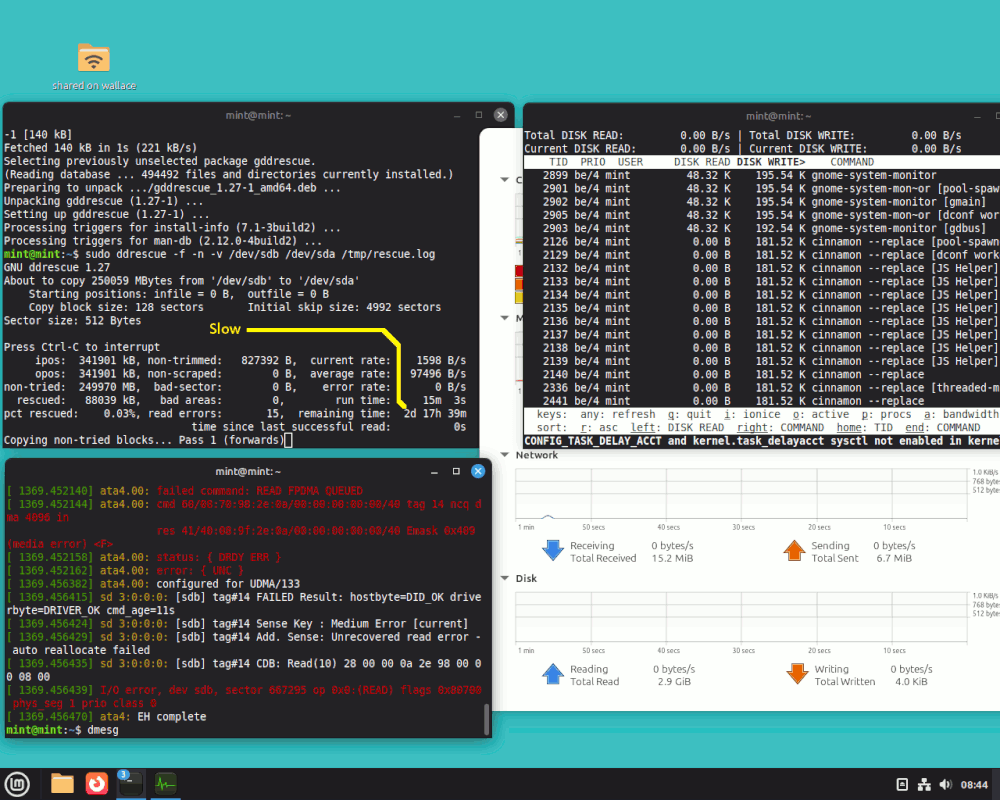
[Picture]
https://i.postimg.cc/GhC86fKg/ddrescue-not-going-well.gif
One of the reasons that disk is in a bad mood, is it is a 250GB
drive with a single platter, and it is a CSS disk, it does not
use a landing ramp. Apparently the landing area near the hub is
laser patterned, so the head won't stick to the platter
("stiction"). The head isn't stuck, but the practice of landing
on the platter, isn't a best practice. If they had build the
disk with a landing ramp, it would last for more service hours.
I thought this practice of doing CSS had stopped, basically,
back when landing ramps were invented. But I guess $0.05 for
a piece of plastic, was too much for them. The landing ramps
are plastic.
Anyway, that picture shows you an attempt by me, to recover
data off one of my rubbish disks. I think I can see partitions
on it, but the partitions won't mount, and it won't even
begin a benchmark run (errors out at the beginning). And
the ddrescue is quoting an absurd number of days to finish
the job (and even then, the percentage of recovered material
might not be sufficient to do anything).
Paul
Computer Nerd Kev wrote:
In aus.computers Computer Nerd Kev <not@telling.you.invalid> wrote:
The drive also remembers results from old tests after power-off, so
basically run "sudo smartctl -l selftest /dev/sde" (if the drive is
still at /dev/sde) right away to see if the last self-test had a
result.
Ok. got this:
peter@ASUS:~$ sudo smartctl -l selftest /dev/sde
[sudo] password for peter:
smartctl 7.4 2023-08-01 r5530 [x86_64-linux-6.8.0-88-generic] (local build) Copyright (C) 2002-23, Bruce Allen, Christian Franke, www.smartmontools.org
=== START OF READ SMART DATA SECTION ===
SMART Self-test log structure revision number 1
Num Test_Description Status Remaining
LifeTime(hours) LBA_of_first_error
# 1 Extended offline Completed: read failure 90% 4 6238948
what is that telling us?
In aus.computers Felix <none@not.here> wrote:
Computer Nerd Kev wrote:
In aus.computers Computer Nerd Kev <not@telling.you.invalid> wrote:
The drive also remembers results from old tests after power-off, so
basically run "sudo smartctl -l selftest /dev/sde" (if the drive is
still at /dev/sde) right away to see if the last self-test had a
result.
Ok. got this:
peter@ASUS:~$ sudo smartctl -l selftest /dev/sde
[sudo] password for peter:
smartctl 7.4 2023-08-01 r5530 [x86_64-linux-6.8.0-88-generic] (local build) >> Copyright (C) 2002-23, Bruce Allen, Christian Franke, www.smartmontools.org >>
=== START OF READ SMART DATA SECTION ===
SMART Self-test log structure revision number 1
Num Test_Description Status Remaining
LifeTime(hours) LBA_of_first_error
# 1 Extended offline Completed: read failure 90% 4 6238948 >>
what is that telling us?
It failed within the first 10% of the test, so the drive is indeed
dying. Therefore you'll definitely need to find something else to
copy the data onto before you go any further with trying to read
the files on it.
On 27 Nov 2025 21:51:26 +1000, Computer Nerd Kev
<not@telling.you.invalid> wrote:
In aus.computers Felix <none@not.here> wrote:Time for euthanasia of your drives data I'm afraid.
what is that telling us?
It failed within the first 10% of the test, so the drive is indeed
dying. Therefore you'll definitely need to find something else to
copy the data onto before you go any further with trying to read
the files on it.
The SSD drive might be usable after google how to revive
Otherwise SSD Drives good ones at a best price are from TEMU but look for a quality maker "KODAK"
On Thu, 11/27/2025 7:39 PM, Petzl wrote:
On 27 Nov 2025 21:51:26 +1000, Computer Nerd Kev
<not@telling.you.invalid> wrote:
In aus.computers Felix <none@not.here> wrote:Time for euthanasia of your drives data I'm afraid.
what is that telling us?
It failed within the first 10% of the test, so the drive is indeed
dying. Therefore you'll definitely need to find something else to
copy the data onto before you go any further with trying to read
the files on it.
The SSD drive might be usable after google how to revive
Otherwise SSD Drives good ones at a best price are from TEMU but look for a >> quality maker "KODAK"
TEMU ??? You've got to be joking.
They wouldn't even pay their delivery drivers back wages here.
And some companies sell their trade name to others,
so a "Duracell" SSD, the staff at the Duracell corporation
would know nothing about the details of the item. The same
would go for "Kodak". Just a name.
https://en.wikipedia.org/wiki/Kodak
"Post-bankruptcy
... Kodak has licensed its brand to several other companies.
"
The suggestion here, is the Kodak SSD is a rebranded Emtec. [April 2019]
https://hardforum.com/threads/hot-and-weird-kodak-branded-480gb-ssd-2-5-39-99-woot-amazon.1980051/
https://web.archive.org/web/20150502181048/https://www.pureoverclock.com/Review-detail/emtec-international-power-plus-x150-240gb-solid-state-drive-review-2/2/
I would recommend something that has more reviews,
and is more mainstream, making it easier to judge
whether you want to go near it with a barge pole.
Modern SSDs use TLC (3-bit) flash or QLC (4-bit) flash.
Both can get mushy after three months. A good firmware
will re-write the blocks in the background, to give
the impression the drive is not mushy. That makes it
look like it was more of an MLC (2-bit) drive, but
at the cost of burning up some wear life.
SLC and MLC (1-bit and 2-bit) flash, make excellent
SSD drives, where write performance is constant from
end to end. This is why they don't make SLC and MLC flash
for consumers any more, preferring instead to sell TLC mush.
But with the right firmware, you can hide some of what is
going on, and this is what we're paying for.
Paul
I noticed a second drive in a Win7 PC was not in File Exploiter, and didn't appear in file management, so I tried it in a couple of other PC's, same thing. When I put it in my Linux 22 box it appears unmounted but LM tries to mount it viz:
https://auslink.info/files/disk1.png
https://auslink.info/files/disk2.png
The motor is running since I can feel the vibrations from the platters spinning. What could be the problem? What can I do/use to diagnose/remedy it? thanks
p.s. just another reason Linux is better than Windoze. Win boxes couldn't even see the drive!
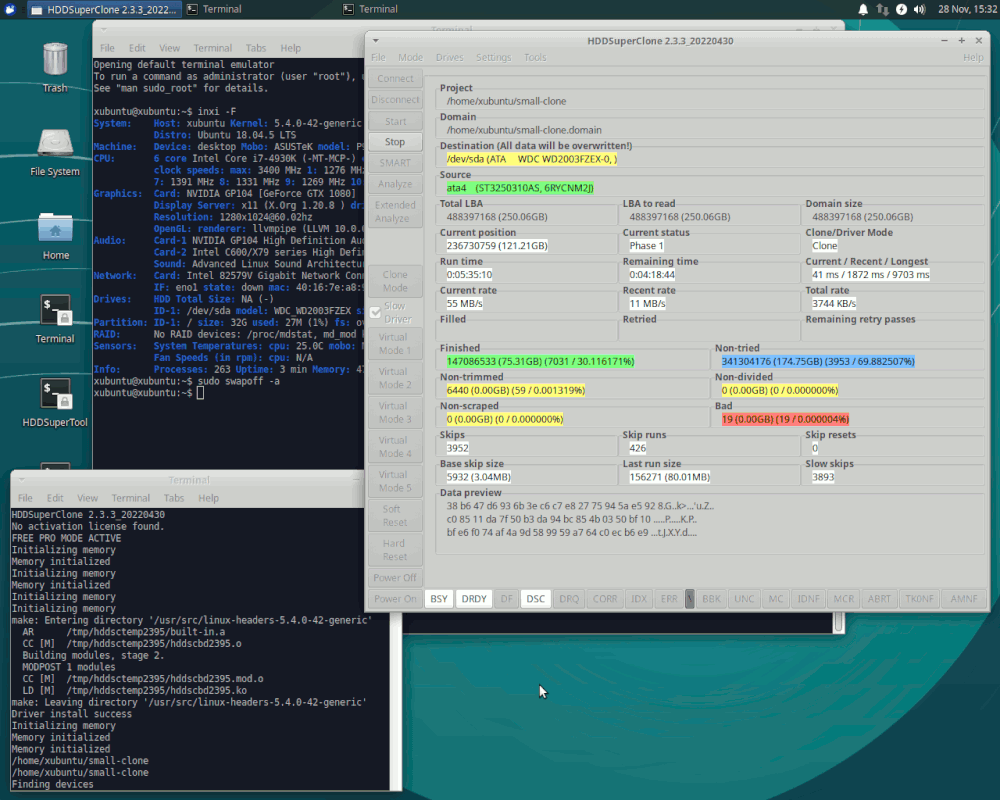
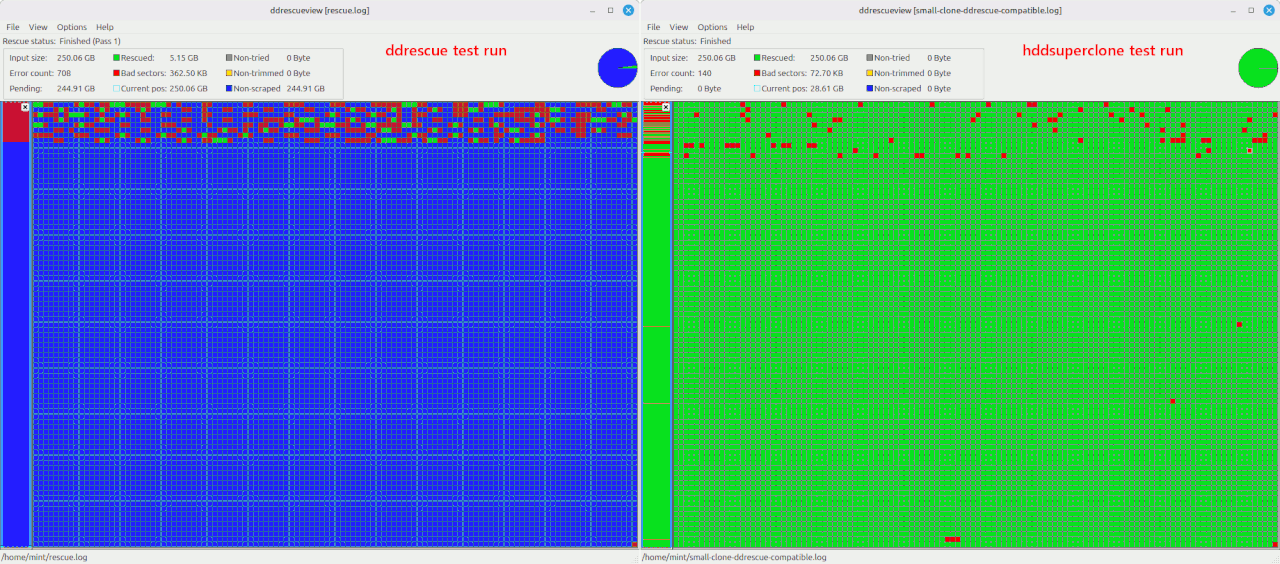
I found another program that claims to be a cloning tool. It is like ddrescue, except it uses a separate driver for the "bad" disk, that
driver is capable of keeping the bad driver operating, it truncates
error recovery on the drive and so on.
On Fri, 28 Nov 2025 11:52:19 -0500, Paul wrote:
I found another program that claims to be a cloning tool. It is like
ddrescue, except it uses a separate driver for the "bad" disk, that
driver is capable of keeping the bad driver operating, it truncates
error recovery on the drive and so on.
You probably donrCOt want to use it. The point of ddrescue is to
absolutely minimize further wear and tear on the dying drive, not to
keep running it.
On Fri, 28 Nov 2025 11:52:19 -0500, Paul wrote:
I found another program that claims to be a cloning tool. It is like
ddrescue, except it uses a separate driver for the "bad" disk, that
driver is capable of keeping the bad driver operating, it truncates
error recovery on the drive and so on.
You probably donrCOt want to use it. The point of ddrescue is to
absolutely minimize further wear and tear on the dying drive, not to
keep running it.
The competing tool HDDSuperClone is finished now,
Up until now, gnu ddrescue has been widely known to be the best free
hard drive cloning tool for failing hard drives. It is open source
and cross platform. But being cross platform has some limitations,
as there are some specialized ways for Linux to send commands to a
drive that have some advantages over standard techniques. So I would
like to introduce HDDSuperClone, which is not open source and only
works on Linux. There is a free version, and also a more advanced
PRO version available for purchase.
The Live CD is now based on Xubuntu. At this time the 32 bit (x86)
version is based on Xubuntu 14.04.5. The 64 bit (x64) version is
based on Xubuntu 18.04.5. Due to the size, the only place I can
currently host the files is on Google Drive.
There is a free version, and also a more advanced PRO version
available for purchase.
... and briefly describes the difference of Pro vs free.
I no longer have the time to maintain this project. I am planning on--
ending major support for HDDSuperClone, so I am making the PRO
version free. I has also been made open source, and the source code
is in the downloads area. The most recent version 2.3.3 downloads
now have the full pro features unlocked without the need for a
license.
| Sysop: | Amessyroom |
|---|---|
| Location: | Fayetteville, NC |
| Users: | 54 |
| Nodes: | 6 (0 / 6) |
| Uptime: | 13:45:31 |
| Calls: | 742 |
| Files: | 1,218 |
| D/L today: |
3 files (2,681K bytes) |
| Messages: | 183,470 |
| Posted today: | 1 |