On Mon, 11/24/2025 8:43 AM, Edmund wrote:
Created Monitor Profiles are not shown.
Trying to create a new one and it says : a profile of this name already exists.
How to solve this?
You are here ?
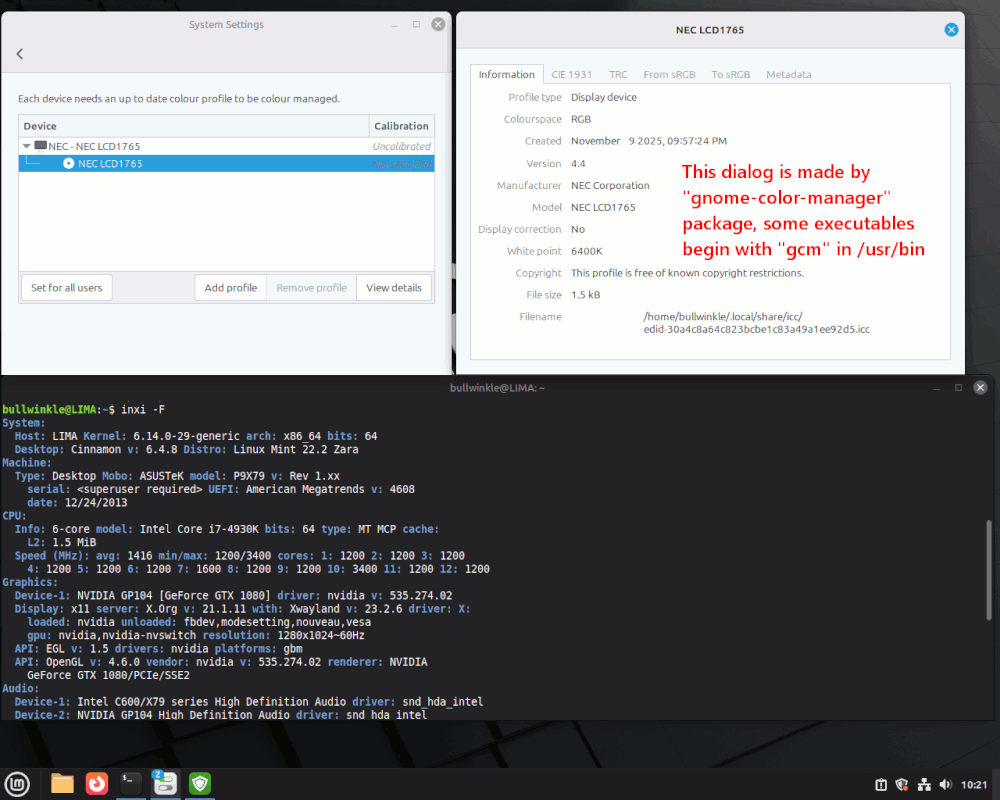
[Picture]
https://i.postimg.cc/d0rLd87G/LM222-Settings-Color-Gnome-Color-Manager.gif
When you visit Settings : Color or so, the left hand dialog shows up.
The software then lazily installs "gnome-color-manager" package
and something in there makes the right hand display.
The ~/.local/share/icc stores raw .icc files, without labeling
them in any useful way. Because these say "EDID" on them, they're
copied out of the monitor ROM. I have two, because the SSD was
shoved into two machines and picked up two monitor profiles
because of it.
There is /usr/libexec/colord running, which may have something
to do with actually changing the colors, when you change the
ticked profile in the Colors panel.
*******
I added Wide Gamut RGB from the canned ICC profiles already
on the machine. I put it underneath my monitor entry, using
"Add Profile", and those profiles are stored in
/usr/share/color/icc/colord/WideGamutRGB.icc
and obviously the computer is not going to like it, if
you attempt to overwrite those. There is likely root
ownership of some materials in there.
The question then, is "how do we make an Edmund.icc and store it?".
With a Spyder and some sort of software that comes with the
Spyder? We do it on Windows, and bring the .icc across.
And then what ?
I would be all excited, except when I selected WideGamutRGB.icc
and ticked it, nothing happened, and nothing happened after a reboot either.
I tried Ubuntu 25.04, and the interface in Settings is
even *less* developed :-)
*******
I found a general overview here. Maybe an Arch article
would do a better job on something like this.
https://en.wikipedia.org/wiki/Linux_color_management
Xrandr has a single point gamma adjustment possible.
That could be used to "turn down the blue a bit", but
this is hardly useful. The graphically oriented gamma
adjustment is better (piece-wise polynomial corrections),
but the NVidia control panel is missing all that stuff.
If there was any Lookup Table (LUT) loader, it's not
in evidence.
https://linux.die.net/man/1/xrandr
My first attempt at this, I "discovered"... nothing,
via the interface. Nothing at all :-)
Paul
On 11/24/25 17:52, Paul wrote:
On Mon, 11/24/2025 8:43 AM, Edmund wrote:
Created Monitor Profiles are not shown.
Trying to create a new one and it says : a profile of this name already exists.
How to solve this?
Oh dear, that seems complicated.
You are here ?
-a-a-a [Picture]
-a-a-a-a https://i.postimg.cc/d0rLd87G/LM222-Settings-Color-Gnome-Color-Manager.gif
Nope, I am here :
https://imgur.com/a/pLvgMHS
In my Mint XFCE menu settings display.
Here is a option to save profiles, it even seem to do so but it is invisible.
On Tue, 11/25/2025 3:19 AM, Edmund wrote:
On 11/24/25 17:52, Paul wrote:
On Mon, 11/24/2025 8:43 AM, Edmund wrote:
Created Monitor Profiles are not shown.
Trying to create a new one and it says : a profile of this name already exists.
How to solve this?
Oh dear, that seems complicated.
You are here ?
-a-a-a [Picture]
-a-a-a-a https://i.postimg.cc/d0rLd87G/LM222-Settings-Color-Gnome-Color-Manager.gif
Nope, I am here :
https://imgur.com/a/pLvgMHS
In my Mint XFCE menu settings display.
Here is a option to save profiles, it even seem to do so but it is invisible.
You've used the wrong port on the TV set.
TV sets with multiple HDMI, only *one* of the ports
is for a PC. The PC port support multisync and
should be able to display anywhere from 640x480 to 1920x1080.
You've probably noticed, while the PC was booting, that the
TV set does not respond, until the desktop appears.
You're
on a "multimedia" HD input on the TV set. If there were
four HDMI, three would be multimedia type (connect to set top
box player for example), only one of the ports is PC
type and *has an EDID*.
If the TV set will not report its details to the PC, the
EDID is the plug and play information it might like. This
is why you need to read the manual on the TV set and
identify the port to use.
At some time in the past, they used a VGA connector for the PC
input, but today at 1920x1080, they use HDMI (or DisplayPort)
for the inputs. And there may be little in the way of
distinction except to see "PC" under one of them.
*******
So far, I know the unit as
samsung electric company 64" 120hz
Do you have a model string for the thing ?
It would have a long string of letters.
Samsung QN65S90FAFXZC
If you give me a model number, I'll see if I can find
the manual with the I/O connector diagram on it. Since
you have the paper manual in hand though, you can
have a flip through to the short paragraph
on "PC operation".
Once you're on the PC port, the behavior during boot
should change, and just maybe your menu will be populated.
Paul
On 11/25/25 10:25, Paul wrote:
On Tue, 11/25/2025 3:19 AM, Edmund wrote:
On 11/24/25 17:52, Paul wrote:
On Mon, 11/24/2025 8:43 AM, Edmund wrote:
Created Monitor Profiles are not shown.
Trying to create a new one and it says : a profile of this name already exists.
How to solve this?
Oh dear, that seems complicated.
You are here ?
-a-a-a-a [Picture]
-a-a-a-a-a https://i.postimg.cc/d0rLd87G/LM222-Settings-Color-Gnome-Color-Manager.gif
Nope, I am here :
https://imgur.com/a/pLvgMHS
In my Mint XFCE menu settings display.
Here is a option to save profiles, it even seem to do so but it is invisible.
You've used the wrong port on the TV set.
TV sets with multiple HDMI, only *one* of the ports
is for a PC. The PC port support multisync and
should be able to display anywhere from 640x480 to 1920x1080.
Never heard of this.
You've probably noticed, while the PC was booting, that the
TV set does not respond, until the desktop appears.
Correct!
You're
on a "multimedia" HD input on the TV set. If there were
four HDMI, three would be multimedia type (connect to set top
box player for example), only one of the ports is PC
type and *has an EDID*.
Don't know what that is.
If the TV set will not report its details to the PC, the
EDID is the plug and play information it might like. This
is why you need to read the manual on the TV set and
identify the port to use.
At some time in the past, they used a VGA connector for the PC
input, but today at 1920x1080, they use HDMI (or DisplayPort)
for the inputs. And there may be little in the way of
distinction except to see "PC" under one of them.
*******
So far, I know the unit as
-a-a-a-a samsung electric company 64"-a 120hz
Do you have a model string for the thing ?
It would have a long string of letters.
-a-a-a-a Samsung QN65S90FAFXZC
SAMSUNG GQ65Q9FNG
If you give me a model number, I'll see if I can find
the manual with the I/O connector diagram on it. Since
you have the paper manual in hand though, you can
have a flip through to the short paragraph
on "PC operation".
Once you're on the PC port, the behavior during boot
should change, and just maybe your menu will be populated.
-a-a-a Paul
On Tue, 11/25/2025 5:42 AM, Edmund wrote:
On 11/25/25 10:25, Paul wrote:
On Tue, 11/25/2025 3:19 AM, Edmund wrote:
On 11/24/25 17:52, Paul wrote:
On Mon, 11/24/2025 8:43 AM, Edmund wrote:
Created Monitor Profiles are not shown.
Trying to create a new one and it says : a profile of this name already exists.
How to solve this?
Oh dear, that seems complicated.
You are here ?
-a-a-a-a [Picture]
-a-a-a-a-a https://i.postimg.cc/d0rLd87G/LM222-Settings-Color-Gnome-Color-Manager.gif
Nope, I am here :
https://imgur.com/a/pLvgMHS
In my Mint XFCE menu settings display.
Here is a option to save profiles, it even seem to do so but it is invisible.
You've used the wrong port on the TV set.
TV sets with multiple HDMI, only *one* of the ports
is for a PC. The PC port support multisync and
should be able to display anywhere from 640x480 to 1920x1080.
Never heard of this.
You've probably noticed, while the PC was booting, that the
TV set does not respond, until the desktop appears.
Correct!
You're
on a "multimedia" HD input on the TV set. If there were
four HDMI, three would be multimedia type (connect to set top
box player for example), only one of the ports is PC
type and *has an EDID*.
Don't know what that is.
If the TV set will not report its details to the PC, the
EDID is the plug and play information it might like. This
is why you need to read the manual on the TV set and
identify the port to use.
At some time in the past, they used a VGA connector for the PC
input, but today at 1920x1080, they use HDMI (or DisplayPort)
for the inputs. And there may be little in the way of
distinction except to see "PC" under one of them.
*******
So far, I know the unit as
-a-a-a-a samsung electric company 64"-a 120hz
Do you have a model string for the thing ?
It would have a long string of letters.
-a-a-a-a Samsung QN65S90FAFXZC
SAMSUNG GQ65Q9FNG
If you give me a model number, I'll see if I can find
the manual with the I/O connector diagram on it. Since
you have the paper manual in hand though, you can
have a flip through to the short paragraph
on "PC operation".
Once you're on the PC port, the behavior during boot
should change, and just maybe your menu will be populated.
-a-a-a Paul
https://downloadcenter.samsung.com/content/UM/202011/20201116153100517/KM2ATSCN-3.1.0_EM_Kant-M2_USA_ENG_201023.0.pdf
Page30 bottom
"When you have connected a PC, go to "Home" "->Source"
and then select the PC icon from the external device icon list.
For more information about the port settings,
refer to "Editing the name and icon of an external device". [Page34 top]
"
On Page 34
"Move the focus to the connected external device
[using the remote control, highlight the monitor icon near the
lower row of devices icons]
Press the up-directional button.
"
This is supposed to show some information about device characteristics, I would guess.
As the manual in question is generic, that's all the help they give.
You can try different HDMI ports, until things improve I would guess.
But there really should be some text or a graphic under the "PC" HDMI input which labels that the port is special.
Naturally, this is not what I was expecting. I was expecting one of the
HDMI or DP to be labeled "PC", and the wiring of the plug is slightly different than the other inputs.
*******
Monitor devices have "SCLK" and "SDA" which is a clock with data interface with a flow of serial information. This allows the IBM PC compatible, to
read the ROM inside the monitor, and extract the native resolution information. Also inside the EDID table, is a namestring for the monitor.
https://en.wikipedia.org/wiki/Extended_Display_Identification_Data
This is a software primitive that Linux uses to acquire information
from the TV set, assuming the TV set has a "PC" port. read-edid should extract 128 bytes or whatever. The amount of data is small, sort
of like how the SPD table on a DIMM is small.
https://manpages.ubuntu.com/manpages/jammy/man1/get-edid.1.html
*******
1 TMDS Date 2+
2 TMDS Data 2 shield
3 TMDS Data 2-
4 TMDS Data 1+
5 TMDS Data 1 shield
6 TMDS Data 1-
7 TMDS Data 0+
8 TMDS Data 0 shield
9 TMDS Data 0-
10 TMDS Clock+
11 TMDS Clock shield
12 TMDS Clock-
13 CEC
14 HEC Data-
15 SCL (Serial Clock for DDC \___ The PC fetches the EDID table from
16 SDA (Serial Data Line for DDC / the monitor, via these two pins 17 DDC / CEC / HEC Ground
18 +5 V Power (50 mA max)
19 Hot Plug Detect (1.3) / HEC Data+ (1.4)
The multimedia ports, might not have the pin 15 / pin 16 function,
which is why the "PC" HDMI port is the one to use.
Paul
| Sysop: | Amessyroom |
|---|---|
| Location: | Fayetteville, NC |
| Users: | 54 |
| Nodes: | 6 (0 / 6) |
| Uptime: | 13:45:28 |
| Calls: | 742 |
| Files: | 1,218 |
| D/L today: |
3 files (2,681K bytes) |
| Messages: | 183,470 |
| Posted today: | 1 |