The holidays are over and I should have time to continue the project I
was working on 2 weeks ago.
I'm trying to switch to my new Samsung 870 EVO SATA 2.5 inch drive. The paper in the box said to use Samsung Magician to clone the data. I'm starting to believe that it doesn't work with a SATA drive!
People suggested I use a different cloning tool. I dismissed that idea because, certainly, Samsung Magician would work after I got my computer
to recognize the new drive. Well I did that. It's now showing on File Explorer as drive (J:) and I have formatted it. I tested it by copying a file with several pictures inside to (J:). It went right in and the
pictures opened just fine. I formatted again to empty it.
I looked at you tube videos about using Samsung Magician. They all
showed a ssd that did not look like my SATA drive.-a Samsung Magician
seems to have 2 ways to get to "Data Migration". One way pops up a
message that the drive isn't compatible. I originally feared that it was warning me that the new drive wasn't compatible with my computer. Going
in the other way, it shows my C: drive as the source drive but it
prompts me to connect the Samsung SSD. It doesn't see it even though it
IS there and it works.
What cloning software is going to work with my SATA SSD?
The holidays are over and I should have time to continue the project I
was working on 2 weeks ago.
I'm trying to switch to my new Samsung 870 EVO SATA 2.5 inch drive. The paper in the box said to use Samsung Magician to clone the data. I'm starting to believe that it doesn't work with a SATA drive!
People suggested I use a different cloning tool. I dismissed that idea because, certainly, Samsung Magician would work after I got my computer
to recognize the new drive. Well I did that. It's now showing on File Explorer as drive (J:) and I have formatted it. I tested it by copying a file with several pictures inside to (J:). It went right in and the
pictures opened just fine. I formatted again to empty it.
I looked at you tube videos about using Samsung Magician. They all
showed a ssd that did not look like my SATA drive.a Samsung Magician
seems to have 2 ways to get to "Data Migration". One way pops up a
message that the drive isn't compatible. I originally feared that it was warning me that the new drive wasn't compatible with my computer. Going
in the other way, it shows my C: drive as the source drive but it
prompts me to connect the Samsung SSD. It doesn't see it even though it
IS there and it works.
What cloning software is going to work with my SATA SSD?
On 04/01/2026 21:47, Steve wrote:
The holidays are over and I should have time to continue the project I
was working on 2 weeks ago.
I'm trying to switch to my new Samsung 870 EVO SATA 2.5 inch drive.
The paper in the box said to use Samsung Magician to clone the data.
I'm starting to believe that it doesn't work with a SATA drive!
People suggested I use a different cloning tool. I dismissed that idea
because, certainly, Samsung Magician would work after I got my
computer to recognize the new drive. Well I did that. It's now showing
on File Explorer as drive (J:) and I have formatted it. I tested it by
copying a file with several pictures inside to (J:). It went right in
and the pictures opened just fine. I formatted again to empty it.
I looked at you tube videos about using Samsung Magician. They all
showed a ssd that did not look like my SATA drive.-a Samsung Magician
seems to have 2 ways to get to "Data Migration". One way pops up a
message that the drive isn't compatible. I originally feared that it
was warning me that the new drive wasn't compatible with my computer.
Going in the other way, it shows my C: drive as the source drive but
it prompts me to connect the Samsung SSD. It doesn't see it even
though it IS there and it works.
What cloning software is going to work with my SATA SSD?
Have you installed the SATA SSD inside the computer alongside the
existing drive? If so, that could be the problem. I have a feeling that Magician expects the SSD to be an external drive, mounted in a suitable enclosure and connected by USB3. That's certainly what happened when I replaced a rotating drive with an SSD in a laptop a few years ago. That worked fine. That was the only option in my case because the laptop
couldn't accommodate more than one internal drive at a time.
Maybe worth a try?
The holidays are over and I should have time to continue the project IWill macrium work to clone.
was working on 2 weeks ago.
I'm trying to switch to my new Samsung 870 EVO SATA 2.5 inch drive. The
paper in the box said to use Samsung Magician to clone the data. I'm
starting to believe that it doesn't work with a SATA drive!
People suggested I use a different cloning tool. I dismissed that idea because, certainly, Samsung Magician would work after I got my computer
to recognize the new drive. Well I did that. It's now showing on File Explorer as drive (J:) and I have formatted it. I tested it by copying a
file with several pictures inside to (J:). It went right in and the
pictures opened just fine. I formatted again to empty it.
I looked at you tube videos about using Samsung Magician. They all
showed a ssd that did not look like my SATA drive. Samsung Magician
seems to have 2 ways to get to "Data Migration". One way pops up a
message that the drive isn't compatible. I originally feared that it was warning me that the new drive wasn't compatible with my computer. Going
in the other way, it shows my C: drive as the source drive but it
prompts me to connect the Samsung SSD. It doesn't see it even though it
IS there and it works.
What cloning software is going to work with my SATA SSD?
On 1/4/26 4:47 PM, Steve wrote:SSD have more sever alignment issues than do HD. If you are using, ask
The holidays are over and I should have time to continue the project IWill macrium work to clone.
was working on 2 weeks ago.
I'm trying to switch to my new Samsung 870 EVO SATA 2.5 inch drive. The
paper in the box said to use Samsung Magician to clone the data. I'm
starting to believe that it doesn't work with a SATA drive!
People suggested I use a different cloning tool. I dismissed that idea
because, certainly, Samsung Magician would work after I got my computer
to recognize the new drive. Well I did that. It's now showing on File
Explorer as drive (J:) and I have formatted it. I tested it by copying a
file with several pictures inside to (J:). It went right in and the
pictures opened just fine. I formatted again to empty it.
I looked at you tube videos about using Samsung Magician. They all
showed a ssd that did not look like my SATA drive.-a Samsung Magician
seems to have 2 ways to get to "Data Migration". One way pops up a
message that the drive isn't compatible. I originally feared that it was
warning me that the new drive wasn't compatible with my computer. Going
in the other way, it shows my C: drive as the source drive but it
prompts me to connect the Samsung SSD. It doesn't see it even though it
IS there and it works.
What cloning software is going to work with my SATA SSD?
Worse comes to worse, make an image of C:-a then re-image J: with that image.
Steve wrote on 1/4/2026 3:47 PM:
The holidays are over and I should have time to continue the project I
was working on 2 weeks ago.
I'm trying to switch to my new Samsung 870 EVO SATA 2.5 inch drive.
The paper in the box said to use Samsung Magician to clone the data.
I'm starting to believe that it doesn't work with a SATA drive!
People suggested I use a different cloning tool. I dismissed that idea
because, certainly, Samsung Magician would work after I got my
computer to recognize the new drive. Well I did that. It's now showing
on File Explorer as drive (J:) and I have formatted it. I tested it by
copying a file with several pictures inside to (J:). It went right in
and the pictures opened just fine. I formatted again to empty it.
I looked at you tube videos about using Samsung Magician. They all
showed a ssd that did not look like my SATA drive.-a Samsung Magician
seems to have 2 ways to get to "Data Migration". One way pops up a
message that the drive isn't compatible. I originally feared that it
was warning me that the new drive wasn't compatible with my computer.
Going in the other way, it shows my C: drive as the source drive but
it prompts me to connect the Samsung SSD. It doesn't see it even
though it IS there and it works.
What cloning software is going to work with my SATA SSD?
Why ask that?-a ... You seem bound and determined to use Samsong magician.
On 04/01/2026 21:47, Steve wrote:
The holidays are over and I should have time to continue the project I
was working on 2 weeks ago.
I'm trying to switch to my new Samsung 870 EVO SATA 2.5 inch drive.
The paper in the box said to use Samsung Magician to clone the data.
I'm starting to believe that it doesn't work with a SATA drive!
People suggested I use a different cloning tool. I dismissed that idea
because, certainly, Samsung Magician would work after I got my
computer to recognize the new drive. Well I did that. It's now showing
on File Explorer as drive (J:) and I have formatted it. I tested it by
copying a file with several pictures inside to (J:). It went right in
and the pictures opened just fine. I formatted again to empty it.
I looked at you tube videos about using Samsung Magician. They all
showed a ssd that did not look like my SATA drive.-a Samsung Magician
seems to have 2 ways to get to "Data Migration". One way pops up a
message that the drive isn't compatible. I originally feared that it
was warning me that the new drive wasn't compatible with my computer.
Going in the other way, it shows my C: drive as the source drive but
it prompts me to connect the Samsung SSD. It doesn't see it even
though it IS there and it works.
What cloning software is going to work with my SATA SSD?
Have you installed the SATA SSD inside the computer alongside the
existing drive? If so, that could be the problem. I have a feeling that Magician expects the SSD to be an external drive, mounted in a suitable enclosure and connected by USB3. That's certainly what happened when I replaced a rotating drive with an SSD in a laptop a few years ago. That worked fine. That was the only option in my case because the laptop
couldn't accommodate more than one internal drive at a time.
Maybe worth a try?
On 1/4/2026 3:20 PM, Roger Mills wrote:
On 04/01/2026 21:47, Steve wrote:
The holidays are over and I should have time to continue the project
I was working on 2 weeks ago.
I'm trying to switch to my new Samsung 870 EVO SATA 2.5 inch drive.
The paper in the box said to use Samsung Magician to clone the data.
I'm starting to believe that it doesn't work with a SATA drive!
People suggested I use a different cloning tool. I dismissed that
idea because, certainly, Samsung Magician would work after I got my
computer to recognize the new drive. Well I did that. It's now
showing on File Explorer as drive (J:) and I have formatted it. I
tested it by copying a file with several pictures inside to (J:). It
went right in and the pictures opened just fine. I formatted again to
empty it.
I looked at you tube videos about using Samsung Magician. They all
showed a ssd that did not look like my SATA drive.-a Samsung Magician
seems to have 2 ways to get to "Data Migration". One way pops up a
message that the drive isn't compatible. I originally feared that it
was warning me that the new drive wasn't compatible with my computer.
Going in the other way, it shows my C: drive as the source drive but
it prompts me to connect the Samsung SSD. It doesn't see it even
though it IS there and it works.
What cloning software is going to work with my SATA SSD?
Have you installed the SATA SSD inside the computer alongside the
existing drive? If so, that could be the problem. I have a feeling
that Magician expects the SSD to be an external drive, mounted in a
suitable enclosure and connected by USB3. That's certainly what
happened when I replaced a rotating drive with an SSD in a laptop a
few years ago. That worked fine. That was the only option in my case
because the laptop couldn't accommodate more than one internal drive
at a time.
Maybe worth a try?
I think you are correct. The OP should consider buying a cheap SSD caddy with SATA connections that will plug into a USB 3 port. I've used
Samsung software a few times to clone a live C disk to an SSD in a caddy
and its all went smoothly. (Live means that windows was running normally while the clone was in progress.)
On 1/4/2026 5:29 PM, Hank Rogers wrote:
Steve wrote on 1/4/2026 3:47 PM:Not true, now that it still doesn't work.
The holidays are over and I should have time to continue the project
I was working on 2 weeks ago.
I'm trying to switch to my new Samsung 870 EVO SATA 2.5 inch drive.
The paper in the box said to use Samsung Magician to clone the data.
I'm starting to believe that it doesn't work with a SATA drive!
People suggested I use a different cloning tool. I dismissed that
idea because, certainly, Samsung Magician would work after I got my
computer to recognize the new drive. Well I did that. It's now
showing on File Explorer as drive (J:) and I have formatted it. I
tested it by copying a file with several pictures inside to (J:). It
went right in and the pictures opened just fine. I formatted again to
empty it.
I looked at you tube videos about using Samsung Magician. They all
showed a ssd that did not look like my SATA drive.-a Samsung Magician
seems to have 2 ways to get to "Data Migration". One way pops up a
message that the drive isn't compatible. I originally feared that it
was warning me that the new drive wasn't compatible with my computer.
Going in the other way, it shows my C: drive as the source drive but
it prompts me to connect the Samsung SSD. It doesn't see it even
though it IS there and it works.
What cloning software is going to work with my SATA SSD?
Why ask that?-a ... You seem bound and determined to use Samsong
magician.
On 1/4/2026 6:38 PM, Alan K. wrote:
On 1/4/26 4:47 PM, Steve wrote:
The holidays are over and I should have time to continue the project I
was working on 2 weeks ago.
I'm trying to switch to my new Samsung 870 EVO SATA 2.5 inch drive. The
paper in the box said to use Samsung Magician to clone the data. I'm
starting to believe that it doesn't work with a SATA drive!
People suggested I use a different cloning tool. I dismissed that idea
because, certainly, Samsung Magician would work after I got my computer
to recognize the new drive. Well I did that. It's now showing on File
Explorer as drive (J:) and I have formatted it. I tested it by copying a >>> file with several pictures inside to (J:). It went right in and the
pictures opened just fine. I formatted again to empty it.
I looked at you tube videos about using Samsung Magician. They all
showed a ssd that did not look like my SATA drive.-a Samsung Magician
seems to have 2 ways to get to "Data Migration". One way pops up a
message that the drive isn't compatible. I originally feared that it was >>> warning me that the new drive wasn't compatible with my computer. Going
in the other way, it shows my C: drive as the source drive but it
prompts me to connect the Samsung SSD. It doesn't see it even though it
IS there and it works.
What cloning software is going to work with my SATA SSD?
Will macrium work to clone.
Worse comes to worse, make an image of C:-a then re-image J: with that image.
SSD have more sever alignment issues than do HD. If you are using, ask them whether your version of there product will do what you want. I think they have
forums. I'm a paid user and find them to always give me intelligent feedback when I contact them.
The holidays are over and I should have time to continue the project I was working on 2 weeks ago.
I'm trying to switch to my new Samsung 870 EVO SATA 2.5 inch drive. The paper in the box said to use Samsung Magician to clone the data. I'm starting to believe that it doesn't work with a SATA drive!
People suggested I use a different cloning tool. I dismissed that idea because, certainly, Samsung Magician would work after I got my computer to recognize the new drive. Well I did that. It's now showing on File Explorer as drive (J:) and I have formatted it. I tested it by copying a file with several pictures inside to (J:). It went right in and the pictures opened just fine. I formatted again to empty it.
I looked at you tube videos about using Samsung Magician. They all showed a ssd that did not look like my SATA drive.-a Samsung Magician seems to have 2 ways to get to "Data Migration". One way pops up a message that the drive isn't compatible. I originally feared that it was warning me that the new drive wasn't compatible with my computer. Going in the other way, it shows my C: drive as the source drive but it prompts me to connect the Samsung SSD. It doesn't see it even though it IS there and it works.
What cloning software is going to work with my SATA SSD?
On 1/4/2026 5:20 PM, Roger Mills wrote:
On 04/01/2026 21:47, Steve wrote:
The holidays are over and I should have time to continue the project I was working on 2 weeks ago.
I'm trying to switch to my new Samsung 870 EVO SATA 2.5 inch drive. The paper in the box said to use Samsung Magician to clone the data. I'm starting to believe that it doesn't work with a SATA drive!
People suggested I use a different cloning tool. I dismissed that idea because, certainly, Samsung Magician would work after I got my computer to recognize the new drive. Well I did that. It's now showing on File Explorer as drive (J:) and I have formatted it. I tested it by copying a file with several pictures inside to (J:). It went right in and the pictures opened just fine. I formatted again to empty it.
I looked at you tube videos about using Samsung Magician. They all showed a ssd that did not look like my SATA drive.-a Samsung Magician seems to have 2 ways to get to "Data Migration". One way pops up a message that the drive isn't compatible. I originally feared that it was warning me that the new drive wasn't compatible with my computer. Going in the other way, it shows my C: drive as the source drive but it prompts me to connect the Samsung SSD. It doesn't see it even though it IS there and it works.
What cloning software is going to work with my SATA SSD?
Have you installed the SATA SSD inside the computer alongside the existing drive? If so, that could be the problem. I have a feeling that Magician expects the SSD to be an external drive, mounted in a suitable enclosure and connected by USB3. That's certainly what happened when I replaced a rotating drive with an SSD in a laptop a few years ago. That worked fine. That was the only option in my case because the laptop couldn't accommodate more than one internal drive at a time.
Maybe worth a try?
Yeah, it's installed inside the desktop with the old drive. I was actually trying
to connect it by USB but I don't seem to own anything that can do that. I assumed
hooking it up inside would work at least as well. Maybe not!
What cloning software is going to work with my SATA SSD?
Steve wrote:
What cloning software is going to work with my SATA SSD?
Macrium Reflect.-a I use it often on several machines and drives.
I tried Samsung and a few others once and prefer Macrium.
Allow your software to set trim on your SSD if you have not already done so.
The holidays are over and I should have time to continue the project I
was working on 2 weeks ago.
I'm trying to switch to my new Samsung 870 EVO SATA 2.5 inch drive. The paper in the box said to use Samsung Magician to clone the data. I'm starting to believe that it doesn't work with a SATA drive!
People suggested I use a different cloning tool. I dismissed that idea because, certainly, Samsung Magician would work after I got my computer
to recognize the new drive. Well I did that. It's now showing on File Explorer as drive (J:) and I have formatted it. I tested it by copying a file with several pictures inside to (J:). It went right in and the
pictures opened just fine. I formatted again to empty it.
I looked at you tube videos about using Samsung Magician. They all
showed a ssd that did not look like my SATA drive.-a Samsung Magician
seems to have 2 ways to get to "Data Migration". One way pops up a
message that the drive isn't compatible. I originally feared that it was warning me that the new drive wasn't compatible with my computer. Going
in the other way, it shows my C: drive as the source drive but it
prompts me to connect the Samsung SSD. It doesn't see it even though it
IS there and it works.
What cloning software is going to work with my SATA SSD?
The holidays are over and I should have time to continue the project I
was working on 2 weeks ago.
I'm trying to switch to my new Samsung 870 EVO SATA 2.5 inch drive. The
paper in the box said to use Samsung Magician to clone the data. I'm
starting to believe that it doesn't work with a SATA drive!
....
What cloning software is going to work with my SATA SSD?
On 04/01/2026 21:47, Steve wrote:
The holidays are over and I should have time to continue the project I
was working on 2 weeks ago.
I'm trying to switch to my new Samsung 870 EVO SATA 2.5 inch drive. The paper in the box said to use Samsung Magician to clone the data. I'm starting to believe that it doesn't work with a SATA drive!
People suggested I use a different cloning tool. I dismissed that idea because, certainly, Samsung Magician would work after I got my computer
to recognize the new drive. Well I did that. It's now showing on File Explorer as drive (J:) and I have formatted it. I tested it by copying a file with several pictures inside to (J:). It went right in and the pictures opened just fine. I formatted again to empty it.
I looked at you tube videos about using Samsung Magician. They all
showed a ssd that did not look like my SATA drive.a Samsung Magician
seems to have 2 ways to get to "Data Migration". One way pops up a
message that the drive isn't compatible. I originally feared that it was warning me that the new drive wasn't compatible with my computer. Going
in the other way, it shows my C: drive as the source drive but it
prompts me to connect the Samsung SSD. It doesn't see it even though it
IS there and it works.
What cloning software is going to work with my SATA SSD?
Have you installed the SATA SSD inside the computer alongside the
existing drive? If so, that could be the problem. I have a feeling that Magician expects the SSD to be an external drive, mounted in a suitable enclosure and connected by USB3. That's certainly what happened when I replaced a rotating drive with an SSD in a laptop a few years ago. That worked fine. That was the only option in my case because the laptop
couldn't accommodate more than one internal drive at a time.
Maybe worth a try?
On 5/1/2026 5:47 am, Steve wrote:
The holidays are over and I should have time to continue the project I
was working on 2 weeks ago.
I'm trying to switch to my new Samsung 870 EVO SATA 2.5 inch drive. The
paper in the box said to use Samsung Magician to clone the data. I'm
starting to believe that it doesn't work with a SATA drive!
....
What cloning software is going to work with my SATA SSD?
Take the chance to clean install Windows instead of cloning an old one.
On 04/01/2026 21:47, Steve wrote:
The holidays are over and I should have time to continue the project I was working on 2 weeks ago.
I'm trying to switch to my new Samsung 870 EVO SATA 2.5 inch drive. The paper in the box said to use Samsung Magician to clone the data. I'm starting to believe that it doesn't work with a SATA drive!
People suggested I use a different cloning tool. I dismissed that idea because, certainly, Samsung Magician would work after I got my computer to recognize the new drive. Well I did that. It's now showing on File Explorer as drive (J:) and I have formatted it. I tested it by copying a file with several pictures inside to (J:). It went right in and the pictures opened just fine. I formatted again to empty it.
I looked at you tube videos about using Samsung Magician. They all showed a ssd that did not look like my SATA drive.-a Samsung Magician seems to have 2 ways to get to "Data Migration". One way pops up a message that the drive isn't compatible. I originally feared that it was warning me that the new drive wasn't compatible with my computer. Going in the other way, it shows my C: drive as the source drive but it prompts me to connect the Samsung SSD. It doesn't see it even though it IS there and it works.
What cloning software is going to work with my SATA SSD?
I've used all these to clone drives.
Clonezilla - http://clonezilla.org
DiskGenius - https://www.diskgenius.com/free.php
Hasleo Disk Clone - https://www.easyuefi.com/disk-clone/disk-clone-home.html Macrium Reflect Free - https://www.majorgeeks.com/files/details/macrium_reflect_free_edition.html
Some of the popular free programmes will only image a partition, not a complete drive, whilst other have size limits.
Acronis True Image, Paragon Drive Copy need the non freeware versions.
diskpart
Roger Mills <mills37.fslife@gmail.com> wrote:
On 04/01/2026 21:47, Steve wrote:
The holidays are over and I should have time to continue the project I
was working on 2 weeks ago.
I'm trying to switch to my new Samsung 870 EVO SATA 2.5 inch drive. The >>> paper in the box said to use Samsung Magician to clone the data. I'm
starting to believe that it doesn't work with a SATA drive!
People suggested I use a different cloning tool. I dismissed that idea
because, certainly, Samsung Magician would work after I got my computer >>> to recognize the new drive. Well I did that. It's now showing on File
Explorer as drive (J:) and I have formatted it. I tested it by copying a >>> file with several pictures inside to (J:). It went right in and the
pictures opened just fine. I formatted again to empty it.
I looked at you tube videos about using Samsung Magician. They all
showed a ssd that did not look like my SATA drive.-a Samsung Magician
seems to have 2 ways to get to "Data Migration". One way pops up a
message that the drive isn't compatible. I originally feared that it was >>> warning me that the new drive wasn't compatible with my computer. Going >>> in the other way, it shows my C: drive as the source drive but it
prompts me to connect the Samsung SSD. It doesn't see it even though it >>> IS there and it works.
What cloning software is going to work with my SATA SSD?
Have you installed the SATA SSD inside the computer alongside the
existing drive? If so, that could be the problem. I have a feeling that
Magician expects the SSD to be an external drive, mounted in a suitable
enclosure and connected by USB3. That's certainly what happened when I
replaced a rotating drive with an SSD in a laptop a few years ago. That
worked fine. That was the only option in my case because the laptop
couldn't accommodate more than one internal drive at a time.
Maybe worth a try?
I indeed think that an *internal* drive which is *formatted* - i.e.
has a drive letter -, is a no-no for Samsung Magician.
IIRC, initially the SSD was not visible in Disk Management, causing
Samsung Magician not to see it. Now the SSD *is* visible in Disk
Management, but because it has a drive letter and is formatted, Samsung Magician probably considers it as a no-go area and rightfully so.
So Steve may want to remove the (J:) partition and see if Samsung
Magician now recognizes the SSD.
OTOH, as others have also suggested, it's better to use Macrium
Reflect (Free) to do the cloning or imaging, because for Macrium you
don't have to guess what is doing what (and there's a lot of Macrium experience/expertise in these groups).
Roger Mills <mills37.fslife@gmail.com> wrote:
On 04/01/2026 21:47, Steve wrote:
The holidays are over and I should have time to continue the project I
was working on 2 weeks ago.
I'm trying to switch to my new Samsung 870 EVO SATA 2.5 inch drive. The
paper in the box said to use Samsung Magician to clone the data. I'm
starting to believe that it doesn't work with a SATA drive!
People suggested I use a different cloning tool. I dismissed that idea
because, certainly, Samsung Magician would work after I got my computer
to recognize the new drive. Well I did that. It's now showing on File
Explorer as drive (J:) and I have formatted it. I tested it by copying a >>> file with several pictures inside to (J:). It went right in and the
pictures opened just fine. I formatted again to empty it.
I looked at you tube videos about using Samsung Magician. They all
showed a ssd that did not look like my SATA drive.-a Samsung Magician
seems to have 2 ways to get to "Data Migration". One way pops up a
message that the drive isn't compatible. I originally feared that it was >>> warning me that the new drive wasn't compatible with my computer. Going
in the other way, it shows my C: drive as the source drive but it
prompts me to connect the Samsung SSD. It doesn't see it even though it
IS there and it works.
What cloning software is going to work with my SATA SSD?
Have you installed the SATA SSD inside the computer alongside the
existing drive? If so, that could be the problem. I have a feeling that
Magician expects the SSD to be an external drive, mounted in a suitable
enclosure and connected by USB3. That's certainly what happened when I
replaced a rotating drive with an SSD in a laptop a few years ago. That
worked fine. That was the only option in my case because the laptop
couldn't accommodate more than one internal drive at a time.
Maybe worth a try?
I indeed think that an *internal* drive which is *formatted* - i.e.
has a drive letter -, is a no-no for Samsung Magician.
IIRC, initially the SSD was not visible in Disk Management, causing Samsung Magician not to see it. Now the SSD *is* visible in Disk
Management, but because it has a drive letter and is formatted, Samsung Magician probably considers it as a no-go area and rightfully so.
So Steve may want to remove the (J:) partition and see if Samsung
Magician now recognizes the SSD.
OTOH, as others have also suggested, it's better to use Macrium
Reflect (Free) to do the cloning or imaging, because for Macrium you
don't have to guess what is doing what (and there's a lot of Macrium experience/expertise in these groups).
On 5/1/2026 7:51 pm, Mr. Man-wai Chang wrote:
On 5/1/2026 5:47 am, Steve wrote:
The holidays are over and I should have time to continue the project I
was working on 2 weeks ago.
I'm trying to switch to my new Samsung 870 EVO SATA 2.5 inch drive. The
paper in the box said to use Samsung Magician to clone the data. I'm
starting to believe that it doesn't work with a SATA drive!
....
What cloning software is going to work with my SATA SSD?
Take the chance to clean install Windows instead of cloning an old one.
Say no to the old, filthy, dirty one. :)
On 1/5/2026 8:18 AM, Frank Slootweg wrote:
Roger Mills <mills37.fslife@gmail.com> wrote:
On 04/01/2026 21:47, Steve wrote:
The holidays are over and I should have time to continue the project I >>>> was working on 2 weeks ago.
I'm trying to switch to my new Samsung 870 EVO SATA 2.5 inch drive. The >>>> paper in the box said to use Samsung Magician to clone the data. I'm
starting to believe that it doesn't work with a SATA drive!
People suggested I use a different cloning tool. I dismissed that idea >>>> because, certainly, Samsung Magician would work after I got my computer >>>> to recognize the new drive. Well I did that. It's now showing on File
Explorer as drive (J:) and I have formatted it. I tested it by copying a >>>> file with several pictures inside to (J:). It went right in and the
pictures opened just fine. I formatted again to empty it.
I looked at you tube videos about using Samsung Magician. They all
showed a ssd that did not look like my SATA drive.-a Samsung Magician
seems to have 2 ways to get to "Data Migration". One way pops up a
message that the drive isn't compatible. I originally feared that it was >>>> warning me that the new drive wasn't compatible with my computer. Going >>>> in the other way, it shows my C: drive as the source drive but it
prompts me to connect the Samsung SSD. It doesn't see it even though it >>>> IS there and it works.
What cloning software is going to work with my SATA SSD?
Have you installed the SATA SSD inside the computer alongside the
existing drive? If so, that could be the problem. I have a feeling that
Magician expects the SSD to be an external drive, mounted in a suitable
enclosure and connected by USB3. That's certainly what happened when I
replaced a rotating drive with an SSD in a laptop a few years ago. That
worked fine. That was the only option in my case because the laptop
couldn't accommodate more than one internal drive at a time.
Maybe worth a try?
-a-a I indeed think that an *internal* drive which is *formatted* - i.e.
has a drive letter -, is a no-no for Samsung Magician.
-a-a IIRC, initially the SSD was not visible in Disk Management, causing
Samsung Magician not to see it. Now the SSD *is* visible in Disk
Management, but because it has a drive letter and is formatted, Samsung
Magician probably considers it as a no-go area and rightfully so.
-a-a So Steve may want to remove the (J:) partition and see if Samsung
Magician now recognizes the SSD.
-a-a OTOH, as others have also suggested, it's better to use Macrium
Reflect (Free) to do the cloning or imaging, because for Macrium you
don't have to guess what is doing what (and there's a lot of Macrium
experience/expertise in these groups).
Thanks Frank.
On Mon, 1/5/2026 4:17 AM, wasbit wrote:
On 04/01/2026 21:47, Steve wrote:
The holidays are over and I should have time to continue the project I was working on 2 weeks ago.
I'm trying to switch to my new Samsung 870 EVO SATA 2.5 inch drive. The paper in the box said to use Samsung Magician to clone the data. I'm starting to believe that it doesn't work with a SATA drive!
People suggested I use a different cloning tool. I dismissed that idea because, certainly, Samsung Magician would work after I got my computer to recognize the new drive. Well I did that. It's now showing on File Explorer as drive (J:) and I have formatted it. I tested it by copying a file with several pictures inside to (J:). It went right in and the pictures opened just fine. I formatted again to empty it.
I looked at you tube videos about using Samsung Magician. They all showed a ssd that did not look like my SATA drive.-a Samsung Magician seems to have 2 ways to get to "Data Migration". One way pops up a message that the drive isn't compatible. I originally feared that it was warning me that the new drive wasn't compatible with my computer. Going in the other way, it shows my C: drive as the source drive but it prompts me to connect the Samsung SSD. It doesn't see it even though it IS there and it works.
What cloning software is going to work with my SATA SSD?
I've used all these to clone drives.
Clonezilla - http://clonezilla.org
DiskGenius - https://www.diskgenius.com/free.php
Hasleo Disk Clone - https://www.easyuefi.com/disk-clone/disk-clone-home.html >> Macrium Reflect Free - https://www.majorgeeks.com/files/details/macrium_reflect_free_edition.html
Some of the popular free programmes will only image a partition, not a complete drive, whilst other have size limits.
Acronis True Image, Paragon Drive Copy need the non freeware versions.
I've not noticed any size limits on Macrium.
I could clone a 24TB HDD with 20 partitions on it, with Macrium.
ATI Home is available for free from Seagate and Western Digital,
and is coded to require a branded disk drive for the purpose.
It could do a clone onto a Seagate or WD drive (installing
an application in each case, to do it). So ATI is available
in a way, while it wears a paper bag over its head to hide
its identity.
I could use "dd.exe" to clone a drive, as the function it
delivers is very very simple. Too simple in fact, but for a
"clone then erase-source-drive" mission, it would work. You'd
want the disk dimensions to meet certain criterion, for a best
result (both storage devices, exactly the same size). But
that's the approach I would use, if absolutely nothing else was available.
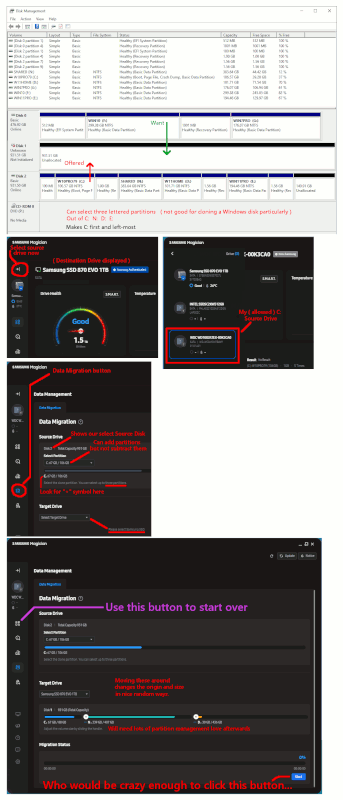
Samsung Magician cloning seems worse than "dd.exe", in that
it is very difficult to get the output to look like the input,
due to "that interface of theirs". It will copy the partitions
out of order, nothing can be placed to the left of C: with
the Samsung Magician. It seems best used as a Data drive cloner,
yet the program insists that it is an OS drive cloner.
The amount of work and data movement I would have to do to clean up afterwards after Samsung, that would make cloning seem a tiny
part of a whole day of effort.
*******
Let's make a strawman boot drive. Making it GPT partitioned, is all part
of modern setups and their automation.
In Disk Management, 1,3,4 are shown and numbered properly,
but 2 (which has no file system) is not shown. When on a cloning mission,
we need to drop to the command line for help.
1 3 4
+------+---------------------+------------+------------------+------------+--------------+---+-----------------------+
| MBR | (primary GPT table) | EFI System | 16MB MS Reserved | C: Primary | 1GB Recovery |...| (secondary GPT table) |
+------+---------------------+------------+------------------+------------+--------------+---+-----------------------+
Microsoft WinRE.wim [ near-end-of-disk ]
folder... emergencyOS
In an Admin Window, I can do
diskpart
DISKPART> list disk
Disk ### Status Size Free Dyn Gpt
-------- ------------- ------- ------- --- ---
Disk 0 Online 3726 GB 1024 KB *
DISKPART> select disk 0
Disk 0 is now the selected disk.
DISKPART> list partition
Partition ### Type Size Offset
------------- ---------------- ------- -------
Partition 1 System 100 MB 1024 KB
Partition 2 Reserved 16 MB 101 MB <=== diskpart.exe shows everything and the 16MB
Partition 3 Primary 118 GB 117 MB thing is visible here.
Partition 4 Recovery 1024 MB 118 GB Diskpart can be used to compare two things.
In Linux GParted, it also shows 1,2,3,4, but 2 "cannot be touched", as things without a file system are not "enjoyed" by disk management utilities. Windows solves the problem of the indigestible gristle by simply hiding it (2) and telling a lie.
Macrium chooses to handle "foreign" file systems, by worst-case, using a dd.exe
approach to cloning them. It just copies all the bytes and moves on. Cloning "2" for Macrium, is a 16MB stream of bytes to the other disk.
Summary: When you clone things, have a look later at what "goods" you got from the deal.
The two disks should at least have a vague similarity to one another :-)
It's a "clone" after all :-)
Notice how the Samsung Magician makes no reference to that diagram, leaving
a user to wonder "whether any other things" are being copied for them. The fact
it claims your new C: partition will be 931GB, suggests the answer is "No".
By default it copies and makes a ginormous 931GB C: out of your 106.57GB source partition.
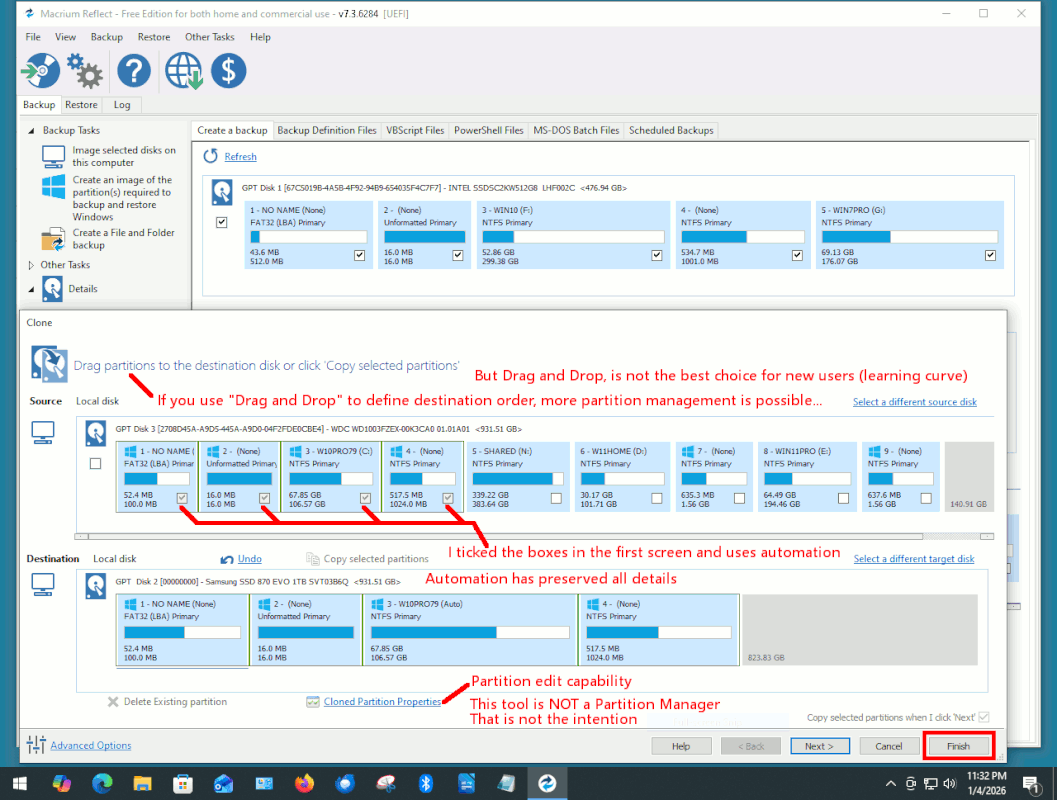
At least Macrium has tick boxes for 1,2,3,4.
On 5/1/2026 5:47 am, Steve wrote:
The holidays are over and I should have time to continue the project I
was working on 2 weeks ago.
I'm trying to switch to my new Samsung 870 EVO SATA 2.5 inch drive. The
paper in the box said to use Samsung Magician to clone the data. I'm
starting to believe that it doesn't work with a SATA drive!
....
What cloning software is going to work with my SATA SSD?
Take the chance to clean install Windows instead of cloning an old one.
Macrium Reflect. I use it often on several machines and drives.
I tried Samsung and a few others once and prefer Macrium.
On Mon, 1/5/2026 2:26 PM, Steve wrote:
On 1/5/2026 8:18 AM, Frank Slootweg wrote:
Roger Mills <mills37.fslife@gmail.com> wrote:
On 04/01/2026 21:47, Steve wrote:
The holidays are over and I should have time to continue the project I >>>>> was working on 2 weeks ago.
I'm trying to switch to my new Samsung 870 EVO SATA 2.5 inch drive. The >>>>> paper in the box said to use Samsung Magician to clone the data. I'm >>>>> starting to believe that it doesn't work with a SATA drive!
People suggested I use a different cloning tool. I dismissed that idea >>>>> because, certainly, Samsung Magician would work after I got my computer >>>>> to recognize the new drive. Well I did that. It's now showing on File >>>>> Explorer as drive (J:) and I have formatted it. I tested it by copying a >>>>> file with several pictures inside to (J:). It went right in and the
pictures opened just fine. I formatted again to empty it.
I looked at you tube videos about using Samsung Magician. They all
showed a ssd that did not look like my SATA drive.-a Samsung Magician >>>>> seems to have 2 ways to get to "Data Migration". One way pops up a
message that the drive isn't compatible. I originally feared that it was >>>>> warning me that the new drive wasn't compatible with my computer. Going >>>>> in the other way, it shows my C: drive as the source drive but it
prompts me to connect the Samsung SSD. It doesn't see it even though it >>>>> IS there and it works.
What cloning software is going to work with my SATA SSD?
Have you installed the SATA SSD inside the computer alongside the
existing drive? If so, that could be the problem. I have a feeling that >>>> Magician expects the SSD to be an external drive, mounted in a suitable >>>> enclosure and connected by USB3. That's certainly what happened when I >>>> replaced a rotating drive with an SSD in a laptop a few years ago. That >>>> worked fine. That was the only option in my case because the laptop
couldn't accommodate more than one internal drive at a time.
Maybe worth a try?
-a-a I indeed think that an *internal* drive which is *formatted* - i.e. >>> has a drive letter -, is a no-no for Samsung Magician.
-a-a IIRC, initially the SSD was not visible in Disk Management, causing >>> Samsung Magician not to see it. Now the SSD *is* visible in Disk
Management, but because it has a drive letter and is formatted, Samsung
Magician probably considers it as a no-go area and rightfully so.
-a-a So Steve may want to remove the (J:) partition and see if Samsung
Magician now recognizes the SSD.
-a-a OTOH, as others have also suggested, it's better to use Macrium
Reflect (Free) to do the cloning or imaging, because for Macrium you
don't have to guess what is doing what (and there's a lot of Macrium
experience/expertise in these groups).
Thanks Frank.
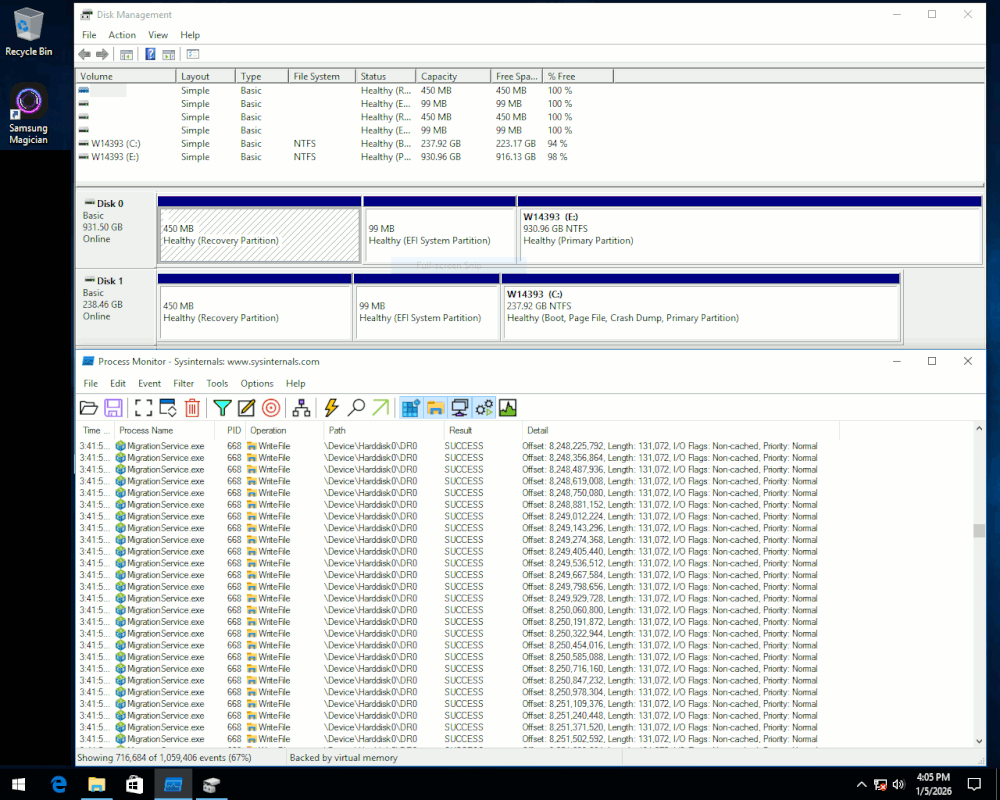
I finally pushed the button and tested it.
Samsung Magician does copy hidden partitions. Since it does not admit to doing
this, it's hard to say how many hidden partitions it is willing to copy.
On 05/01/2026 11:51, Mr. Man-wai Chang wrote:
On 5/1/2026 5:47 am, Steve wrote:
The holidays are over and I should have time to continue the project I
was working on 2 weeks ago.
I'm trying to switch to my new Samsung 870 EVO SATA 2.5 inch drive. The
paper in the box said to use Samsung Magician to clone the data. I'm
starting to believe that it doesn't work with a SATA drive!
....
What cloning software is going to work with my SATA SSD?
Take the chance to clean install Windows instead of cloning an old one.
Often, those cloning drives do so because they want the installed
programmes to work without having to reinstall them.
The holidays are over and I should have time to continue the project I
was working on 2 weeks ago.
I'm trying to switch to my new Samsung 870 EVO SATA 2.5 inch drive. The paper in the box said to use Samsung Magician to clone the data. I'm starting to believe that it doesn't work with a SATA drive!
People suggested I use a different cloning tool. I dismissed that idea because, certainly, Samsung Magician would work after I got my computer
to recognize the new drive. Well I did that. It's now showing on File Explorer as drive (J:) and I have formatted it. I tested it by copying a file with several pictures inside to (J:). It went right in and the
pictures opened just fine. I formatted again to empty it.
I looked at you tube videos about using Samsung Magician. They all
showed a ssd that did not look like my SATA drive.-a Samsung Magician
seems to have 2 ways to get to "Data Migration". One way pops up a
message that the drive isn't compatible. I originally feared that it was warning me that the new drive wasn't compatible with my computer. Going
in the other way, it shows my C: drive as the source drive but it
prompts me to connect the Samsung SSD. It doesn't see it even though it
IS there and it works.
What cloning software is going to work with my SATA SSD?
On 1/4/2026 4:47 PM, Steve wrote:
The holidays are over and I should have time to continue the project I
was working on 2 weeks ago.
I'm trying to switch to my new Samsung 870 EVO SATA 2.5 inch drive.
The paper in the box said to use Samsung Magician to clone the data.
I'm starting to believe that it doesn't work with a SATA drive!
People suggested I use a different cloning tool. I dismissed that idea
because, certainly, Samsung Magician would work after I got my
computer to recognize the new drive. Well I did that. It's now showing
on File Explorer as drive (J:) and I have formatted it. I tested it by
copying a file with several pictures inside to (J:). It went right in
and the pictures opened just fine. I formatted again to empty it.
I looked at you tube videos about using Samsung Magician. They all
showed a ssd that did not look like my SATA drive.-a Samsung Magician
seems to have 2 ways to get to "Data Migration". One way pops up a
message that the drive isn't compatible. I originally feared that it
was warning me that the new drive wasn't compatible with my computer.
Going in the other way, it shows my C: drive as the source drive but
it prompts me to connect the Samsung SSD. It doesn't see it even
though it IS there and it works.
What cloning software is going to work with my SATA SSD?
OK, here's my update:
I downloaded Macrium Reflect and used that, because several people recommended Macrium. I have now cloned all of my Drive C: onto the
Samsung SSD.
Back when I was still trying to get Samsung Magician to work, something
I read said just shut down and swap drives and Windows should boot right
up from the new drive.
Both drives are already in the computer so, while it was shut down, I unhooked the old hard drive and started it up. I didn't really expect it
to be that easy and of course it wasn't. As it tried to start up, it
listed my DVD drive (E:), followed by the SSD (J:). Then it moved on to
a screen that was blank except for a dash line in the upper left corner.
I plugged the old drive back in and waited for it to slowly start up so
I could get back here again.
I notice in File Explorer the drives listed are...
(C:)
Factory image (D:) (Which is probably a copy of Windows 7) (I did not
clone (D:) onto the new SSD.) It's on the old drive as a partition.
DVD RW E:
System (J:)a (J:) I had labeled as SSD (J:) before something changed it. "This folder is empty" comes up when I click it.
(K:) It shows the same list of files as when I click (C:). Why is that?
On 1/4/2026 4:47 PM, Steve wrote:
The holidays are over and I should have time to continue the project I was working on 2 weeks ago.
I'm trying to switch to my new Samsung 870 EVO SATA 2.5 inch drive. The paper in the box said to use Samsung Magician to clone the data. I'm starting to believe that it doesn't work with a SATA drive!
People suggested I use a different cloning tool. I dismissed that idea because, certainly, Samsung Magician would work after I got my computer to recognize the new drive. Well I did that. It's now showing on File Explorer as drive (J:) and I have formatted it. I tested it by copying a file with several pictures inside to (J:). It went right in and the pictures opened just fine. I formatted again to empty it.
I looked at you tube videos about using Samsung Magician. They all showed a ssd that did not look like my SATA drive.-a Samsung Magician seems to have 2 ways to get to "Data Migration". One way pops up a message that the drive isn't compatible. I originally feared that it was warning me that the new drive wasn't compatible with my computer. Going in the other way, it shows my C: drive as the source drive but it prompts me to connect the Samsung SSD. It doesn't see it even though it IS there and it works.
What cloning software is going to work with my SATA SSD?
OK, here's my update:
I downloaded Macrium Reflect and used that, because several people recommended Macrium. I have now cloned all of my Drive C: onto the Samsung SSD.
Back when I was still trying to get Samsung Magician to work, something I read said just shut down and swap drives and Windows should boot right up from the new drive.
Both drives are already in the computer so, while it was shut down, I unhooked the old hard drive and started it up. I didn't really expect it to be that easy and of course it wasn't. As it tried to start up, it listed my DVD drive (E:), followed by the SSD (J:). Then it moved on to a screen that was blank except for a dash line in the upper left corner.
I plugged the old drive back in and waited for it to slowly start up so I could get back here again.
I notice in File Explorer the drives listed are...
(C:)
Factory image (D:) (Which is probably a copy of Windows 7) (I did not clone (D:) onto the new SSD.) It's on the old drive as a partition.
DVD RW E:
System (J:)-a (J:) I had labeled as SSD (J:) before something changed it. "This folder is empty" comes up when I click it.
(K:) It shows the same list of files as when I click (C:). Why is that?
Steve wrote on 1/6/2026 7:23 PM:
On 1/4/2026 4:47 PM, Steve wrote:
The holidays are over and I should have time to continue the project I was working on 2 weeks ago.
I'm trying to switch to my new Samsung 870 EVO SATA 2.5 inch drive. The paper in the box said to use Samsung Magician to clone the data. I'm starting to believe that it doesn't work with a SATA drive!
People suggested I use a different cloning tool. I dismissed that idea because, certainly, Samsung Magician would work after I got my computer to recognize the new drive. Well I did that. It's now showing on File Explorer as drive (J:) and I have formatted it. I tested it by copying a file with several pictures inside to (J:). It went right in and the pictures opened just fine. I formatted again to empty it.
I looked at you tube videos about using Samsung Magician. They all showed a ssd that did not look like my SATA drive.-a Samsung Magician seems to have 2 ways to get to "Data Migration". One way pops up a message that the drive isn't compatible. I originally feared that it was warning me that the new drive wasn't compatible with my computer. Going in the other way, it shows my C: drive as the source drive but it prompts me to connect the Samsung SSD. It doesn't see it even though it IS there and it works.
What cloning software is going to work with my SATA SSD?
OK, here's my update:
I downloaded Macrium Reflect and used that, because several people recommended Macrium. I have now cloned all of my Drive C: onto the Samsung SSD.
Back when I was still trying to get Samsung Magician to work, something I read said just shut down and swap drives and Windows should boot right up from the new drive.
Both drives are already in the computer so, while it was shut down, I unhooked the old hard drive and started it up. I didn't really expect it to be that easy and of course it wasn't. As it tried to start up, it listed my DVD drive (E:), followed by the SSD (J:). Then it moved on to a screen that was blank except for a dash line in the upper left corner.
I plugged the old drive back in and waited for it to slowly start up so I could get back here again.
I notice in File Explorer the drives listed are...
(C:)
Factory image (D:) (Which is probably a copy of Windows 7) (I did not clone (D:) onto the new SSD.) It's on the old drive as a partition.
DVD RW E:
System (J:)a (J:) I had labeled as SSD (J:) before something changed it. "This folder is empty" comes up when I click it.
(K:) It shows the same list of files as when I click (C:). Why is that?
You'll never get this working.a Cut your losses and throw the damn thing away and buy yourself a computer from amazon or somewhere.
Get one that comes with all software loaded and working.a That's your best solution.
Macrium issues a TRIM, before the clone starts.
On 05/01/2026 11:51, Mr. Man-wai Chang wrote:
Take the chance to clean install Windows instead of cloning an old one.
Often, those cloning drives do so because they want the installed
programmes to work without having to reinstall them.
On 1/4/2026 4:47 PM, Steve wrote:How did it get the J: letter?
The holidays are over and I should have time to continue the project I
was working on 2 weeks ago.
I'm trying to switch to my new Samsung 870 EVO SATA 2.5 inch drive.
The paper in the box said to use Samsung Magician to clone the data.
I'm starting to believe that it doesn't work with a SATA drive!
People suggested I use a different cloning tool. I dismissed that idea
because, certainly, Samsung Magician would work after I got my
computer to recognize the new drive. Well I did that. It's now showing
on File Explorer as drive (J:) and I have formatted it. I tested it by
copying a file with several pictures inside to (J:). It went right in
and the pictures opened just fine. I formatted again to empty it.
I looked at you tube videos about using Samsung Magician. They all
showed a ssd that did not look like my SATA drive.-a Samsung Magician
seems to have 2 ways to get to "Data Migration". One way pops up a
message that the drive isn't compatible. I originally feared that it
was warning me that the new drive wasn't compatible with my computer.
Going in the other way, it shows my C: drive as the source drive but
it prompts me to connect the Samsung SSD. It doesn't see it even
though it IS there and it works.
What cloning software is going to work with my SATA SSD?
OK, here's my update:
I downloaded Macrium Reflect and used that, because several people recommended Macrium. I have now cloned all of my Drive C: onto the
Samsung SSD.
Back when I was still trying to get Samsung Magician to work, something
I read said just shut down and swap drives and Windows should boot right
up from the new drive.
Both drives are already in the computer so, while it was shut down, I unhooked the old hard drive and started it up. I didn't really expect it
to be that easy and of course it wasn't. As it tried to start up, it
listed my DVD drive (E:), followed by the SSD (J:). Then it moved on to
a screen that was blank except for a dash line in the upper left corner.
I plugged the old drive back in and waited for it to slowly start up so
I could get back here again.
I notice in File Explorer the drives listed are...
(C:)
Factory image (D:) (Which is probably a copy of Windows 7) (I did not
clone (D:) onto the new SSD.) It's on the old drive as a partition.
DVD RW E:
System (J:)-a (J:) I had labeled as SSD (J:) before something changed it. "This folder is empty" comes up when I click it.
(K:) It shows the same list of files as when I click (C:). Why is that?
On 1/4/2026 4:47 PM, Steve wrote:
The holidays are over and I should have time to continue the project I
was working on 2 weeks ago.
I'm trying to switch to my new Samsung 870 EVO SATA 2.5 inch drive.
The paper in the box said to use Samsung Magician to clone the data.
I'm starting to believe that it doesn't work with a SATA drive!
People suggested I use a different cloning tool. I dismissed that idea
because, certainly, Samsung Magician would work after I got my
computer to recognize the new drive. Well I did that. It's now showing
on File Explorer as drive (J:) and I have formatted it. I tested it by
copying a file with several pictures inside to (J:). It went right in
and the pictures opened just fine. I formatted again to empty it.
I looked at you tube videos about using Samsung Magician. They all
showed a ssd that did not look like my SATA drive.-a Samsung Magician
seems to have 2 ways to get to "Data Migration". One way pops up a
message that the drive isn't compatible. I originally feared that it
was warning me that the new drive wasn't compatible with my computer.
Going in the other way, it shows my C: drive as the source drive but
it prompts me to connect the Samsung SSD. It doesn't see it even
though it IS there and it works.
What cloning software is going to work with my SATA SSD?
OK, here's my update:
I downloaded Macrium Reflect and used that, because several people recommended Macrium. I have now cloned all of my Drive C: onto the
Samsung SSD.
Back when I was still trying to get Samsung Magician to work, something
I read said just shut down and swap drives and Windows should boot right
up from the new drive.
Both drives are already in the computer so, while it was shut down, I unhooked the old hard drive and started it up. I didn't really expect it
to be that easy and of course it wasn't. As it tried to start up, it
listed my DVD drive (E:), followed by the SSD (J:). Then it moved on to
a screen that was blank except for a dash line in the upper left corner.
I plugged the old drive back in and waited for it to slowly start up so
I could get back here again.
I notice in File Explorer the drives listed are...
(C:)
Factory image (D:) (Which is probably a copy of Windows 7) (I did not
clone (D:) onto the new SSD.) It's on the old drive as a partition.
DVD RW E:
System (J:)-a (J:) I had labeled as SSD (J:) before something changed it. "This folder is empty" comes up when I click it.
(K:) It shows the same list of files as when I click (C:). Why is that?
On 05/01/2026 05:26, Paul wrote:
Macrium issues a TRIM, before the clone starts.
Just one?
One would hope it TRIMs the whole area it's going to use.
On 07/01/2026 01:23, Steve wrote:
On 1/4/2026 4:47 PM, Steve wrote:How did it get the J: letter?
The holidays are over and I should have time to continue the project I was working on 2 weeks ago.
I'm trying to switch to my new Samsung 870 EVO SATA 2.5 inch drive. The paper in the box said to use Samsung Magician to clone the data. I'm starting to believe that it doesn't work with a SATA drive!
People suggested I use a different cloning tool. I dismissed that idea because, certainly, Samsung Magician would work after I got my computer to recognize the new drive. Well I did that. It's now showing on File Explorer as drive (J:) and I have formatted it. I tested it by copying a file with several pictures inside to (J:). It went right in and the pictures opened just fine. I formatted again to empty it.
I looked at you tube videos about using Samsung Magician. They all showed a ssd that did not look like my SATA drive.-a Samsung Magician seems to have 2 ways to get to "Data Migration". One way pops up a message that the drive isn't compatible. I originally feared that it was warning me that the new drive wasn't compatible with my computer. Going in the other way, it shows my C: drive as the source drive but it prompts me to connect the Samsung SSD. It doesn't see it even though it IS there and it works.
What cloning software is going to work with my SATA SSD?
OK, here's my update:
I downloaded Macrium Reflect and used that, because several people recommended Macrium. I have now cloned all of my Drive C: onto the Samsung SSD.
Back when I was still trying to get Samsung Magician to work, something I read said just shut down and swap drives and Windows should boot right up from the new drive.
Both drives are already in the computer so, while it was shut down, I unhooked the old hard drive and started it up. I didn't really expect it to be that easy and of course it wasn't. As it tried to start up, it listed my DVD drive (E:), followed by the SSD (J:). Then it moved on to a screen that was blank except for a dash line in the upper left corner.
I plugged the old drive back in and waited for it to slowly start up so I could get back here again.
I notice in File Explorer the drives listed are...
(C:)
Factory image (D:) (Which is probably a copy of Windows 7) (I did not clone (D:) onto the new SSD.) It's on the old drive as a partition.
DVD RW E:
System (J:)-a (J:) I had labeled as SSD (J:) before something changed it. "This folder is empty" comes up when I click it.
(K:) It shows the same list of files as when I click (C:). Why is that?
It should not have any partitions on it before cloning therefore it should not have had any drive letters.
My main windows machine two drives are cloned monthly.
There are 3 essential partitions that MUST be cloned:
1)-a Unformatted Primary, (no name) (none), 128.0 MB.
2)-a FAT32 (LBA) Primary, NO NAME (none), 100.0 MB.
3)-a 980 (C:) NTFS Primary, 465.54 GB.
The clone's first two partition names are the same as above.
The 3rd partition is named 980 (D:) NTFS Primary, 465.54 GB since it is
not the active drive.-a If I booted from that drive then it would be named C:.
The other machines are similar.
Paul in Houston TX wrote on 1/6/2026 8:55 PM:
My main windows machine two drives are cloned monthly.
There are 3 essential partitions that MUST be cloned:
1)-a Unformatted Primary, (no name) (none), 128.0 MB.
2)-a FAT32 (LBA) Primary, NO NAME (none), 100.0 MB.
3)-a 980 (C:) NTFS Primary, 465.54 GB.
The clone's first two partition names are the same as above.
The 3rd partition is named 980 (D:) NTFS Primary, 465.54 GB since it
is not the active drive.-a If I booted from that drive then it would be
named C:.
The other machines are similar.
#1, the Unformatted primary(128 MB) is the MSR partition
#2, the FAT32 LBA primary(100 MB) is the System(EFI)
#3-a Windows
-aThe usual setup for a GPT disk partition order is:
#1 System/EFI (100 MB)
#2 MSR (16 MB, 128 MB for large disks)
#3 Windows
#4 Windows Recovery
Was this an:
OEM device setup?
-a-(OEM deployments often use a diskpart script file to place MSR as the first partition rather than the GPT recommended guideline/location after
the System/EFI partition)
or
User Clean Install(using Media Creation Tool media or iso)?
-a- There have been reports of the MCT or MCT ISO placing the MSR as the first partition.
Note: Variation exists in the OEM deployments where the MSR partition is located in the GPT guideline/location(i.e. after the System/EFI and
before Windows)
...w-i|#-o-#-n|#a wrote:
Paul in Houston TX wrote on 1/6/2026 8:55 PM:
My main windows machine two drives are cloned monthly.
There are 3 essential partitions that MUST be cloned:
1)-a Unformatted Primary, (no name) (none), 128.0 MB.
2)-a FAT32 (LBA) Primary, NO NAME (none), 100.0 MB.
3)-a 980 (C:) NTFS Primary, 465.54 GB.
The clone's first two partition names are the same as above.
The 3rd partition is named 980 (D:) NTFS Primary, 465.54 GB since it
is not the active drive.-a If I booted from that drive then it would
be named C:.
The other machines are similar.
#1, the Unformatted primary(128 MB) is the MSR partition
#2, the FAT32 LBA primary(100 MB) is the System(EFI)
#3-a Windows
a-aThe usual setup for a GPT disk partition order is:
#1 System/EFI (100 MB)
#2 MSR (16 MB, 128 MB for large disks)
#3 Windows
#4 Windows Recovery
Was this an:
OEM device setup?
a-a-(OEM deployments often use a diskpart script file to place MSR as
the first partition rather than the GPT recommended guideline/location
after the System/EFI partition)
or
User Clean Install(using Media Creation Tool media or iso)?
a-a- There have been reports of the MCT or MCT ISO placing the MSR as
the first partition.
Note: Variation exists in the OEM deployments where the MSR partition
is located in the GPT guideline/location(i.e. after the System/EFI and
before Windows)
I'm not sure what the OP actually did but have the feeling that he
cloned only the C (windows) part and not the others.a Hard to figure out from what he wrote.
Paul in Houston TX wrote on 1/8/2026 6:03 PM:
...w-i|#-o-#-n|#a wrote:
Paul in Houston TX wrote on 1/6/2026 8:55 PM:
My main windows machine two drives are cloned monthly.
There are 3 essential partitions that MUST be cloned:
1)-a Unformatted Primary, (no name) (none), 128.0 MB.
2)-a FAT32 (LBA) Primary, NO NAME (none), 100.0 MB.
3)-a 980 (C:) NTFS Primary, 465.54 GB.
The clone's first two partition names are the same as above.
The 3rd partition is named 980 (D:) NTFS Primary, 465.54 GB since it is not the active drive.-a If I booted from that drive then it would be named C:.
The other machines are similar.
#1, the Unformatted primary(128 MB) is the MSR partition
#2, the FAT32 LBA primary(100 MB) is the System(EFI)
#3-a Windows
a-aThe usual setup for a GPT disk partition order is:
#1 System/EFI (100 MB)
#2 MSR (16 MB, 128 MB for large disks)
#3 Windows
#4 Windows Recovery
Was this an:
OEM device setup?
a-a-(OEM deployments often use a diskpart script file to place MSR as the first partition rather than the GPT recommended guideline/location after the System/EFI partition)
or
User Clean Install(using Media Creation Tool media or iso)?
a-a- There have been reports of the MCT or MCT ISO placing the MSR as the first partition.
Note: Variation exists in the OEM deployments where the MSR partition is located in the GPT guideline/location(i.e. after the System/EFI and before Windows)
I'm not sure what the OP actually did but have the feeling that he cloned only the C (windows) part and not the others.a Hard to figure out from what he wrote.
?
I thought he used samsung magician (several times), rejecting any other solution.
Probably not worth wasting any more of your time.
On Thu, 1/8/2026 9:58 PM, Hank Rogers wrote:
Paul in Houston TX wrote on 1/8/2026 6:03 PM:
...w-i|#-o-#-n|#a wrote:
Paul in Houston TX wrote on 1/6/2026 8:55 PM:
My main windows machine two drives are cloned monthly.
There are 3 essential partitions that MUST be cloned:
1)-a Unformatted Primary, (no name) (none), 128.0 MB.
2)-a FAT32 (LBA) Primary, NO NAME (none), 100.0 MB.
3)-a 980 (C:) NTFS Primary, 465.54 GB.
The clone's first two partition names are the same as above.
The 3rd partition is named 980 (D:) NTFS Primary, 465.54 GB since it is not the active drive.-a If I booted from that drive then it would be named C:.
The other machines are similar.
#1, the Unformatted primary(128 MB) is the MSR partition
#2, the FAT32 LBA primary(100 MB) is the System(EFI)
#3-a Windows
a-aThe usual setup for a GPT disk partition order is:
#1 System/EFI (100 MB)
#2 MSR (16 MB, 128 MB for large disks)
#3 Windows
#4 Windows Recovery
Was this an:
OEM device setup?
a-a-(OEM deployments often use a diskpart script file to place MSR as the first partition rather than the GPT recommended guideline/location after the System/EFI partition)
or
User Clean Install(using Media Creation Tool media or iso)?
a-a- There have been reports of the MCT or MCT ISO placing the MSR as the first partition.
Note: Variation exists in the OEM deployments where the MSR partition is located in the GPT guideline/location(i.e. after the System/EFI and before Windows)
I'm not sure what the OP actually did but have the feeling that he cloned only the C (windows) part and not the others.a Hard to figure out from what he wrote.
?
I thought he used samsung magician (several times), rejecting any other solution.
Probably not worth wasting any more of your time.
He'll figure it out.
Paul
How did it get the J: letter?
OK, here's my update:
I downloaded Macrium Reflect and used that, because several people
recommended Macrium. I have now cloned all of my Drive C: onto the
Samsung SSD.
Back when I was still trying to get Samsung Magician to work,
something I read said just shut down and swap drives and Windows
should boot right up from the new drive.
Both drives are already in the computer so, while it was shut down, I
unhooked the old hard drive and started it up. I didn't really expect
it to be that easy and of course it wasn't. As it tried to start up,
it listed my DVD drive (E:), followed by the SSD (J:). Then it moved
on to a screen that was blank except for a dash line in the upper left
corner.
I plugged the old drive back in and waited for it to slowly start up
so I could get back here again.
I notice in File Explorer the drives listed are...
(C:)
Factory image (D:) (Which is probably a copy of Windows 7) (I did not
clone (D:) onto the new SSD.) It's on the old drive as a partition.
DVD RW E:
System (J:)-a (J:) I had labeled as SSD (J:) before something changed
it. "This folder is empty" comes up when I click it.
(K:) It shows the same list of files as when I click (C:). Why is that?
It should not have any partitions on it before cloning therefore it
should not have had any drive letters.
...w-i|#-o-#-n|#-a wrote:I used the drag and drop method and moved everything Macrium showed in
Paul in Houston TX wrote on 1/6/2026 8:55 PM:
My main windows machine two drives are cloned monthly.
There are 3 essential partitions that MUST be cloned:
1)-a Unformatted Primary, (no name) (none), 128.0 MB.
2)-a FAT32 (LBA) Primary, NO NAME (none), 100.0 MB.
3)-a 980 (C:) NTFS Primary, 465.54 GB.
The clone's first two partition names are the same as above.
The 3rd partition is named 980 (D:) NTFS Primary, 465.54 GB since it
is not the active drive.-a If I booted from that drive then it would
be named C:.
The other machines are similar.
#1, the Unformatted primary(128 MB) is the MSR partition
#2, the FAT32 LBA primary(100 MB) is the System(EFI)
#3-a Windows
-a-aThe usual setup for a GPT disk partition order is:
#1 System/EFI (100 MB)
#2 MSR (16 MB, 128 MB for large disks)
#3 Windows
#4 Windows Recovery
Was this an:
OEM device setup?
-a-a-(OEM deployments often use a diskpart script file to place MSR as
the first partition rather than the GPT recommended guideline/location
after the System/EFI partition)
or
User Clean Install(using Media Creation Tool media or iso)?
-a-a- There have been reports of the MCT or MCT ISO placing the MSR as
the first partition.
Note: Variation exists in the OEM deployments where the MSR partition
is located in the GPT guideline/location(i.e. after the System/EFI and
before Windows)
I'm not sure what the OP actually did but have the feeling that he
cloned only the C (windows) part and not the others.-a Hard to figure out from what he wrote.
Paul in Houston TX wrote on 1/8/2026 6:03 PM:
...w|e-i|a-#|e-o|e-#|e-n|a-#-a wrote:
Paul in Houston TX wrote on 1/6/2026 8:55 PM:
My main windows machine two drives are cloned monthly.
There are 3 essential partitions that MUST be cloned:
1)|e-a Unformatted Primary, (no name) (none), 128.0 MB.
2)|e-a FAT32 (LBA) Primary, NO NAME (none), 100.0 MB.
3)|e-a 980 (C:) NTFS Primary, 465.54 GB.
The clone's first two partition names are the same as above.
The 3rd partition is named 980 (D:) NTFS Primary, 465.54 GB since it
is not the active drive.|e-a If I booted from that drive then it would >>>> be named C:.
The other machines are similar.
#1, the Unformatted primary(128 MB) is the MSR partition
#2, the FAT32 LBA primary(100 MB) is the System(EFI)
#3|e-a Windows
-a|e-aThe usual setup for a GPT disk partition order is:
#1 System/EFI (100 MB)
#2 MSR (16 MB, 128 MB for large disks)
#3 Windows
#4 Windows Recovery
Was this an:
OEM device setup?
-a|e-a-(OEM deployments often use a diskpart script file to place MSR as >>> the first partition rather than the GPT recommended guideline/
location after the System/EFI partition)
or
User Clean Install(using Media Creation Tool media or iso)?
-a|e-a- There have been reports of the MCT or MCT ISO placing the MSR as >>> the first partition.
Note: Variation exists in the OEM deployments where the MSR partition
is located in the GPT guideline/location(i.e. after the System/EFI
and before Windows)
I'm not sure what the OP actually did but have the feeling that he
cloned only the C (windows) part and not the others.-a Hard to figure
out from what he wrote.
?
I thought he used samsung magician (several times), rejecting any other solution.
Probably not worth wasting any more of your time.
On 1/4/2026 4:47 PM, Steve wrote:
The holidays are over and I should have time to continue the project I
was working on 2 weeks ago.
I'm trying to switch to my new Samsung 870 EVO SATA 2.5 inch drive.
The paper in the box said to use Samsung Magician to clone the data.
I'm starting to believe that it doesn't work with a SATA drive!
People suggested I use a different cloning tool. I dismissed that idea
because, certainly, Samsung Magician would work after I got my
computer to recognize the new drive. Well I did that. It's now showing
on File Explorer as drive (J:) and I have formatted it. I tested it by
copying a file with several pictures inside to (J:). It went right in
and the pictures opened just fine. I formatted again to empty it.
I looked at you tube videos about using Samsung Magician. They all
showed a ssd that did not look like my SATA drive.-a Samsung Magician
seems to have 2 ways to get to "Data Migration". One way pops up a
message that the drive isn't compatible. I originally feared that it
was warning me that the new drive wasn't compatible with my computer.
Going in the other way, it shows my C: drive as the source drive but
it prompts me to connect the Samsung SSD. It doesn't see it even
though it IS there and it works.
What cloning software is going to work with my SATA SSD?
OK, here's my update:
I downloaded Macrium Reflect and used that, because several people recommended Macrium. I have now cloned all of my Drive C: onto the
Samsung SSD.
Back when I was still trying to get Samsung Magician to work, something
I read said just shut down and swap drives and Windows should boot right
up from the new drive.
Both drives are already in the computer so, while it was shut down, I unhooked the old hard drive and started it up. I didn't really expect it
to be that easy and of course it wasn't. As it tried to start up, it
listed my DVD drive (E:), followed by the SSD (J:). Then it moved on to
a screen that was blank except for a dash line in the upper left corner.
I plugged the old drive back in and waited for it to slowly start up so
I could get back here again.
I notice in File Explorer the drives listed are...
(C:)
Factory image (D:) (Which is probably a copy of Windows 7) (I did not
clone (D:) onto the new SSD.) It's on the old drive as a partition.
DVD RW E:
System (J:)-a (J:) I had labeled as SSD (J:) before something changed it. "This folder is empty" comes up when I click it.
(K:) It shows the same list of files as when I click (C:). Why is that?
On 1/6/2026 10:30 PM, Brian Gregory wrote:
How did it get the J: letter?
OK, here's my update:
I downloaded Macrium Reflect and used that, because several people recommended Macrium. I have now cloned all of my Drive C: onto the Samsung SSD.
Back when I was still trying to get Samsung Magician to work, something I read said just shut down and swap drives and Windows should boot right up from the new drive.
Both drives are already in the computer so, while it was shut down, I unhooked the old hard drive and started it up. I didn't really expect it to be that easy and of course it wasn't. As it tried to start up, it listed my DVD drive (E:), followed by the SSD (J:). Then it moved on to a screen that was blank except for a dash line in the upper left corner.
I plugged the old drive back in and waited for it to slowly start up so I could get back here again.
I notice in File Explorer the drives listed are...
(C:)
Factory image (D:) (Which is probably a copy of Windows 7) (I did not clone (D:) onto the new SSD.) It's on the old drive as a partition.
DVD RW E:
System (J:)-a (J:) I had labeled as SSD (J:) before something changed it. "This folder is empty" comes up when I click it.
(K:) It shows the same list of files as when I click (C:). Why is that?
It should not have any partitions on it before cloning therefore it should not have had any drive letters.
Back when I was still trying to use Samsung Magician, people suggested
I probably needed to format the new drive and assign a drive letter.
When I did that, I didn't choose J:, it just showed up that way.
I needed to take a few days off. I found myself (just one day) waking up at 4 AM
thinking about this and then not being able to get back to sleep. I just started to
reply to a few of your comments this morning.
Here's the thing... when this computer was still pretty new, the original hard drive
started making some different noises. I feared it might fail and got advice on what
was a very dependable new hard drive. I settled on the Western Digital drive that
I have been using for maybe 12 years now.
I bought that drive and transferred everything over and took out the original drive.
After all this time, I don't remember how I did it but it was super easy.
I fully expected that switching over to the new SSD would also be super easy.
Obviously that has not been the case.
I'm not giving up. There are still more things I can try.
I used the drag and drop method and moved everything Macrium showed in the original hard drive.
On 1/4/2026 7:58 PM, Jeff Barnett wrote:...
On 1/4/2026 3:20 PM, Roger Mills wrote:
On 04/01/2026 21:47, Steve wrote:
The holidays are over and I should have time to continue the project
I was working on 2 weeks ago.
Have you installed the SATA SSD inside the computer alongside the
existing drive? If so, that could be the problem. I have a feeling
that Magician expects the SSD to be an external drive, mounted in a
suitable enclosure and connected by USB3. That's certainly what
happened when I replaced a rotating drive with an SSD in a laptop a
few years ago. That worked fine. That was the only option in my case
because the laptop couldn't accommodate more than one internal drive
at a time.
Maybe worth a try?
I think you are correct. The OP should consider buying a cheap SSD caddy
with SATA connections that will plug into a USB 3 port. I've used
Samsung software a few times to clone a live C disk to an SSD in a caddy
and its all went smoothly. (Live means that windows was running normally
while the clone was in progress.)
Thanks. I'll look into buying something if I don't find a way to do it, >where it is, real soon. This all makes sense and explains why Samsung >Magician can see the drive but still prompts me to connect the SSD.
| Sysop: | Amessyroom |
|---|---|
| Location: | Fayetteville, NC |
| Users: | 54 |
| Nodes: | 6 (0 / 6) |
| Uptime: | 17:43:41 |
| Calls: | 742 |
| Files: | 1,218 |
| D/L today: |
4 files (8,203K bytes) |
| Messages: | 184,414 |
| Posted today: | 1 |